
Set up music and song requests
What chat types, what a request costs in the order Pyre checks it, approving requests before they play, and the two addresses your player runs on are all documented in Song requests. Read that first if the question is “how do my viewers use this”.
This guide is the half that guide sends you here for: the blocklist, the numeric
track rules, the pricing, adding the card to a scene, and the two wizards. On
Pyre.Stream the page is Songs & Media, and its subtitle states the whole scope:
Let viewers request tracks from chat or channel points, run the queue live, and show what is playing on stream.
Five tabs: Queue, Approval, Blocklist, Settings and Browser sources. Queue and Approval are the live surfaces the portal also carries. The other three are this guide.
Settings answers a question before it offers a control
Section titled “Settings answers a question before it offers a control”Settings does not open on a form. It opens on Your music setup, a card of six rows that says what your music currently does, with a Change button on each row and two buttons in its header: What you’ll hear and Set up my music.
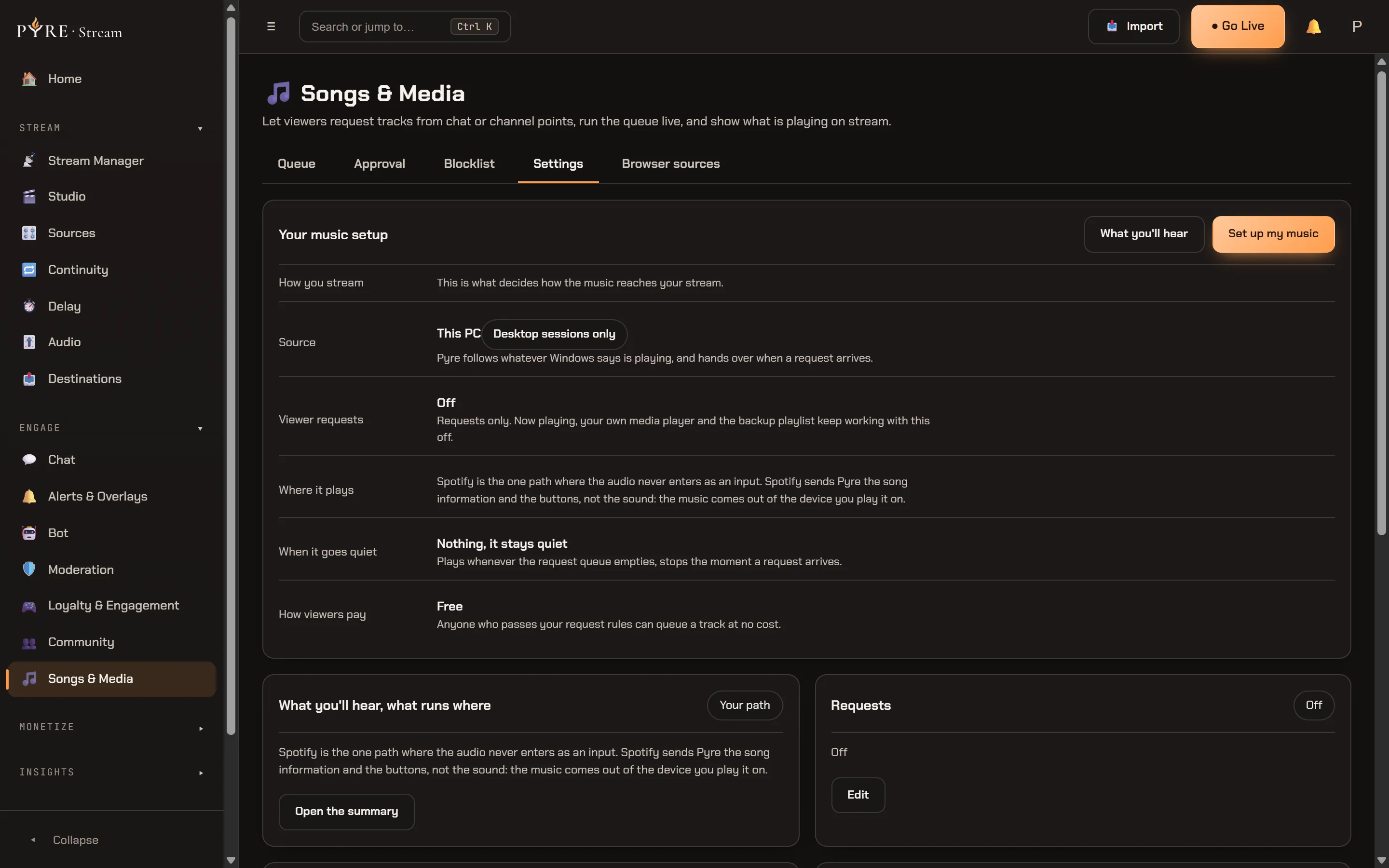
The six rows are always the same six, in this order, even when a feature is off. A row that disappeared would read as a missing feature, and the point of the card is that it is the complete inventory.
| Row | What it answers |
|---|---|
How you stream | Which studios you go live from. This is what decides every other row’s plumbing. |
Source | Who is actually playing the music. |
Viewer requests | On, on with approval, or off. |
Where it plays | How the sound reaches your mixer, if it does at all. |
When it goes quiet | What fills the silence when the queue empties. |
How viewers pay | How many of the three paid routes are live, or Free. |
Two things about that card are deliberate and worth knowing.
Requests being off does not switch the music off. Only the Viewer requests row is
governed by that switch, and the row says so:
Requests only. Now playing, your own media player and the backup playlist keep working with this off.
Nothing is answered until you answer it. With no setup on file the rows render blank rather than guessing, and every per row Change button disappears, leaving exactly one thing to press. Six greyed buttons beside one live one is a page arguing with itself.
Under the summary sit one line section cards, one per thing you can change: What you’ll hear, what runs where, Requests, Cost, Your music source, Music audio, Now Playing card, When the queue is empty and Blocklist. The card for the empty queue is dropped, not disabled, while Pyre is the one playing: on that source the idle playlist lives inside the source card, where the promise that your playlist fills every silence is actually made.
The five step flow
Section titled “The five step flow”Set up my music opens a guided flow. Five steps, always shown as five:
-
How you stream. Tick the studios you go live from: the Pyre.Stream desktop app, Pyre Cloud Studio, or Custom setup for your own streaming software. The two Pyre studios are a set and you can have both. Custom is exclusive: ticking it clears the other two, because your software is yours and Pyre cannot reach into it alongside its own.
-
Source. Who plays the music: Pyre plays it (viewer requests as they come and your own playlist filling every silence, nothing to install, and the one option that works in Cloud Studio), This PC (Pyre follows whatever Windows says is playing, desktop sessions only), or Spotify (Pyre reads and controls your own Spotify, and requests drop into your Spotify queue).
-
Connect. Only Spotify needs this, so on every other source the step renders as
Connect · not neededrather than vanishing. A step you can see was considered and ruled out is a different message from a step that silently was not there. -
Requests. The switch, who may request, and whether requests wait for your approval.
-
Sound and sources. The closing panel, below.
The draft is not your settings. The flow opens as a copy and only a confirmed step writes anything, so closing it half way is always safe, and re-running it changes nothing you do not confirm.
If Pyre can prove which studios you use, step 1 opens with a detection line saying so, and it only claims the halves it actually read: a running cloud studio on your account, or Pyre.Stream having gone live from this PC in the last month. A clause it cannot prove is dropped rather than softened into a guess.
What you’ll hear, what runs where
Section titled “What you’ll hear, what runs where”The closing panel of the flow, the top card of Settings, and the What you’ll hear button all open the same thing: five fixed rows describing your setup. It is the page to come back to when something is silent, so its shape never changes, only its content.
| Row | The question it answers |
|---|---|
Sources to add | What you place in a scene yourself. |
What must stay open | What closing would stop the music. |
What your stream hears | What your viewers get, and on which input. |
What you hear | What comes out of your own speakers. |
The one setting | The single thing that is worth checking. |
A sixth row, Ads on YouTube tracks, appears whenever Pyre is the one playing, because that is a fact about the catalogue rather than about the plumbing: a monetized YouTube track can carry an ad and its audio goes out with the music. On the desktop app you can sign the player into YouTube Premium and the ads go; the cloud player is anonymous and cannot use your Premium, so the idle playlist is the lever there, and a SoundCloud set keeps the continuous half ad free.
Two names, and there is deliberately no third
Section titled “Two names, and there is deliberately no third”This is the vocabulary the whole feature is built on, and it is worth learning once.
Pyre Music Audio is the audio input. It is a real input in your mixer with its
own level, its own mute and its own track, exactly like a microphone, and it is the
same name on every path that has one. Set the music volume there rather than in Pyre.
The pane says it in one line:
Your music arrives on its own audio input called ‘Pyre Music Audio’, with its own level, its own mute and its own track. Set the volume there rather than here.
Pyre Now Playing card is the visual. A browser source, 520 × 140, showing art, title, artist and progress. It makes no sound, so moving it, resizing it, hiding it or putting it on one scene and not another never touches the music.
There is no third name. The player itself is not something you arrange: it is an input on one path and a window on two, never a thing you place in a scene.
The four paths, and who owns each one
Section titled “The four paths, and who owns each one”Which plumbing carries your music is derived from your answers, not chosen from a list. Nothing on the closing panel is a control: it states what your setup decided.
| Your setup | The path | Who does the work |
|---|---|---|
| Pyre.Stream desktop app | app capture | Pyre, with one Fix it for me. |
| Pyre Cloud Studio | pod reroute | Pyre. There is nothing for you to do. |
| Custom setup | pop-out capture | You, in three steps. Never a Fix it for me. |
| Spotify as your source | none | Nobody. There is no Pyre input on this path at all. |
Desktop app. The app is the player. Fix it for me adds a capture of the Pyre
player’s sound alone to your OBS and names it Pyre Music Audio; nothing else on your
PC comes with it. Two honest caveats ride with it: if you also capture your whole
desktop audio the music is in the mix twice, so mute one, and the button only appears
once the running studio has answered, rather than appearing and then vanishing on a
platform that cannot do it.
Cloud Studio. The player rides along inside the cloud studio and its sound is rerouted into the mixer as that same input. Nothing of yours has to stay open: you can close Pyre, close the tab and shut your laptop. The one thing to set is monitoring, in the caution above. One extra detail lives on this path only: YouTube requires its player visible wherever it plays, so while a YouTube track is playing the cloud player keeps a small 200 by 200 video parked out of the way on your canvas, and it disappears between YouTube tracks.
Custom setup. Your software, your hands, and Pyre says so rather than offering a
button that could not work. Three steps: open the pop-out player window and keep it
open for the whole stream (minimised is fine, closed stops the music); capture that
window’s audio on its own and name the capture Pyre Music Audio; and add the Now
Playing card if you want the visual. Point the capture at the window and not at your
whole desktop audio, which brings everything else on your PC with it. If your software
has no single application capture, route the pop-out through a virtual audio device and
capture that. Pyre cannot check any of this from here, and says so: play a track and
watch the meter move on that input alone.
Spotify. Spotify sends Pyre the song information and the buttons, not the sound.
The music comes out of the device you are playing on, so your stream carries it only if
that device is what your encoder captures, and in a cloud session it never is. This is
the one path where you can hear music your viewers cannot, and the panel says outright
that there is no Pyre Music Audio here and no separate track for it.
The Blocklist tab
Section titled “The Blocklist tab”Three independent lists, each with its own add box and its own rows.
- Tracks.
Block a specific track by its YouTube video id or SoundCloud path. Matching ignores case, so any capitalization blocks the same track. - Uploaders.
Block everything from a channel or artist by name. - Requesters.
Block one viewer from requesting. Use their platform key, for example twitch:12345.
Values are stored and matched in lower case, which is why the Tracks hint names it: two YouTube ids differing only by case would collide here, and that is an accepted limit stated up front rather than left for you to discover through a track that mysteriously will not queue.
An empty list reads Nothing blocked here yet. A list that has never loaded, or whose
last load failed, does not say that. It says Could not load the blocklist. Retrying shortly.,
because telling you nothing is blocked when the truth is that nobody knows would be the
worse answer. Blocking something applies to the next request, not retroactively to what
is already queued.
The numeric track rules
Section titled “The numeric track rules”These sit under Advanced in the Requests view, and the fold’s summary counts them for you, saying how many are changed from their defaults so you know whether it is worth opening.
- Longest track.
Seconds. 0 for no limit. - Minimum view count.
0 for no floor. - YouTube categories requests may come from, a preset rather than a box you type numbers into: Music only (recommended), Music + Entertainment, Any category, or Custom (ids), which is the only one that shows a raw id field.
The category help is the useful part, because the setting bites in a way people do not expect:
YouTube files every video in one category, and it is not always the obvious one:plenty of real songs are filed under Entertainment or People and Blogs. Music onlyis the tidiest setting and refuses those; if your viewers hit refusals for songsthat clearly are songs, Music + Entertainment is the usual fix. SoundCloud has nocategories, so this never affects a SoundCloud request.Track length carries its own caveat, folded next to it:
SoundCloud does not report a track length before it plays, so the maximum length isenforced by the on-stream player for SoundCloud tracks rather than at request time.The same fold holds the cooldown, the per viewer cap, the queue cap and the votes needed to skip. Those are the caps Song requests walks through, in the order Pyre checks them.
Above the fold, Where requests may come from is two boxes, YouTube and
SoundCloud, with Pick at least one. Both unticked is not a setting, so a save with neither is refused.
Spotify is not one of those boxes: it is a music source rather than a request source,
and while it is your source the note beside them reads
While Spotify is your music source the queue takes Spotify links only. Switch back to your streaming PC to take YouTube and SoundCloud requests.
How viewers pay
Section titled “How viewers pay”Every price a song request can carry lives in one wizard, and it has exactly two
entry points: the How viewers pay row of the summary card, and Change how viewers
pay on the Cost card. Both open the same thing, which reads Set up rather
than Change while nothing is charged yet.
That consolidation is the feature. Loyalty points used to be the only price the page admitted existed, while two channel point routes lived on another tab entirely, with nothing connecting them.
Step 1 offers four cards. Three of them are checkboxes that coexist, and the fourth is a radio, because it is not a fourth method:
- Pyre points. Viewers earn points by watching and spend them with
!sr. This is the only route that works on every platform you stream to at once, including the ones with no channel points of their own. - Twitch channel points. Pyre creates the reward on your channel, keeps its cost in line with what you set here, and hands the points back itself whenever it turns a request away. Viewers type the song into the reward’s own box, so there is no command to learn.
- Kick channel points. Pyre creates the reward on your Kick channel and builds it to ask the viewer for the song, so it can never be a reward that collects no text.
- Free.
Anyone who passes your request rules can queue a track at no cost.Ticking it clears the others, because free is what none of the three means.
Which methods are on is derived from your settings, never stored separately. That has one consequence worth stating plainly: a points price of zero is not a free points route, it is the points route switched off. Set the price back above zero and the method is on again.
Two things the wizard says on that screen, both of which surprise people:
- All three at once is a normal answer. A viewer on Twitch sees your reward and your chat command and picks; a viewer on YouTube only has the command. Pyre charges whichever route they used, once, never both.
- A channel point redemption never also spends loyalty points. The reward is the price. Your points price and your reward cost are two separate numbers on purpose, and neither has to match the other.
Step 2 is a read, not a form
Section titled “Step 2 is a read, not a form”The second step has no controls. It states what a viewer will pay in one sentence, then lists every route and what happens when a request is refused, including the routes you have switched off, so you can see that they exist.
- Pyre points: refused before anything is spent. The checks run first, so a blocked track never costs a point.
- Twitch reward: refused redemptions are cancelled on Twitch, which hands the points straight back. A request Pyre plays is closed as fulfilled. Pyre creates those rewards itself precisely because Twitch only lets the app that made a reward return its points; a reward you made by hand still exists on your channel, but Pyre would have to ignore its redemptions rather than take points it cannot give back.
- Kick reward: this is the asymmetry, and the wizard states it first, in every state of the card, never inside a fold:
Kick can't always refund rejected requests: points may be consumed. On Twitch, Pyrehands the points back when it turns a request away. Kick's API has no documentedrefund, so a request we refuse may cost your viewer their points anyway. Keep thereward cheap, or use chat requests instead.- Command:
!sr <link or search>is the points route. The two rewards need no command.
Your request rules run on top of all three. Levels, cooldowns, the per viewer cap, the blocklist and the queue cap apply to a redeemed request exactly as they apply to a typed one, which is what the refund is for.
A Copy for my chat button turns the whole thing into one plain sentence you can paste into your own chat.
Two limits worth knowing before you go looking for a button. The wizard names no reward cost it has not read from the platform, so a resting page says a reward exists rather than inventing what it charges. And only the channel owner can create, change or unlink a channel point reward, because the reward is made against their own account on the platform: a moderator or an operator sees the real state and gets that sentence instead of buttons that could only fail.
The Browser sources tab
Section titled “The Browser sources tab”One slot, Now playing, and a pointer.
If the card does not exist yet the row offers Create. Once it does, the row carries its read only address with Copy, and Add to scene ▾, which is the piece Song requests hands over to this page: adding a browser source to a scene needs a Pyre studio the portal cannot reach. The scene menu behaves exactly as it does for any other widget, described in Widgets, media and themes.
The tab’s own note carries the credential rule and one correction:
Add the address to OBS as a Browser source. Anyone with the address can see thatoverlay, so treat it like a password. The player itself is not a browser source anymore: it runs in the Stream Manager, and the stream hears it through your desktopaudio capture.If you still have a Song player browser source from before that change, its row is still there, its address still copies so you can find the source in OBS, and the only action offered is deleting it. It cannot be created again.
The second card on this tab has no controls at all, on purpose:
Channel point rewards used to live on this tab. They are part of the price now, sothey moved into How viewers pay.Under it is a button that opens the wizard. A tab that silently loses a control teaches people the feature was removed, so it says where the control went instead.
The address is a credential, and rolling it is one action
Section titled “The address is a credential, and rolling it is one action”Your player address and your Now Playing card address are the same token, which is why rotating it changes both. Where the address is offered on Pyre.Stream, so is the roll, labelled Roll it; in the Pyre.Bot portal the same rotation is the button called Roll both addresses. Either way the confirmation states the cost before you press it, and the cost is real: the old address stops working immediately, the card in your scenes goes blank until you paste the new one in, and your pop-out player bookmark stops working too. Overlays and widgets quotes that confirmation in full.
The player address gets its own card on the Queue tab, and only on the custom setup path, where the pop-out genuinely is the player. A desktop creator already has the app, and offering a second player would be two players on one queue; a cloud creator’s player runs on the pod with nothing of theirs to open.