
Set up your destinations
A destination is one platform Pyre sends your stream to. You can have several, and Pyre sends to all of them from a single upload, so streaming to three platforms costs you the bandwidth of one.
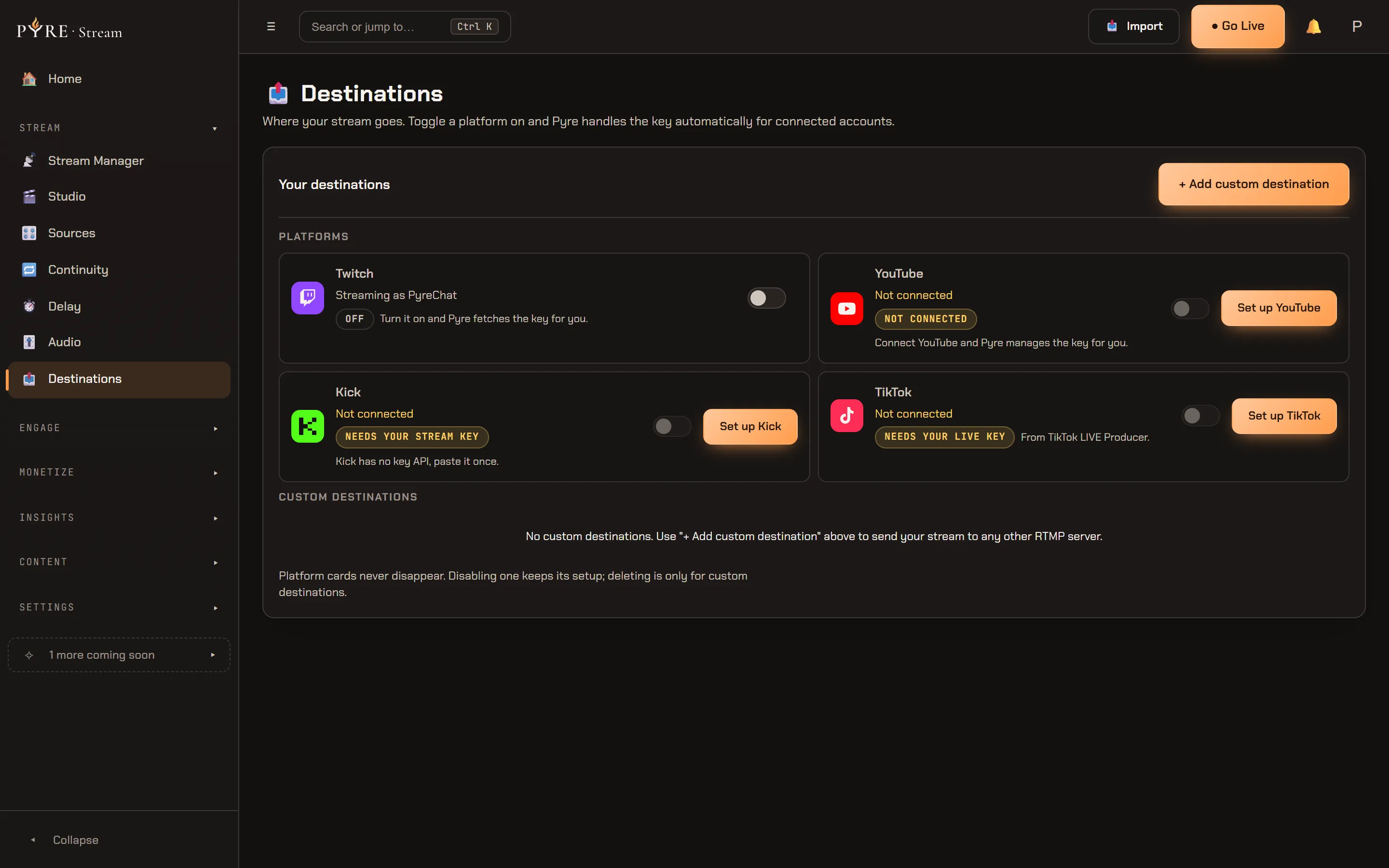
The Destinations page has two parts. Platforms is a fixed row of four cards: Twitch, YouTube, Kick and TikTok. All four are always there, whether or not you have ever touched them, because the platform you most need to set up is the one that would otherwise be missing. Custom destinations is everything else, and it starts empty.
Connect a platform
Section titled “Connect a platform”-
Open Destinations in the Pyre.Stream sidebar.
-
Find the platform’s card. The four cards are the picker. There is no “add a platform” flow to hunt for, and the button on a card that is not set up yet always reads
Set upfollowed by the platform name. -
Twitch and YouTube send you to the platform. Pyre opens that platform’s own login page, so Pyre never sees your platform password. It asks for everything it needs in one request rather than interrupting you again later, which is why the permission list looks long: it covers going live, reading and sending chat, and updating your stream info.
-
Kick and TikTok ask you for a key instead. Neither platform will hand a stream key to an app, so their cards open a small form with a Label, a Server URL and a Stream key for you to paste. The key is optional at this point, so you can save the destination now and fill the key in later.
-
Come back to Pyre and switch the destination on. A newly connected platform reads off. Enabling a destination is always your explicit click, so a connection you made to fix chat never quietly adds itself to your next stream.
What the card is telling you
Section titled “What the card is telling you”Every platform card carries a short status and one honest next step. These are the states you will actually meet:
| The card says | What it means | What to do |
|---|---|---|
Not connected | Pyre has no link to that account | Connect Twitch and Pyre manages the key for you. |
Needs extra permission | Signed in, but without the permission that reads your stream key | The toggle is replaced by a Reconnect button. Press it and approve. |
Off with Turn it on and Pyre fetches the key for you. | Connected, no destination behind it yet | Flip the toggle. Pyre fetches the key and the destination lands enabled. |
Off with Flip it on to stream here. | Set up and ready, but excluded from your next stream | Flip the toggle. |
Needs your stream key | The destination exists but has no key | Open Details and paste it to go live here. |
Needs your LIVE key | TikTok, with nothing pasted yet | From TikTok LIVE Producer. |
Ready or Ready, key auto-managed | It will receive your next stream | Nothing. |
The Reconnect state is worth knowing on sight. When Twitch is signed in but the
streaming permission is missing, Pyre does not show you a toggle that would fail:
it removes the toggle and puts a Reconnect Twitch button in its place, because a
toggle that cannot work is worse than no toggle at all.
What each destination can do
Section titled “What each destination can do”Every card in the table below can receive your stream. The differences are in everything around it: where the key comes from, whether Pyre can read your chat, and how much of your stream info Pyre can set from the Edit stream info dialog on the Stream Manager.
| Platform | Stream key | Chat in Pyre.Stream | Edit stream info sets |
|---|---|---|---|
| Twitch | Pyre fetches and refreshes it | Read and send | Title, category and tags |
| YouTube | Pyre creates the broadcast and takes its key | Read and send | Title only |
| Kick | You paste it once | Read and send | Title and category |
| TikTok | You paste it, per session | Nothing, there is no TikTok sign in | Nothing, TikTok is not in the dialog |
| Custom RTMP | You paste it | Nothing, a key carries no chat | Nothing |
YouTube has no category for live broadcasts. That is YouTube’s API, not a gap in Pyre: a live broadcast takes a title, and Pyre sends the title.
Kick has no stream key API. Kick’s sign in covers chat and channel status, and nothing on Kick’s side will hand an app a stream key. So Kick asks you for one extra thing: copy the RTMP URL and stream key out of your Kick creator dashboard and paste them into the Kick card once. After that Kick behaves like any other destination.
TikTok is a key, and only a key
Section titled “TikTok is a key, and only a key”TikTok’s card is always present and can never be deleted, exactly like the other three. What is different is that there is no TikTok sign in anywhere in Pyre. The card holds a Server URL and a Stream key you paste yourself, and nothing else about your TikTok channel reaches Pyre through it.
That has consequences worth knowing before you go live:
- You get the key from TikTok, not from Pyre. The card says where:
TikTok issues the server URL and key in LIVE Producer (Go LIVE, then Stream Manager). Paste them here. - Edit stream info skips TikTok. The dialog covers Twitch, YouTube and Kick. Your TikTok title and category stay TikTok’s business.
- No viewer count and no chat. Pyre reads live viewers from Twitch, YouTube and Kick. TikTok and custom destinations report neither, so they contribute nothing to the Stream Manager’s viewer number.
- TikTok tops out below 1440p. If you push a 1440p canvas, the TikTok card
warns
Won't receive 1440pand points at the fix, which is a per destination output (see below), a lower canvas, or Cloud Studio.
To read a TikTok chat at all, you want the other product: Pyre.Chat merges TikTok into its feed without an account, read only. See Getting started with Pyre.Chat.
How your stream key is handled
Section titled “How your stream key is handled”Open a destination’s Details and what you see depends on where its key came from. There are exactly two cases.
Automatic, for Twitch and YouTube. Pyre pulled the key from the platform and
keeps it fresh. The Label is the only field you can edit, and the card says so in as
many words: Server & key are synced from Twitch automatically. Under that line
sits the server URL and a Saved key: line carrying only the first four
characters, so you can confirm which key is stored without the key being on screen.
A Refresh key button pulls it again if the platform rotated it.
Manual, for Kick, TikTok and custom destinations. The Label, the Server URL and
the Stream key are all yours to edit. The key field is a password field and it
loads blank, on purpose: blank means keep the key you already saved. A
Current key: line shows the same first four characters for confirmation, and
underneath it the card says
For your security the saved key is never shown. Type a new key only to change it.
So there is no screen anywhere in Pyre that shows you a saved stream key in full. If you have lost a manual key, get a new one from the platform and paste it over the old one. Typing into the key field is the only thing that changes it.
Custom RTMP
Section titled “Custom RTMP”A platform Pyre has no integration with can still be a destination. Use
Add custom destination at the top of the page and paste the ingest URL and
stream key that platform gives you. Pyre calls this a Custom RTMP destination,
and the server URL has to start with rtmp or rtmps.
You get the fan out. You do not get chat, title updates, viewer counts or health readings, because a stream key carries no way to ask for them.
Custom destinations are also the only ones you can delete. The page says so in a
standing note at the bottom of the list: Platform cards never disappear. Disabling one keeps its setup; deleting is only for custom destinations.
Switching a platform card off keeps everything you set up on it for the next time
you want it.
Per destination output
Section titled “Per destination output”A destination card carries two small actions. Details expands it. Renditions expands it and jumps straight to the output controls. They open the same editor.
By default every destination follows your canvas, and the card says so:
Output: follows canvas. That is the cheap path: nothing is re-encoded, every
destination gets the same bytes.
Choose Unlock output on a destination to give it its own Resolution, Video
codec, Bitrate and Frame rate, so a platform with a lower ceiling does not drag
every other platform down to it. The button becomes Lock to canvas, and picking
Follow canvas in the Resolution list puts the destination back the way it was.
Unlocking is not free, and the editor tells you which price you are paying. Which warning you see depends on how you are streaming:
- Streaming through the cloud relay, the pane reads
Custom output over cloud relay is transcoded by Cloud Studio — going live with extra resolutions engages it. Choose "Follow canvas" to remove it. - Streaming from your own machine, it reads
Custom output makes your studio transcode this destination — extra CPU/GPU load. Choose "Follow canvas" to remove it.
Read the first one carefully, because it is the one that changes how your stream is
produced. A second resolution over the cloud relay is not something the relay can
do on its own: the relay copies, it does not transcode. Asking for extra renditions
there engages Cloud Studio, and if it is not available Pyre refuses the save
rather than lying to you, with
Per-destination resolutions over cloud relay need Cloud Studio — enable it or remove the extra resolution.
If a destination will not connect
Section titled “If a destination will not connect”- The platform says the permission was denied. Run the connect flow again and approve every item. A partly approved connection cannot go live.
- Twitch shows Reconnect instead of a toggle. You are signed in, but without the permission that reads your stream key. Press Reconnect and approve.
- YouTube says it has no stream to use. A YouTube channel has to have live streaming enabled on YouTube’s side before YouTube will create anything for Pyre to send to. Enable it on YouTube, then reconnect.
- TikTok alone refuses the stream. Its key is per session. Re-read it in LIVE Producer and paste it again.
- The connection worked and then stopped. Platforms expire access, most often after a password change or a security event on their side. Reconnect the destination.
- You changed your channel on the platform. Reconnect, so Pyre points at the right channel.
- Everything is connected and nothing goes out. Check the destination is switched on. Connected and enabled are two different things.