
Alert style, brand and variations
What each alert type says, whether it fires at all, and whether it waits for your approval is set per event type, and it is documented in Alerts. This guide is about the look: the presets, the brand appearance, the way those two resolve against a single type’s overrides, and the variations that let one event type say more than one thing.
Getting the alert box into your scene in the first place is Get alerts on stream.
Where the look is edited
Section titled “Where the look is edited”Everything here lives on the Alerts tab of Alerts & Overlays, in two places.
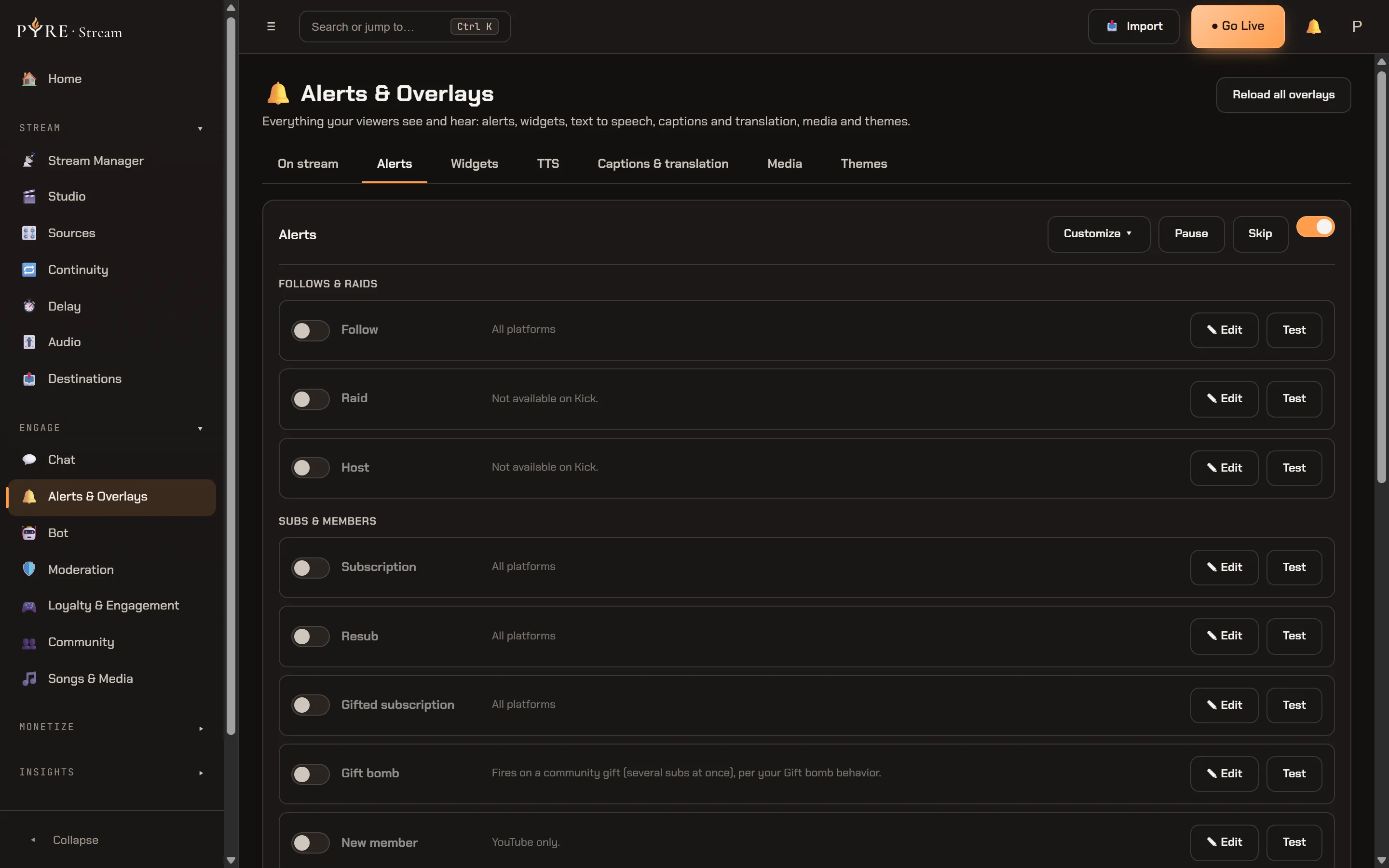
The Customize ▾ panel in the card head holds the account wide settings: the
style preset picker, the Customize style button that opens the Brand look
editor, approval mode, and Gift bomb behavior.
A row’s Edit button opens one editor for that type, in four sections:
Content, Presentation, Conditions and Variations. The per type look
override sits inside Presentation, behind a Customize this type checkbox.
Variations get their own section.
For the list of event types themselves, and the platform caveats on them, see Alerts.
The three style presets
Section titled “The three style presets”A preset is your default look, and picking one is the fastest way to change every
alert at once. The picker’s own line for it is
Pick your default alert look. Customize any type below.
| Preset | Its own description | Text size | Accent treatment | Corner radius |
|---|---|---|---|---|
| Polished | Clean card, accent glow, smooth slide-in. | M | Glow | 14 |
| Bold | Big type, accent wash, bounce, confetti on big moments. | XL | Wash | 10 |
| Minimal | Understated fade, restrained type, thin accent line. | S | Underline | 6 |
Two things are true of all three. Bold is the only one with confetti, and even Bold only bursts on a high value event: a tip, a cheer, a raid, a gifted sub, a gift bomb or a Super Chat. A plain follow never gets particles, on any preset.
And all three tint the card by category rather than painting everything one colour. Follows and raids, subs and members, tips and bits, and everything else each carry their own accent, so you can tell what happened from the corner of your eye.
The Brand look
Section titled “The Brand look”Customize style opens the Brand look editor, the account wide layer under every type. Its own summary of itself:
Set the look every alert shares. Pick a preset above as a starting point, then adjust colors, motion, font, size and layout.
What is in it:
- Keep per-category colors, on by default, and a brand accent colour beside it. See the note on how those two interact below.
- Card background with an opacity, and a custom text colour, each behind its own checkbox.
- Entrance and Exit animation:
none,fade,slide,pop,wipeorbounce. - Font, from a catalogue of around fifty faces.
- Size, as
S,M,LorXL, plus a font size mode:Auto scales the text with the browser source and never drops below this size. Fixed keeps it at this size however large the source is. Leave the number blank to scale freely. - Treatment:
Glow,Wash,UnderlineorNone. - Position, one of seven: top, bottom, centre, and the four corners.
- Corner radius in pixels, 0 to 48.
This editor saves as you go, and it says so:
Leave a control at its default to inherit your preset. Changes apply live to the preview and any OBS source. The per type editor is the one with a Save button, and
its footer changes to match.
-
Pick a preset first. It is the starting point, not the finish.
-
Open Customize style and adjust only what you actually want different. Every control you leave alone keeps inheriting, which is what makes a later preset change still mean something.
-
Watch the preview. It resolves the same three layers the real overlay does, so what it shows is what plays.
Picking a different preset saves the preset choice and pre fills this editor with that preset’s values, so you can see where you are starting from. It does not by itself overwrite the brand look you had saved. The next edit you make in the editor does save what the editor is showing, so treat a preset change as a decision to start again rather than as a preview.
Three layers, and which one wins
Section titled “Three layers, and which one wins”An alert’s final appearance is resolved from three layers, in this order:
- The preset’s defaults. The bottom layer, and never empty.
- Your Brand look. The account wide layer, over the preset.
- The type’s own override. The
Customize this typeeditor on one row, over both.
The important part is that this happens one control at a time, not wholesale. If your Brand look sets a font and nothing else, that font applies and every other control still comes from the preset. If your Tip alert overrides the size only, its size is yours and its font is still your brand’s. A later layer wins for the controls it actually sets, and only those.
Two consequences worth knowing:
- An empty override inherits. Unticking
Customize this typeand saving the row clears that type’s override outright, so it goes back to following your brand look. It does not preserve a hidden copy. - A value the engine cannot use falls through instead of breaking. If a stored setting is not one the current version understands, the layer below supplies that control rather than the alert rendering wrong.
The accent is the one exception, and it is deliberate. By default the per category colour wins over your brand accent, because that is what makes a tip look different from a follow at a glance. Your brand accent takes over only when you untick Keep per-category colors and set a valid colour. Both are true in the preview as well as on stream.
One layout detail: the per type Customize this type editor deliberately has no
entrance or exit selects, because those live in the row’s own Presentation
section, where the exit select’s Theme default option means “inherit”.
Variations
Section titled “Variations”A variation lets one event type say more than one thing. Each one carries its own
message, and can carry its own condition, image, sound and animation. Each asset
field takes a pasted URL or a Choose from library pick out of your media
library, which is covered in
Widgets, media and themes. They live in the
Variations section of a row’s editor, and the section states its own rules:
Optional. Each variation can carry a condition (like a minimum amount) plus its own image/sound; the most specific matching condition wins. Variations without a condition are picked at random.
Test uses a sample event, so conditions apply to it too.
The conditions on offer
Section titled “The conditions on offer”The dropdown is scoped to the type you are editing, so a follow offers only the two that could ever apply to it while a resub offers the sub specific ones:
| Condition | What it needs |
|---|---|
Always (random) | nothing, this is the condition less pool |
When amount is at least… | an amount |
When amount is exactly… | an amount |
When months subscribed is at least… | a whole number |
When months subscribed is exactly… | a whole number |
When the sub tier is… | a tier, suggested as Tier 1, Tier 2, Tier 3 or Prime |
On a gift of at least N subs | a whole number |
When it's a recurring tip | nothing |
When it's the largest tip this stream | nothing |
Randomly (chance %) | a chance from 1 to 100 |
Amounts are typed in ordinary currency, so 10 means ten dollars, not ten cents.
On a cheer that number is converted at one bit to one cent, so a condition of 5 on
a bits alert matches a cheer of 500 bits and up. The separate Minimum amount
field on the same editor has its own quirk, covered in the caution on
Alerts.
Which variation actually plays
Section titled “Which variation actually plays”At most one variation plays per event, chosen like this:
-
Exact matches first. An exact amount, an exact month count, or a tier match. The first one in your list that matches wins.
-
Then thresholds, largest first. Among every “at least” variation that qualifies, the biggest threshold wins. A $50 tip with variations at
10and at25plays the25one. A tie keeps the earlier one in your list. -
Then the yes or no conditions, recurring tip and largest tip this stream, in list order.
-
Then the chance rolls. Each
Randomly (chance %)variation rolls in list order, and the first successful roll wins. -
Then the condition less pool, picked at random, which is also where a failed chance roll lands.
-
Nothing matched? The alert’s own base message plays. A variation is never a requirement.
Order your list the way you would read it, most specific at the top, and it will behave the way it reads.
A variation whose stored condition is not one this type offers renders as
Always (random), and saving the row drops that condition. That is the honest
outcome rather than a silent one: the engine already treats a condition it does not
recognise as never matching, so a variation like that would have sat there never
firing.
Each variation also has an Animation select whose first option is Default,
meaning it uses whatever the alert itself uses. Set it only when you want that one
variation to arrive differently.
Gift bomb behavior
Section titled “Gift bomb behavior”A community gift, several subs at once, could reasonably announce itself in three
ways, so the choice is yours. The select lives in the Customize ▾ panel and its
options are:
One Gift Bomb alertGift Bomb alert plus one per recipientOne alert per recipient
The default is the first one, a single combined alert. The full help under the select:
Combined: one Gift Bomb alert per bulk gift. Both: a Gift Bomb alert plus one alert per recipient. Individual: one alert per recipient. A bulk gift uses your Gift Bomb alert, so keep that alert enabled and set up.And the reason the second and third options cannot always be honoured, in the pane’s own words:
How a community gift (several subs at once) shows on stream. Twitch does not name the recipients of a gift bomb, so per-recipient falls back to a single alert with the count.