
Sources and devices
Sources is the register of everything that can send video into Pyre. Not where your stream goes, that is Destinations, and not what your stream looks like, that is the Studio. This page answers one question: which machines are allowed to feed you, and what are they called.
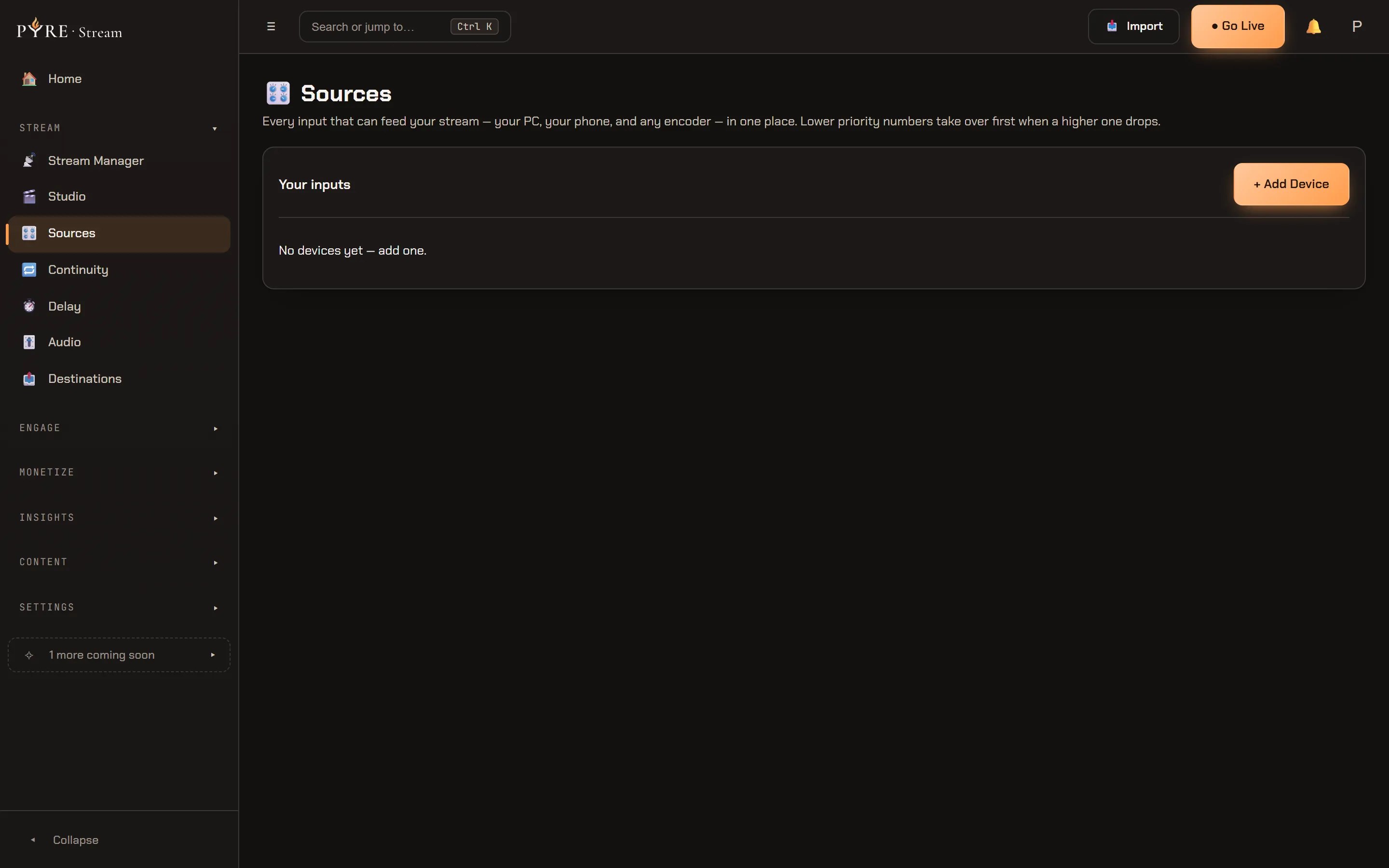
The whole page is a single card, Your inputs, and its subtitle states the job:
Every input that can feed your stream — your PC, your phone, and any encoder — in one place. Lower priority numbers take over first when a higher one drops.
Reading the list
Section titled “Reading the list”Every input is one flat row: an icon, the name, a coloured dot, and its kind. There are two kinds of row and they behave differently, so it is worth telling them apart.
Devices are things that signed in as you. A computer running the Pyre.Stream desktop app reads Desktop, a paired phone reads Mobile, and anything else the device registry knows about reads Third-party source. You never create these by hand: they appear the moment the app signs in.
Custom sources are the ones you minted here, and they read Custom source. Each one is a bring your own encoder slot with its own stream key.
The dot is a liveness signal, not a permission. Green means that input checked in
within the last ninety seconds. A grey dot means Pyre has no recent word from it,
and if the input never reports a last seen time at all, the dot stays neutral rather
than claiming the input is offline when nobody actually knows. An empty page reads
No devices yet — add one.
Add an input
Section titled “Add an input”-
Press
+ Add Deviceat the top right of the card. -
Pick what you are adding. There are exactly three answers, and they lead to three genuinely different flows:
- Computer,
Download the Pyre.Stream desktop app — it registers itself once installed and signed in. - Phone,
Pair the mobile app (QR sign-in). Your phone is named when you sign in. - Custom source,
Bring your own encoder (OBS, hardware, GoPro) — get a unique stream key.
- Computer,
-
Name it if you are creating a custom source. The field is labelled
Device name — required for a custom source, and it means it: a custom source with no name is refused. Computers and phones name themselves when they sign in, so the field is optional for those two. -
Press Next. What happens then depends on the choice you made, and the rest of this guide walks the two that are not just a download link.
There is a ceiling. Pyre can carry eight fanout inputs, and when the pool is
full a new custom source is refused with
You’ve reached the maximum of 8 inputs — remove one to add another. That is the
real cap and the real fix, not a “try again” that would never work.
Pair a phone
Section titled “Pair a phone”The phone flow shows a QR code and, underneath it, the same link in a copyable field for when the camera will not cooperate. Open the Pyre.Stream mobile app and scan the code, or open the link on the phone.
What scanning does is worth being precise about, because it is more than adding a row to a list. The QR encodes a claim link: a one time sign in token minted from the browser session you are already holding. The phone that follows it is signed in to your Pyre account without a password and without an OAuth round trip, and registers itself as an input in the same motion. That is exactly why the flow is pleasant, and exactly why it deserves care.
Create a custom source for your own encoder
Section titled “Create a custom source for your own encoder”A custom source is how OBS, a hardware encoder, a GoPro or anything else that speaks RTMP gets into Pyre. Pyre creates the source, mints a stream key for it, and shows you the two things your encoder needs.
-
Press
+ Add Device, choose Custom source, and give it a name you will recognise in a list at 2am. “Main camera” and “GoPro” are the placeholders for a reason. -
Press Next. Pyre creates the source and its endpoint, then shows you a
Server / Relay URLand a Stream key, each in its own field with a Copy button beside it. -
Copy both, now, into your encoder. Under them sits the whole warning in one line:
Shown only once — copy your stream key now. -
Press Done. The new source appears in your inputs list.
Take the shown once part literally. The key is displayed in that wizard step and nowhere else, ever. It is not in the list, it is not behind a Details expander, it is not in a log, and no support person can read it back to you. Close that step without copying it and the key you were given is gone.
That is recoverable, and the row tells you how. A custom source row carries a
Rotate key action: it mints a replacement and shows it once, on the same terms,
under a confirmation that states the trade plainly,
The current key stops working immediately — you will see the new key once. So the
answer to a lost key is rotate it, then re-enter both values in your encoder. If a
row somehow has no Rotate key action, remove the source and create it again, which
gets you to the same place through a longer door. Either way the old key stops
working, which is the point.
One more honest edge: if no relay is online when you create the source, the Server
URL field is replaced by a note rather than a fabricated address,
Your Server URL will appear here once a relay is online — your stream key below works as soon as a relay picks it up.
Your key is real either way.
Rename and remove
Section titled “Rename and remove”Every row carries Rename, and it does what it says. A device rename writes through to the device registry, so the new name is what you will see on Continuity and everywhere else that lists your inputs.
Remove is the one to read twice, because the same word means two different things depending on which kind of row you press it on.
Order, routing and where they actually live
Section titled “Order, routing and where they actually live”Two things people expect to find on this page are not on it, and knowing that saves a hunt.
The failover order is set on Continuity, not here. Sources lists your inputs and lets you name, add and remove them. It does not offer a drag handle, an up arrow or a priority number on any row. Building the order that decides which input takes over when the live one drops is the whole job of Continuity and failover, and that page draws its pool from exactly this list. Set your inputs up here, then order them there.
Studio versus direct is a property of your stream, not of an input. There is no per input switch that sends one camera through a studio and another straight to the relay. Whether your feeds are composited at all, and by what, is decided once by the mode you are running in, on Live settings in the Stream Manager. See Stream modes and Cloud Studio. An input is just an input; the mode decides what happens to it.