
The Studio and your scenes
Studio is where your picture is built. Its subtitle says what it is for:
Design your scenes and control your running OBS.
The page has two tabs. They are two editors, not two settings. Picking a tab changes which editor you are working in, and nothing about how your stream is produced or where it goes.
Two editors, not a mode picker
Section titled “Two editors, not a mode picker”Nothing on this page chooses your stream mode. That choice lives in the Live settings card on the Stream Manager, which is the single source of truth for it, and is explained in Stream modes. Studio is downstream of that decision: you design here, and the mode decides which machine draws what you designed.
| Tab | What it edits | Where it works |
|---|---|---|
| Cloud Studio | Your saved scenes, as an abstract design | Everywhere, and the default in a browser |
| Desktop Studio | The OBS that is running right now | The Pyre.Stream desktop app only, and the default there |
There is also no Go Live button on this page. Going live is the topbar control and the Stream Manager’s tile, so that starting a broadcast is never something you do by accident while moving a source.
Cloud Studio
Section titled “Cloud Studio”Cloud Studio is the scene designer. Its own line describes the material you have:
Design your scenes — camera, browser, image and text sources on a canvas. The active scene drives your studio output live.
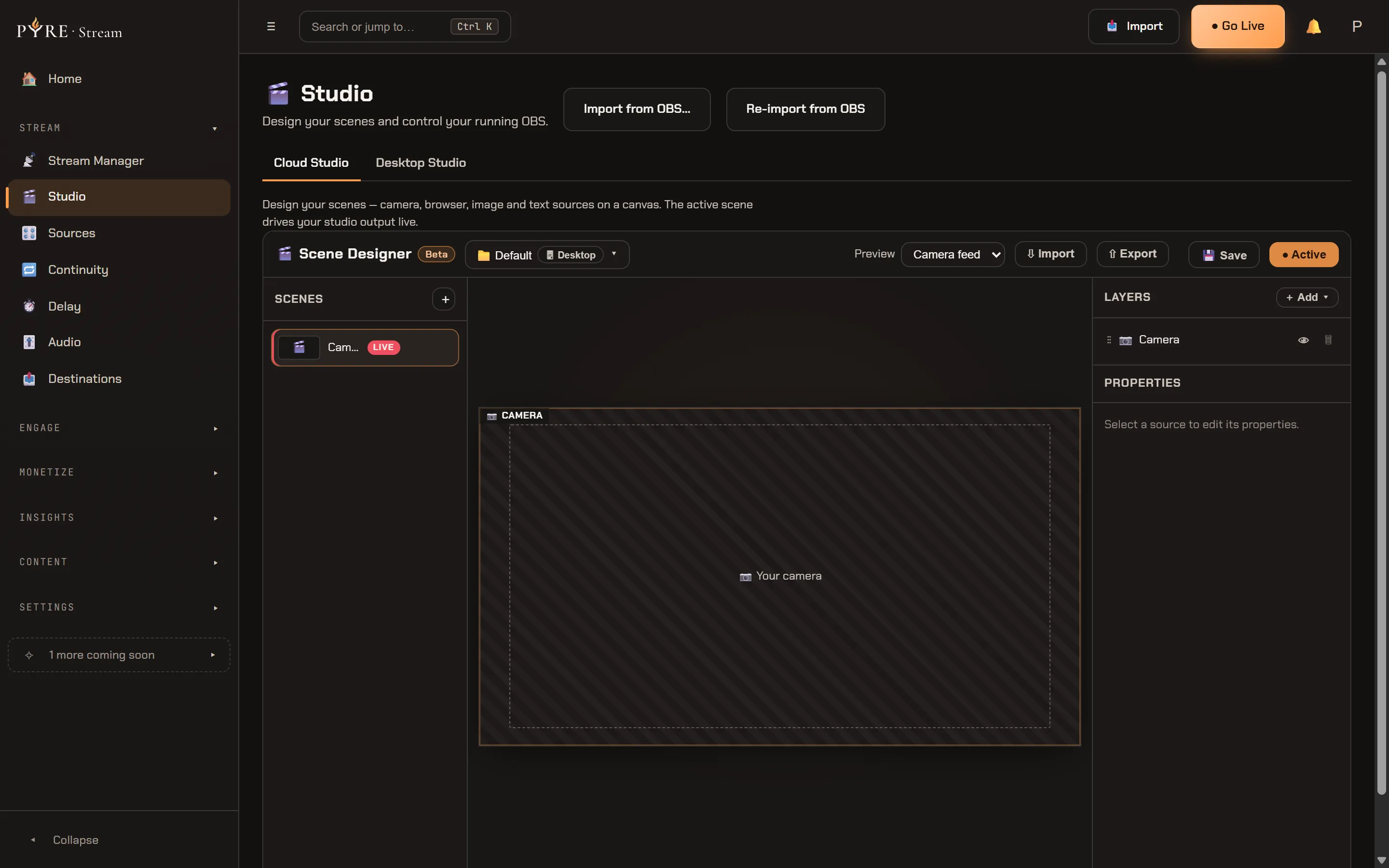
That last sentence is the part worth reading twice. The scene you have made active is what your studio is putting out, so a change to the active scene is a change your viewers see, not a draft you apply later.
Scenes made here are saved to your account, which is why this is the editor you get in a browser and the editor that a cloud studio uses. A widget you built on the Overlays and widgets page arrives here as a browser source: copy the widget’s address there, add a browser source to a scene here, and paste it in.
Desktop Studio
Section titled “Desktop Studio”Desktop Studio is the other end of the same job. Instead of an abstract design, it shows you the OBS that is running on your machine: the sources in the live program scene, an input picker to add more, and each source’s real settings, device dropdowns included.
Because it is driving OBS directly, it is honest about the consequence:
These edits apply to the running OBS directly (live-only this phase). They are separate from your saved scenes in Cloud Studio.
In a browser there is no OBS to drive, so the tab is still there and says so rather than disappearing:
Desktop Studio is available in the Pyre.Stream desktop app. On the web, design your scenes in the Cloud Studio tab — they apply to OBS when you go live.
Import the scenes you already have
Section titled “Import the scenes you already have”If you have been streaming with OBS, you do not have to rebuild anything by hand. The Studio header carries two buttons, both of which exist only in the desktop app because only the desktop app can read your OBS folder: Import from OBS… and Re-import from OBS.
-
Choose Import from OBS… in the Studio header. It opens the same wizard the desktop app offers you on a first run, and you can open it again whenever you like.
-
Pick the collections. Everything found is ticked to start with, and the wizard is clear about what it touches:
We found your OBS Studio scene collections. Pick the ones to bring in — your OBS files are never modified.If your collections are somewhere unusual, Choose a different folder… points it elsewhere, and Skip for now closes it without nagging you again.
-
Read the preview. The Ready to import step lists every collection and every scene with its source count, and groups anything that could not come over under the reason it could not. It always ends with the camera caveat:
Cameras import full-screen — reposition them in Studio. -
Import. The button names the number of scenes it is about to bring in, and the last step reports what actually landed, including any scene that failed and any source that could not come with it.
Re-running an import is safe. Scenes commit into a collection by name, so a second import reuses the collection you already have rather than leaving you with two of them. If something fails part way, the wizard stays open, says so, and tells you your OBS files are untouched.
In the desktop app you may not need it at all. The wizard says so on the way in:
Your desktop studio already uses these collections directly from OBS — they stay on this PC and are never uploaded. Import one only if you also want a cloud copy you can edit in Studio.
Re-import from OBS is the deliberate, destructive version, and it appears only when there is something local to re-import from. It replaces the desktop studio’s scenes with your OBS Studio ones and discards anything you changed on the studio side since the last import: widgets added to scenes, layout edits, scenes you made in the studio. It asks first, and it refuses outright while a studio is running, because OBS rewrites its own files while it has them open.
Advanced Studio (OBS)
Section titled “Advanced Studio (OBS)”Some things are still faster in real OBS. At the bottom of the Desktop Studio tab, in the desktop app, is an Advanced Studio (OBS) bar with Open OBS and Hide OBS, and it is an escape hatch rather than an exit:
Opens the full OBS controls. Stream output, canvas + encoder stay managed by Pyre.Stream. OBS hides again when you close it or return to Pyre.Stream.
Two things follow from that. There has to be a studio running before there is an
OBS to reveal, so with nothing running it tells you
Start the studio first (Go Live), then open Advanced Studio. And what you set in
there sticks, including your key bindings:
Tip: hotkeys you bind inside Advanced Studio (OBS Settings → Hotkeys) are saved in your profile and keep working too — even with the OBS window hidden.
Landscape and vertical
Section titled “Landscape and vertical”When multi canvas is enabled on your account, a Landscape 16:9 and Vertical 9:16 switch appears above the two tabs, and choosing Vertical takes you to Cloud Studio, because vertical scenes are designed there rather than edited live over the OBS bridge.
If something is not where you expect
Section titled “If something is not where you expect”- The Import buttons are not in the header. They are desktop only, and they also stay hidden on a desktop build older than the feature. Update the app.
- Desktop Studio shows a note instead of your sources. You are in a browser. The note names the tab to use.
- A source you added in live OBS is gone after going live. That scene is still owned by Cloud Studio. Tick Manage this scene live in OBS on it, or add the source in Cloud Studio instead.
- Re-import refuses. Stop the desktop studio first. OBS rewrites its scene files when it exits, so re-importing under a running studio would race it.