
Widgets, media and themes
Widgets themselves are documented once, in Pyre.Bot: Overlays and widgets covers creating one, restyling it, adding a goal to a goal bar, sending a sample, and copying its address. Everything on that page is your own channel and your own library, and it is the same library either way, so nothing here repeats it.
This guide is the Pyre.Stream half: where a widget ends up on stream, the media library that every upload in the product lands in, the captions pane, and the themes that style the lot.
All four are tabs of one page, Alerts & Overlays, whose subtitle is the scope
statement: Everything your viewers see and hear: alerts, widgets, text to speech, captions and translation, media and themes.
The tabs, in order, are On stream, Alerts, Widgets, TTS,
Captions & translation, Media and Themes, and each one is its own
address: #alerts/widgets, #alerts/media and so on. A tab is wired the first time
you open it, so the page costs you one read rather than seven.
The Widgets tab
Section titled “The Widgets tab”Two cards. My widgets is your library at one row per widget, and Add a widget
is the gallery underneath it. An account with none reads No widgets — add one below.,
which only happens after you delete them: a new account is seeded with a few.
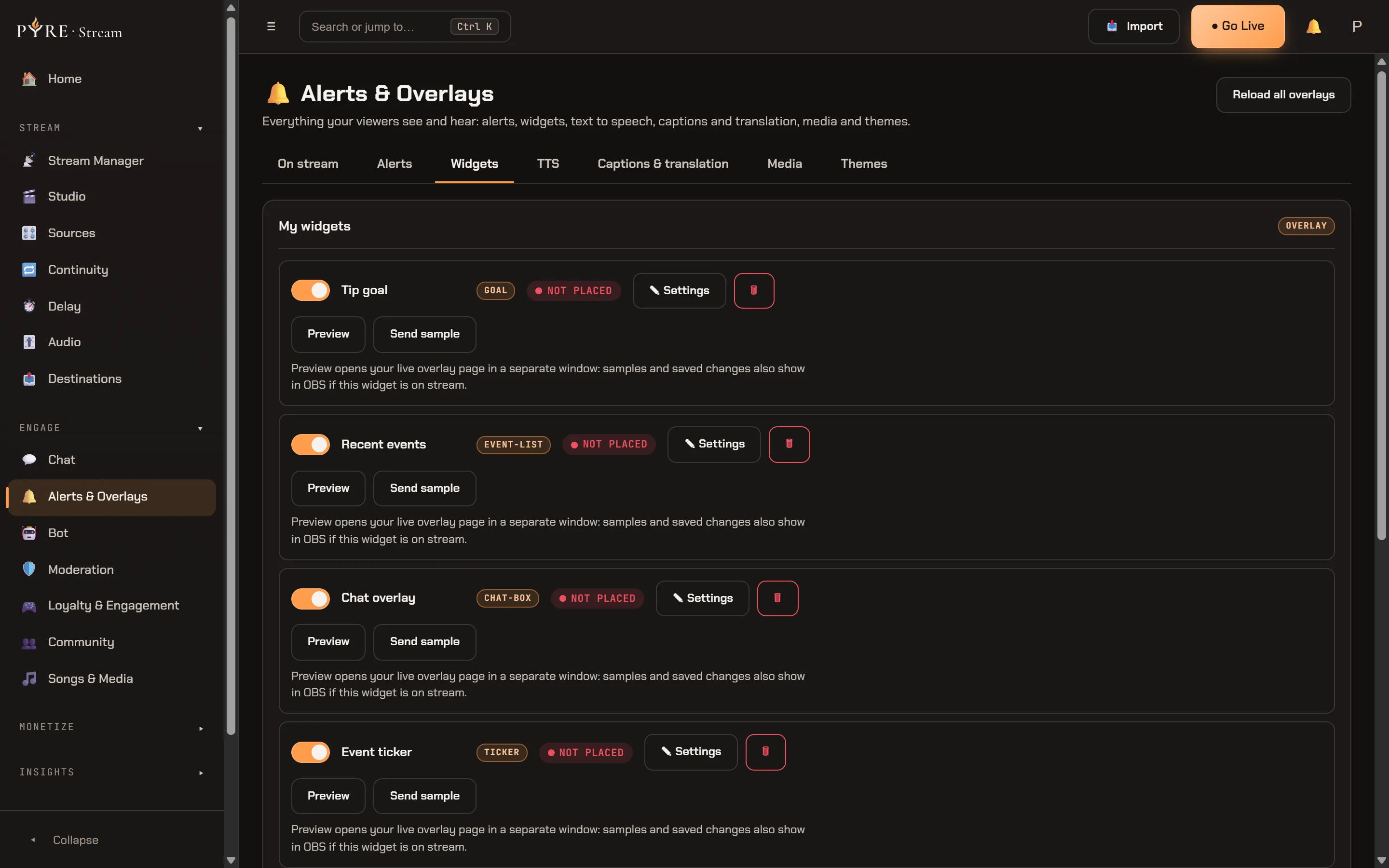
A row is one line, and it is deliberately short: the on switch, the name, the type, where it is placed, then Preview, ✎ Settings and the delete.
Where it is placed is the column this page exists for. It comes from a separate read of your on stream inventory, so it lands a beat after the list and never blocks it. If that read fails, the row shows no placement pill at all rather than inventing one, on the principle that “not placed” is a claim and an unread inventory is not evidence for it. The full inventory, and what each placement state means, is the On stream tab’s job: Get alerts on stream.
Preview opens your real overlay page in its own window rather than an inline
fake, and the note under the button says what that means:
Preview opens your live overlay page in a separate window: samples and saved changes also show in OBS if this widget is on stream.
There is one pop-out for the whole page, so previewing a second widget takes it over.
Send sample sits beside it on the types that can be sampled, and the styling
controls in the settings panel restyle the open preview as you type.
✎ Settings opens one modal, whatever the type. Inside it are the widget’s name, its per type settings, the appearance controls, and two things that belong to this guide.
Add to scene
Section titled “Add to scene”Add to scene ▾, inside the settings modal, is how a widget gets into your picture without you touching a browser source by hand. The On stream tab has its own copy of this action on every row; this is the one you reach while you are editing the widget. It drops a menu of your scenes, and the menu is honest about which of them it cannot use:
- A scene managed live in OBS is listed but disabled, tagged
managed in Live OBS. OBS owns that scene, so an append from here would never render. - When you are on a desktop that is running the studio, your Desktop OBS scenes appear as their own group above the cloud ones, and picking one writes the browser source straight into OBS. On a machine where the studio has not started yet, the group is labelled as applying when it does.
- With no scenes at all the menu reads
No scenes yet — create one in Studio.
Pyre sizes the new source for the widget’s type rather than dropping every overlay in at one size, because a browser source’s width and height are its render resolution: a ticker spans the frame, a chat box is a tall column, an emote wall fills it. Where it then sits is scene geometry, and that is the Studio.
The refusals are worth knowing before you meet them.
That scene already has the alert box (one per scene). is the alert box, not a
widget, and one per scene is the rule. That scene is managed live in OBS. Add the overlay in the Live OBS tab instead.
is the same live managed scene the menu already greyed out. If your desktop OBS
already has a source using this overlay’s name, Pyre asks you to rename that source
in OBS rather than quietly making a second one.
The address, for a browser source you place yourself
Section titled “The address, for a browser source you place yourself”Under a fold labelled Browser source URL (external OBS) sits the widget’s own
address, read only, with Copy overlay URL beside it. Use it when the software you
place sources in is not a studio Pyre manages.
Treat that address the way Overlays and widgets says to treat it: it is the credential for that one source, so keep it out of screenshots and copy it with the button instead of opening it as a link.
When a widget looks stale rather than wrong
Section titled “When a widget looks stale rather than wrong”Reload all overlays, in the page header, is the answer, and it is documented with the rest of the page header in Get alerts on stream. It sits on the header rather than on this tab because it acts on every overlay page in the account at once, widgets included.
The Media tab: the one place uploads happen
Section titled “The Media tab: the one place uploads happen”Every sound, image and video Pyre plays for you lives in one account level library, and this tab is the only place in the product that puts something into it. The Pyre.Bot portal reads that same library and can delete from it; it cannot upload. Uploading from inside an alert, through a media field’s own picker, is not a second store either: it lands here, and this tab lists it.
The pane says both halves of the policy in one line:
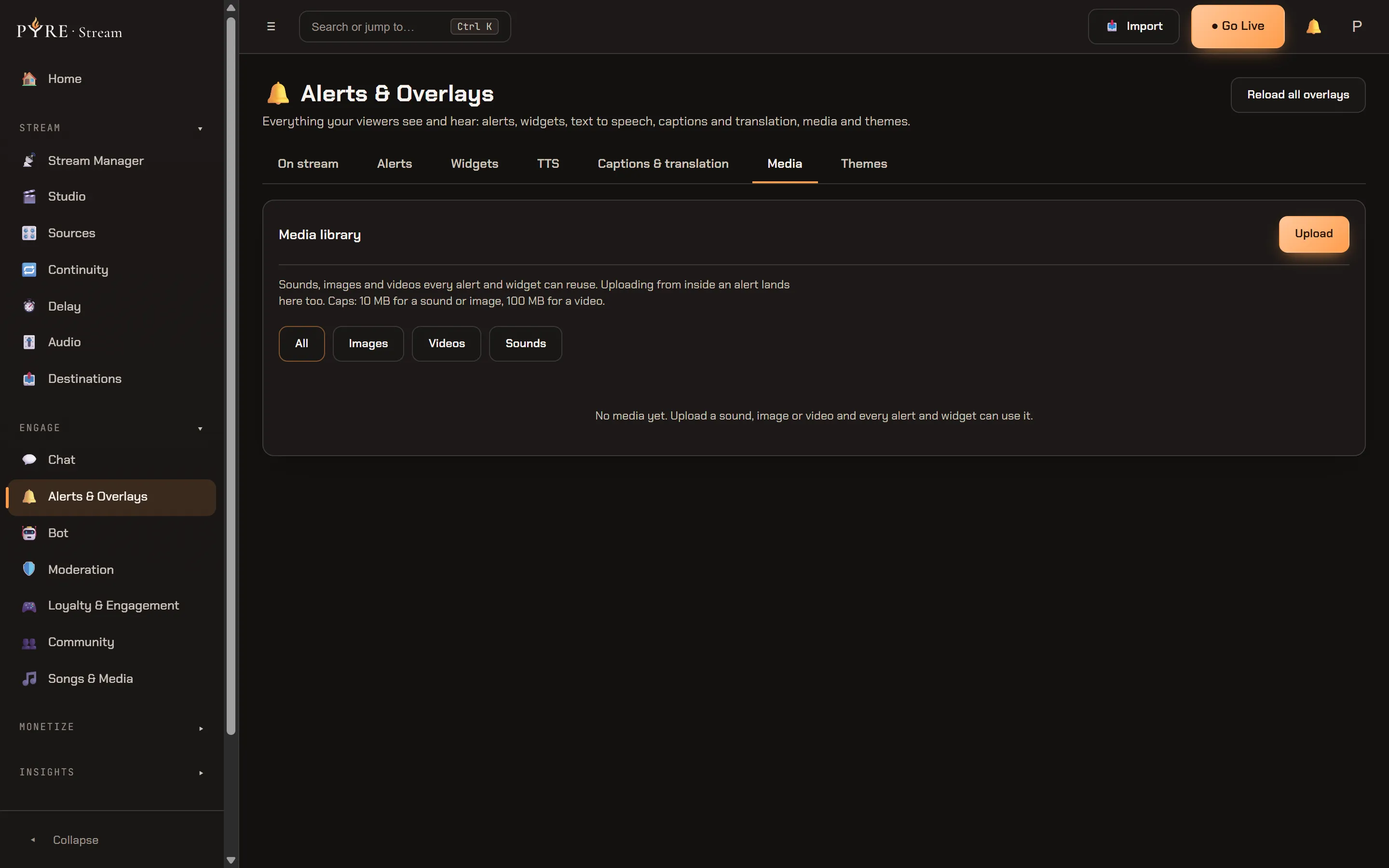
Sounds, images and videos every alert and widget can reuse. Uploading from inside an alert lands here too. Caps: 10 MB for a sound or image, 100 MB for a video.
-
Open Alerts & Overlays, then Media. The library is read when you open the tab and not before.
-
Press Upload and pick a file. The kinds accepted are named in the refusal you get if you miss:
images (png/jpeg/webp/gif), video (mp4/webm/mov/ogv) or audio (mp3/wav/ogg/aac/m4a) only. -
Watch the status line. It names the file while it uploads and again when it lands, and an upload that fails says why rather than leaving a spinner.
-
Use it from an alert or a widget. The pickers there read this same index, so a file you upload here is immediately choosable there, and the other way round.
Above the grid sit four filters, All, Images, Videos and Sounds. They
filter the library you already loaded rather than asking the server again, so the row
of chips costs nothing to click. An empty library reads
No media yet. Upload a sound, image or video and every alert and widget can use it.,
and an empty filter reads Nothing of that kind yet. Upload one above., which are two
different facts and deliberately not one sentence.
Where used, and the delete that refuses
Section titled “Where used, and the delete that refuses”Every card carries a Used by line built from a real scan of your alert configurations, your widget settings and your scene bodies. Three surfaces are named outright, and beyond three it counts the rest, so a sound on twelve alerts does not become a paragraph.
Unused is a claim, and Pyre only makes it when it managed to read every surface a
file can be used from. When one could not be read, the tab says so at the top and
names which, so Unused is never quietly wrong.
Delete is built on the same discipline. It always tries the plain delete first, and the server refuses in two different ways that must not read as one thing:
- It is in use. Pyre names what is using it and tells you what deleting would do to them.
- It could not check.
Pyre could not check everywhere this might be used, so it will not report it as unused. You can delete it anyway, but something may stop loading it.
Both refusals then offer you the choice explicitly, and only after the server has named what breaks. If the page cannot ask you, it does not delete: an unforced delete you regret can be fixed by uploading the file again, a forced one cannot.
Two more refusals you may meet: That file is already gone. Reload the list. after
deleting from two tabs, and
File storage is not configured on this server, so nothing can be deleted. on a
deployment with no object storage, which is an honest statement about the server
rather than about your file.
You will also see the refusal from the other direction. Deleting a file from inside an
alert’s media picker answers
Still used by another alert or widget. Open the Media tab to see where and delete it there.,
which is this tab, doing this job.
Captions and translation
Section titled “Captions and translation”The fifth tab holds live captions and chat translation. Both are output your audience sees, which is why they live on this page rather than under moderation, and the delivery surface for a caption is a browser source like everything else here.
What the card holds, for when it does work: Enable live captions, which transcribes your program audio and burns into your overlay scene; Push to platform caption track; Translate chat, which renders foreign language chat inline in your merged chat; Translate speech, which captions you in another language and is the highest latency of the four; and one Target language select shared by both halves, because captions and translation mean the same thing by it and two controls over one setting is a thing this product refuses.
Under those sits a per platform reality table, and it is the part worth reading now:
- YouTube is the only platform with a live caption track API. Everywhere else, captions burn into the overlay scene.
- Twitch:
No caption-track API: captions burn into the overlay scene. Moderation supported. - Kick:
No caption-track API: overlay burn-in only. - TikTok is flagged experimental and off by default:
Live chat is unofficial (ToS risk): moderation + captions are best-effort and off by default.
If you arrived here from the old #safety link, this is where those two panes went
when the Safety and Compliance row retired.
Themes
Section titled “Themes”The last tab is Themes, and its one line is both what it does and where it came
from: Themes style your alert and widget overlays. Pick a card to use it. This is the one place overlay appearance is edited: it replaced the Appearance tab in Settings.
A theme is a card in a grid. Picking one uses it; New theme makes another. A theme is the base layer under your alert look and your widget styling, so a per widget appearance control left on Default is a control letting the theme decide.
Settings used to carry a second editor over these same themes, and it does not any
more. #settings/appearance now lands you on this tab, which is why the pane names
the old home in its own copy: if you knew where your themes used to live, you should be
able to confirm in one line that you have arrived at them rather than lost them.