
Get alerts on stream
What each alert says, how long it stays, what it sounds like and whether it is held for approval is set per event type, and it is documented in Alerts. This guide covers the other half, the half that is Pyre.Stream’s: placement and visibility. Where a source sits, whether it is in the scene you are actually streaming, and how to prove it fires.
The gap this page exists to close is a specific one. Everything about an alert is configured in one place and rendered in another, and nothing used to join the two, so you could switch a follow alert on, style it, test it, and still be live on a scene with no alert box in it.
Where it is
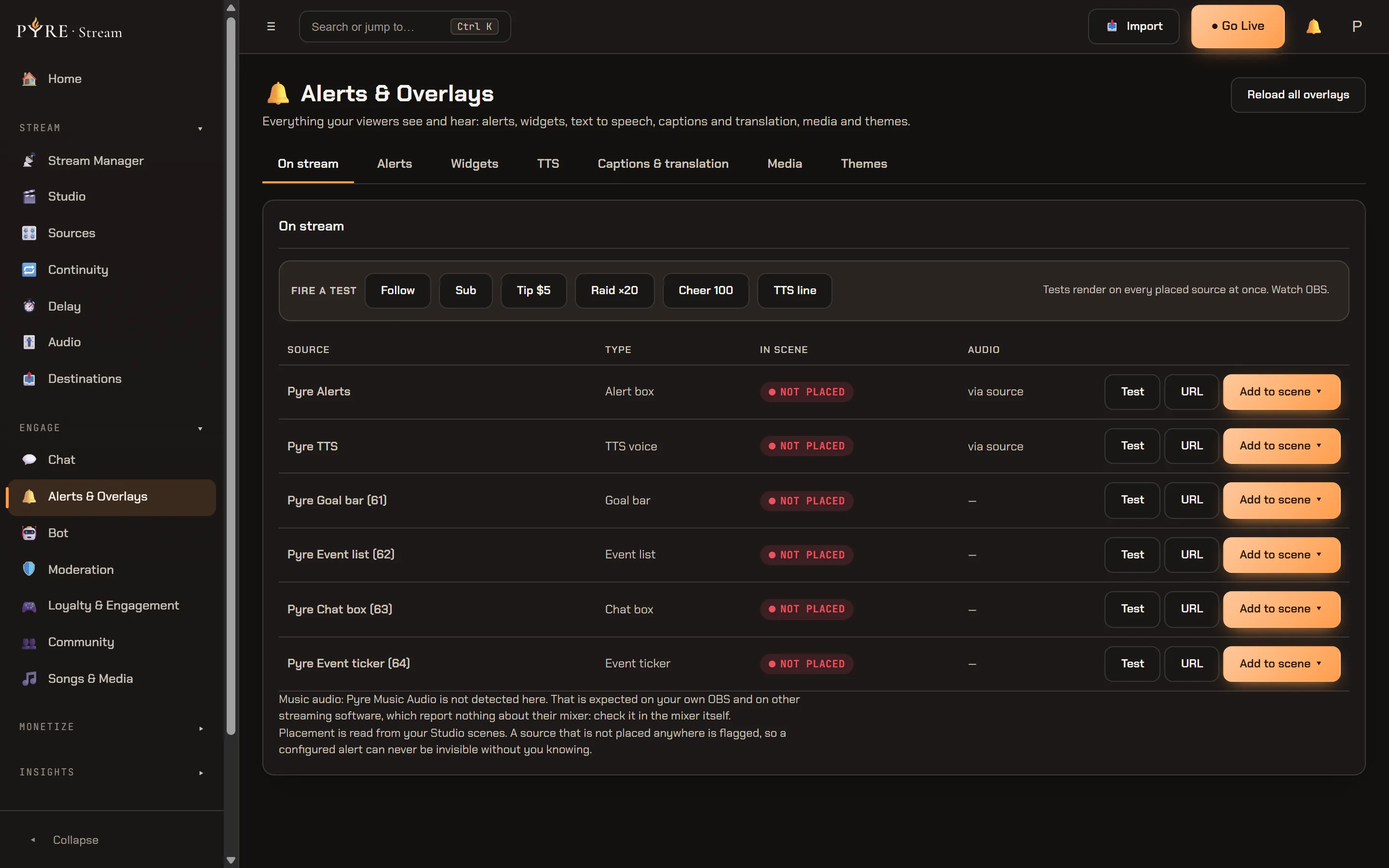
Section titled “Where it is”Alerts & Overlays, first tab, On stream. It is the tab the page opens on, deliberately: every other tab configures something, and only this one says whether any of it reaches the stream.
The inventory
Section titled “The inventory”The tab is one table of every Pyre browser source your account owns, with five columns: Source, Type, In scene, Audio, and the row’s buttons.
| Row | Type | Where it comes from |
|---|---|---|
Pyre Alerts | Alert box | One per account. Every alert type plays through it. |
Pyre TTS | TTS voice | One per account, an audio only source. |
Pyre <Type> (<id>) | the widget’s own type | One row per widget you have added. |
A row whose thing is switched off is dimmed and carries Switched off under its name. That is the row’s own on/off state, not its placement: a switched off source that is sitting in your scene still shows as placed, and it still renders nothing.
A brand new account sees the empty state rather than a table:
No Pyre browser sources yet. Add a widget under Widgets, or switch your alerts on.
What the In scene column is telling you
Section titled “What the In scene column is telling you”Pyre answers this in one of three states, and the difference between the second and the third is the whole point of the column.
Placed. The pill names the scenes the source was found in, or reads
In a scene when it has the placement but not a name for it.
Not placed. The pill reads Not placed. This is the flagged case, and Pyre only
says it when it can stand behind it: every scene it could see was one it owns and
none of them held the source.
Unknown. Pyre looked and could not answer, so it says which kind of “could not” this is rather than guessing:
Unknown — edited in OBS, for a scene Pyre stores but OBS owns.Unknown — manual OBS, when Pyre holds no scene model for you at all.Not in “Main”, naming your loaded scene collection, when a running studio was asked and did not find the source in it.
An unknown row is never quietly upgraded into a “not placed”. Instead it shows you its URL so you can match it by hand against what is in OBS.
The lines under the pill
Section titled “The lines under the pill”When a studio has ever reported to Pyre, the pill carries its age and, where it matters, an explanation:
as of 12s ago via desktop, the normal case. The feeder is named, eitherdesktoporCloud Studio.your desktop OBS is closed, said as silence rather than dressed up as an answer.desktop last reported 6m ago — may be out of date.Found in your desktop OBS, not in a Pyre scene. Remove it there if you want it gone.Matched by name only, not by its URL — Pyre could not read that source’s settings.A name match is a hint, and the row says so.
When Pyre’s scenes and your running OBS disagree, the row explains the disagreement instead of silently picking a winner. The usual cause is a different scene collection being loaded.
Putting a source into a scene
Section titled “Putting a source into a scene”-
Find the row for the source you want on stream. If it is already placed somewhere Pyre can see, there is no Add to scene button, because a second copy would render the overlay twice and, for the alert box and TTS, play it twice.
-
Press
Add to scene ▾. The row opens a lane underneath itself with the scenes you can pick. -
Pick a scene. In the desktop app the menu has two groups: your real OBS scenes under
Desktop OBS, and your Cloud Studio scenes underCloud Studio scenes. On the web you get the Cloud Studio group only. -
Watch the confirmation in the lane:
Added to Main.for a Cloud Studio scene, orAdded to "Main" in your desktop OBS.for a real one.
With no scenes at all the menu says so plainly: No scenes yet. Create one in Studio.
When it refuses
Section titled “When it refuses”A refusal here is information about your setup, so read it rather than retrying:
That scene already has the alert box (one per scene).That scene already reads TTS aloud (one audio source per scene).That scene is managed live in OBS. Add or remove the source in the Live OBS tab instead.Those scenes are still listed in the picker, greyed out and marked(managed in Live OBS), rather than offered and then rejected.
If your studio is closed when you add a source to a desktop scene, the menu heading
reads Desktop OBS (applies when the studio starts) and the confirmation ends
loads when the studio starts. Nothing is lost; it is written to disk and picked up
next time.
Taking one out
Section titled “Taking one out”Remove appears only on a row that is placed in at least one scene Pyre owns, and it names what it is about to do:
Remove Pyre Alerts from Main? It stops rendering there. Your settings are untouched.
A source that only your own OBS knows about gets no Remove button and a standing
note instead, because Pyre has nothing to address:
Placed in your desktop OBS — remove it there.
The test bar
Section titled “The test bar”One bar at the top of the tab, labelled Fire a test, with six buttons:
Follow, Sub, Tip $5, Raid ×20, Cheer 100 and TTS line. The amounts in
the labels are the sample values that actually fire, so the button promises exactly
what it sends.
Under them sits the thing worth knowing before you press one:
Tests render on every placed source at once. Watch OBS. A press answers with
Sent. Watch your placed sources.
Each row also has its own Test. On the alert box and TTS rows it fires the same
event the bar does; on a widget row it fires that widget’s own display sample, and
a goal widget with no goal set answers
Add a goal to this widget first, then test it.
Two refusals you will meet:
One test per second. Give it a moment.No TTS event is switched on, so there is nothing to speak. Turn one on under the TTS tab, then try again.
Reload all overlays
Section titled “Reload all overlays”Browser sources are long lived pages. They do not reload when Pyre ships a change,
and they do not reload when you edit an alert. Reload all overlays, in the page
header, asks every one of them to reload itself, in desktop OBS and cloud pods
alike, so nobody has to open raw OBS properties. It acts on the whole account, which
is why it is on the page header rather than inside this tab. The button reports back
on itself: Reloaded, or Could not reload.
What this page can and cannot see
Section titled “What this page can and cannot see”A footnote under the table always states what the answer above it was built from, and it changes with your setup. These are the ones you will see.
With scenes Pyre owns and no studio reporting:
Placement is read from your Studio scenes. A source that is not placed anywhere is flagged, so a configured alert can never be invisible without you knowing.
With a studio reporting and every scene readable:
Placement is read from your desktop OBS as well as your Studio scenes, as of 12s ago via desktop. A source that is not placed anywhere is flagged, so a configured alert can never be invisible without you knowing.
With your studio closed, or its last report gone stale, the table falls back to your Studio scenes and says which of the two happened:
Your desktop OBS is closed, so these rows show what your Studio scenes hold. Open it and the table will say what is really on stream.
When your scenes are edited directly in OBS:
Some of your scenes are edited directly in OBS, so Pyre cannot see everything they contain. Those rows read Unknown and show their URL for matching rather than claiming a source is missing.
And on an account with no stored scenes at all:
Pyre stores no scenes for this account yet, so it cannot tell what is placed. Rows read Unknown and show their URL for matching. Add a scene in Studio, or paste the URL into OBS by hand.
The honest limit behind all of that: Pyre can only read the scene collection that is currently loaded, plus the ones it has seen loaded before, because loading another one would interrupt your stream. Collections it has never seen stay unknown, and it tells you how many there are and how to fix it: switch to one once and Pyre will remember it.
There is one more difference between the two places you can open this tab. In the desktop app, opening it forces your studio to take a fresh look, so the answer is seconds old. In a browser there is no route to your machine at all, so you get the freshest report the server already holds, with its age printed next to it.
If your music setup puts a real audio input in your mixer, a line under the table reports on it too, and it is deliberately never red: on your own OBS and on other streaming software nothing reports a mixer at all, so an undetected input means Pyre cannot see it, not that it is missing. Check that one in the mixer itself.
Troubleshooting
Section titled “Troubleshooting”A row says Not placed but I can see it in OBS. You pasted the URL in by hand
into a scene Pyre does not own. Pyre only says Not placed about scenes it can
read, so this means the scene it is in is not one of those. Check the footnote under
the table for what it was able to read.
Every row says Unknown. Pyre holds no scene model for your account, or all your scenes are edited directly in OBS. Use the URL button on each row to match them by hand, or build a scene in Studio.
The test bar fired and nothing happened. Check the In scene column first, then the alert’s own switch. A source that is not in the scene you are streaming cannot show you anything, however correct its settings are.
It worked yesterday and the source is blank today. Press Reload all overlays. A browser source that has been open for days can be running an older copy of the page.