
Alerts
An alert is the card that plays on your stream when something happens: a follow, a subscription, a raid, a cheer, a tip. Alerts, in the Engage group, is where you decide what each one says, how long it stays, what it sounds like, and whether it plays at all.
One browser source carries every alert type. You add it to your scene once, and it sits there showing nothing until an event arrives.
Get it on stream
Section titled “Get it on stream”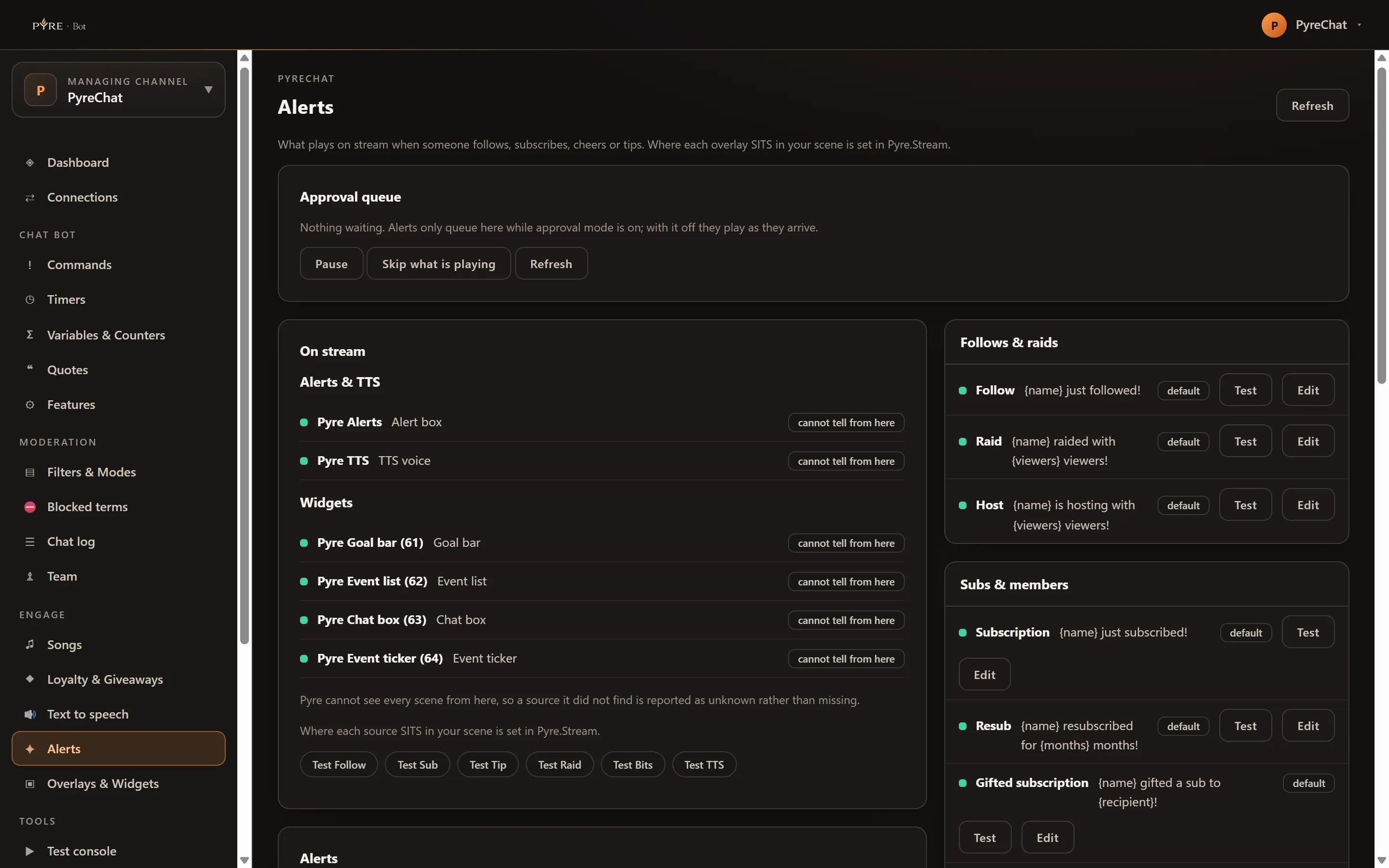
-
Open Alerts. Use the channel selector at the top of the portal to pick the channel you are working on.
-
Find the Alerts card. It carries a read only Browser source field with the hint “Paste this into an OBS browser source. Treat it like a password.” If the card says “No alert overlay yet”, it is created the first time the page loads, so a refresh is all it needs.
-
Press Copy overlay URL and paste the address into a browser source in your streaming software. The page is transparent, so nothing shows until an alert plays.
-
Check Show alerts on stream is on. It is the master switch and it starts on. With it off, nothing renders at all, whatever the individual alerts say.
-
Prove it works. The On stream card carries a test bar: Test Follow, Test Sub, Test Tip, Test Raid, Test Bits and Test TTS. Each one fires a real event through the real engine, so whatever a genuine follow would light up is what lights up. They are limited to one press a second.
The address is the credential for that browser source: anyone holding it can play a card on your stream, so keep it out of screenshots and out of a shared scene collection. There is no way to replace it. The alert overlay is a single row with a single token, and no roll or rotate action exists for it, here or in Pyre.Stream, so treating the address as a secret is the whole of the protection.
The On stream card also tells you where each source has been found, as a sentence rather than a colour: “in Main”, “not in a scene yet”, or “cannot tell from here”. The last one is honest rather than evasive: when a scene is edited directly in OBS, Pyre cannot read it, and a source it did not find is reported as unknown rather than missing.
What fires an alert
Section titled “What fires an alert”The page groups every type it can fire into four headed cards. A type with a note beside it carries that note in the portal too.
| Group | Types |
|---|---|
| Follows & raids | Follow, Raid (not available on Kick), Host (not available on Kick) |
| Subs & members | Subscription, Resub, Gifted subscription, Gift bomb, New member (YouTube only), Member milestone (YouTube only), Membership started, Membership renewed, Membership canceled |
| Tips & bits | Tip, Recurring tip, Bits / cheer (Twitch only), Super Chat (YouTube only) |
| Other | Reward redemption (Twitch channel points) |
A type you have never touched is live, not off. Its row carries a default
chip and it fires with the built in wording, because that is what the engine does
out of the box. The row’s dot is the state that matters: turning an alert off is a
decision you make in the editor, and until you make it the alert plays.
What you can change on an alert
Section titled “What you can change on an alert”Edit on a row opens the editor in a rail on the right.
- Play this alert. The per type off switch.
- Message. Leave it blank to use the built in wording. The chips under the box
insert that type’s own variables, and only that type’s: a follow has no
{amount}to offer, so it is not offered. - Animation:
fade,slide,pop,bounceornone. - Duration (seconds). Blank uses the built in default. Anything else is held between 1.5 and 30.
- Sound URL and Sound volume. Volume runs 0 to 100 and a blank one means full. An explicit 0 is a mute, not a blank.
- Image URL. Videos and uploads live in the Overlays & Widgets media library, not here.
- Minimum amount (cents). Only on the types that carry an amount: Tip, Recurring tip, Bits / cheer and Super Chat. Anything under the floor plays no alert.
- Read it aloud (text to speech). Sends this alert’s message to your TTS overlay as well. That overlay is set up separately, in Text to speech.
Save changes writes the row. Test on the row fires that one type so you can watch it land.
Holding alerts for approval
Section titled “Holding alerts for approval”Hold every alert for approval before it plays turns the Approval queue card into your gate. With it on, an incoming alert is held instead of played, and the queue lists it with who it was from, the amount, and the message.
- Approve plays it. Reject throws it away.
- Pause and Resume stop and start playback. With approval mode on, a paused channel still queues everything, so nothing is lost. With approval mode off, a paused channel drops what arrives and the card tells you how many.
- Skip what is playing cuts the card currently on screen.
- A held alert waits 15 minutes. After that it cannot be approved any more, and the card counts them: “3 waited too long and expired unseen.”
The queue updates by itself on your own channel. Where it cannot, the card says so and gives you Refresh.
Your own test fires ignore all of this, deliberately. A Test press plays straight away even with approval mode on and playback paused, because it is your own explicit action and you are meant to see it.
If you moderate someone else’s channel
Section titled “If you moderate someone else’s channel”The page is deliberately smaller. A delegated channel gives you the Approval queue and the live transport, and nothing else: no master switch, no per event settings, no test fires. There is no route behind any of those for a moderator, and firing a fake alert on someone else’s stream is not moderation. Their alert settings stay with them.
What is set in Pyre.Stream instead
Section titled “What is set in Pyre.Stream instead”Two things this page will not do:
- Placement. Where each source sits in your scene is OBS geometry, and it is set in Pyre.Stream. This page reads where a source was found and never moves it.
- The look beyond one alert. Style presets, brand appearance and per alert message variations live in Pyre.Stream. This page leaves them untouched when it saves, so an edit here cannot overwrite what you built there.
Troubleshooting
Section titled “Troubleshooting”Nothing plays at all. Check Show alerts on stream first, then the On stream card: a source reported as “not in a scene yet” is not in the scene you are streaming. Then check the individual row is on.
Alerts stopped part way through a stream. Open the Approval queue. Either
approval mode is on and they are waiting for you, or playback is paused. The card
shows a paused tag when it is.
Something was in the queue and now is not. It aged out. Held alerts live 15 minutes, and the count of expired ones is on the card.
Test TTS says text to speech is switched off. That is the honest answer rather than a generic failure: the TTS engine is off, so there is nothing to fire. Turn it on in Text to speech.
A test button is dead for a moment. Test fires are limited to one a second and the button disables itself for that window rather than letting you find the refusal.
A cheer alert never fires. Check its Minimum amount (cents), remembering that on a cheer the number is bits.