
Schedule & Social
You keep one schedule. It shows on your public Pyre page, and Pyre replicates it to Twitch and YouTube so there is never a second copy to keep in step. The same page holds your Discord announcements: a post when you go live, and posts you write in advance.
The page’s own summary says it in six words: one schedule for every platform, and announcements when you go live.
It is a page for your own channel only. Like Connections, Team and Tips, Schedule & Social does not appear when the channel selector is pointed at a channel you moderate.
The three tabs
Section titled “The three tabs”At the top sit three summary cards, each with a button into the tab it summarises:
| Card | What it tells you | Button |
|---|---|---|
| Your schedule | How many streams are booked and when the next one starts | Edit schedule |
| Where it appears | Which platforms currently carry your schedule | Manage platforms |
| Where announcements go | How many Discord channels are set up, and whether any is failing | Manage |
Under them are the tabs themselves: Your schedule, Where it appears and Announcements.
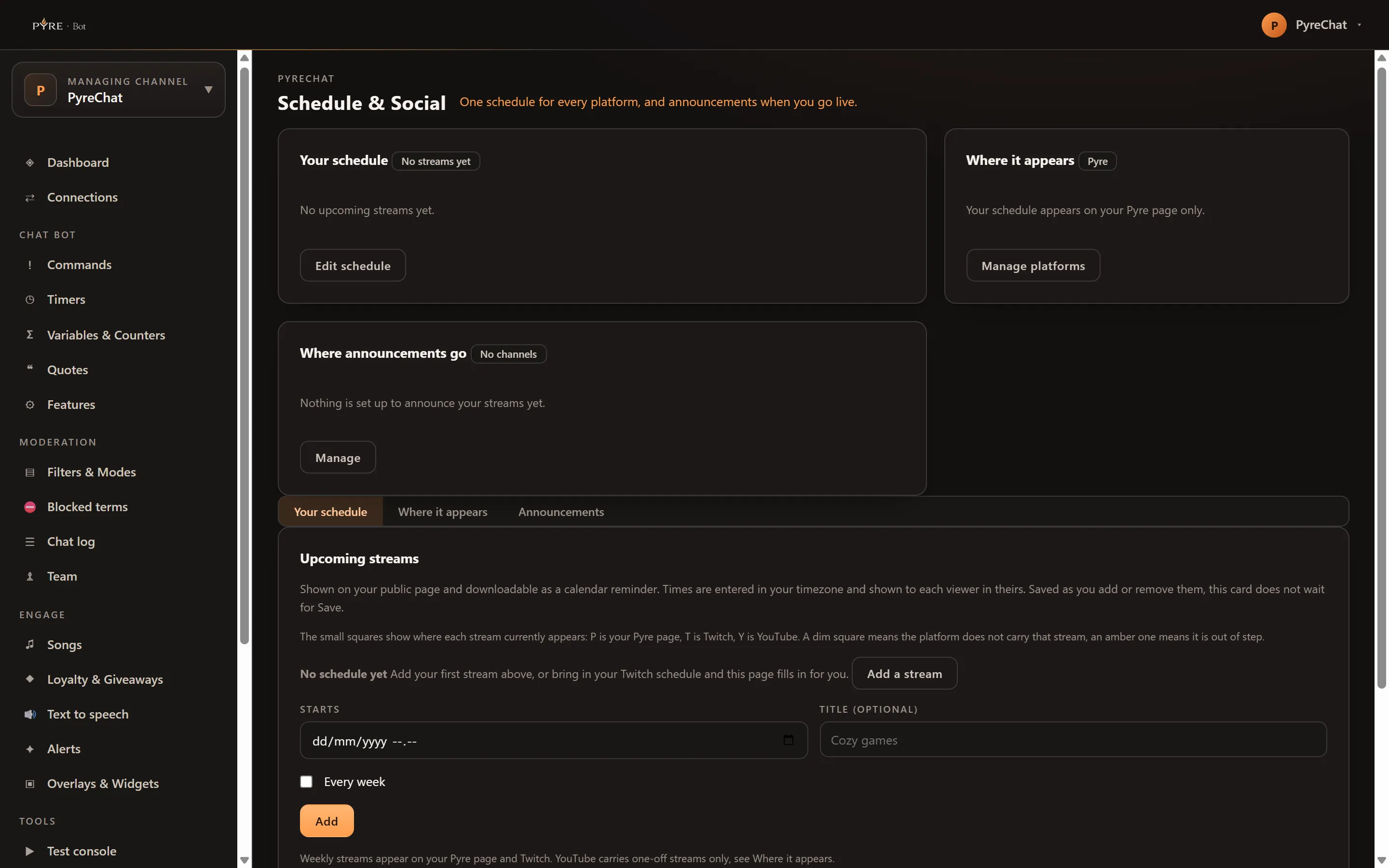
Add a stream
Section titled “Add a stream”-
Point the channel selector at your own channel and open Schedule & Social under Content.
-
Set Starts. Times are entered in your own timezone and shown to each viewer in theirs, so you never do the arithmetic.
-
Give it a Title if you want one. It is optional, and up to 80 characters.
-
Tick Every week if it repeats. Leave it clear for a one off.
-
Press Add. The card saves as you add and remove streams. It does not wait for a Save button.
Each row then carries Edit and Remove, and three small squares showing where that stream currently appears: P is your Pyre page, T is Twitch, Y is YouTube. A dim square means the platform does not carry that stream. An amber one means it is out of step.
You can keep up to fifty streams of your own. Streams imported from a platform are counted separately, so an enthusiastic weekly series on Twitch can never squeeze you out of your own editor.
Your schedule shows on your public page, and each stream can be downloaded there as a calendar reminder by anyone, with no account needed.
Already keeping a schedule on Twitch
Section titled “Already keeping a schedule on Twitch”If you have been scheduling on Twitch, do not retype it. The Bring in my Twitch schedule button turns importing on and runs the first sync immediately. From then on, streams you add on Twitch or YouTube flow in on their own and become normal rows of this schedule, editable like any other.
The card retires itself once importing is on and you have rows.
Where it appears
Section titled “Where it appears”This tab has one card per direction, and Twitch has two of them because the two directions are genuinely different.
Show my Twitch schedule in Pyre is the import. It is free and needs no permission from Twitch: streams you schedule on Twitch appear here as editable rows. This is how your schedule stays one schedule even before you allow updates in the other direction.
Keep my Twitch schedule in step with Pyre is the write. Your Pyre schedule is written to Twitch and stays identical to it, changes made on Twitch flow back, and Twitch asks you to approve it once through Allow with Twitch. Before you turn it on, the card lists what Twitch itself allows:
- One off streams need Twitch Partner or Affiliate. If you are neither, one off streams stay on Pyre and are never sent to Twitch.
- Editing a weekly stream changes every week of it on Twitch, not just one date.
- Removing a weekly stream removes the whole series from Twitch.
- Only the next stream of a series can be cancelled on Twitch. Later weeks cannot be skipped in advance.
Keep my YouTube broadcasts in step with Pyre is a single switch covering both directions, and it needs no separate authorisation: it uses the YouTube access you already granted. One off streams are created on YouTube as upcoming broadcasts, and broadcasts you schedule in YouTube Studio flow in as rows here. Weekly streams stay on Pyre and Twitch, because YouTube schedules each broadcast as a single event and a repeating stream would pile up copies.
Each platform card shows Last checked with a time, or “Not checked yet”. Pyre polls on its own every half hour. Sync now runs the same check immediately, and is the button to press when you have just changed something on the platform’s own site and do not want to wait.
When a change cannot reach a platform
Section titled “When a change cannot reach a platform”Saving always succeeds on Pyre. If a platform refuses the change, the row keeps a note saying so, rather than a banner claiming the save failed. The row also gains an Out of step with Twitch chip and two buttons: one that takes you to the switch that would allow the update, and one that opens the platform’s own schedule page.
The reasons are a closed list:
| Note on the row | What it means |
|---|---|
| You have not allowed Pyre to update Twitch | The write direction is off. Turn it on, or make the same change on Twitch and the two fall back in step |
| One off streams need Twitch Partner or Affiliate | The stream lives on Pyre and YouTube, not on your Twitch schedule |
| Editing a weekly stream changes every week of it on Twitch | Your edit applied to the series |
| Weekly streams stay on Pyre and Twitch | YouTube schedules each broadcast as a single event |
| Twitch starts a weekly stream on the next matching weekday | A first date more than a week away cannot be sent there, so it stays on Pyre |
| Twitch already has a stream at this time | Move yours, or remove the other one on Twitch |
| That platform did not answer | Pyre keeps retrying on its own, and your schedule is unchanged |
If YouTube is limiting how often Pyre may call it, the platform card says so and keeps retrying. Neither case loses anything you typed.
Announcements
Section titled “Announcements”Discord channels
Section titled “Discord channels”Pyre posts through a Discord webhook. In Discord: Server Settings, Integrations, Webhooks, New Webhook, copy the URL.
-
Paste the Webhook URL into the field on the Announcements tab.
-
Give it a Name so you recognise it later, for example
#announcements. -
Choose the triggers. When I go live is ticked by default. When I post an update is what the scheduled posts below use.
-
Press Add channel. The URL is stored encrypted and is never shown again, so keep your own copy if you need it elsewhere.
-
Press Send test on the row to confirm it arrives.
Each row shows its state: Working, Paused, or Not receiving. The last one means Discord reports the webhook no longer exists, which happens when someone deletes it in Discord. Paste a new webhook URL to resume. Nothing else is affected.
To replace a URL later, leave the field empty unless you are actually replacing it. The saved URL is kept when you leave it blank.
A full Discord bot integration is planned. For now Pyre posts through a webhook.
Go live announcement
Section titled “Go live announcement”One switch, Post an announcement when I go live, and a Template beside it.
The template understands {title} and {url}, for example:
🔴 Live now: {title} - {url}It posts to every channel that has the go live trigger switched on. Press Save.
Scheduling a post
Section titled “Scheduling a post”The composer takes a Message of up to 2000 characters, a Send at time, and a tick per channel you want it to reach. Schedule post queues it. Leave the time empty and it sends as soon as possible.
Posts below the composer show as Scheduled, Sending, Sent, Not sent or Canceled. A post with no channel ticked is refused before it is sent anywhere, because it has nowhere to go.
View only access
Section titled “View only access”If the heading shows a View only chip, the channel is being viewed through Pyre operator access rather than by its owner. Every control on the page is disabled and carries the line “Operator access can view this, but only the channel owner can change it”.
That is the whole rule, and it is deliberate: operator access can read the schedule, the sync state, every delivery channel and its status, and can change none of it. The webhook URL is never shown to anyone, owner included, so there is nothing extra being hidden here.
The Go live announcement card behaves slightly differently. Rather than showing a disabled switch, it shows a note explaining that the setting is stored against the signed in account, so operator access cannot read or change what the channel owner put there. A disabled switch showing somebody else’s template would be worse than showing nothing.
Troubleshooting
Section titled “Troubleshooting”A stream saved but Twitch does not have it. Read the note on the row. The two usual answers are that the write direction is off, or that the stream is a one off and the channel is neither Partner nor Affiliate.
A switch springs back to off. The card keeps the reason where the switch is, and it is almost always that Pyre has not been allowed to update Twitch yet. Use Allow with Twitch on the same card.
Streams from the platform are not appearing. Check that the import switch is on, then press Sync now. Pyre polls every half hour, so an import you turned on a minute ago has not necessarily run yet.
The test post did not arrive. The channel row now shows why. A Not receiving chip means the webhook was deleted in Discord and needs replacing. Too many tests in a row are rate limited, so wait a minute and try again.
The go live post did not fire. Check both halves: the switch on the Go live announcement card, and the When I go live trigger on the channel itself. A channel added without that trigger receives scheduled posts and nothing else.