
Timers
A timer is a message the bot posts on its own, every so often, with nobody typing anything. It is how your Discord link, your schedule and your sub goal keep showing up in chat during a four hour stream without you saying them.
A timer is not a command on a clock. It has no trigger word, nobody can call it, and it carries its own rotation of messages rather than pointing at a command you wrote elsewhere. Change a command and your timers are untouched, and the other way round.
Before you start
Section titled “Before you start”The bot has to be in your chat. Timers post to every platform you have connected under Connections, so a channel with nothing connected has a timer that runs and reaches nobody. See Getting started.
Timers live under Chat bot in the sidebar and are scoped to whatever the channel selector at the top of the portal says. If you moderate someone else’s channel, Editor access is enough to create and edit their timers.
Create a timer
Section titled “Create a timer”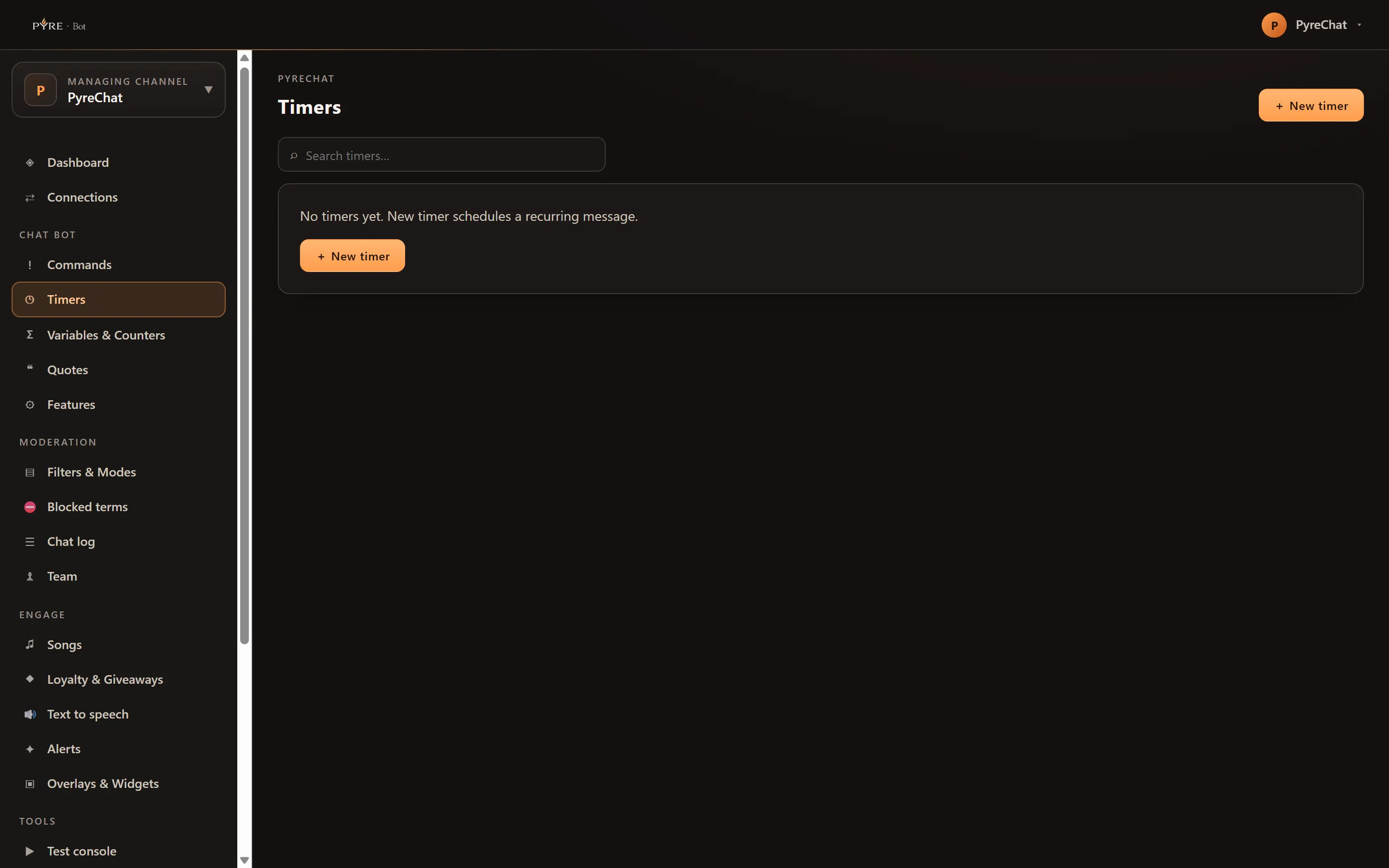
-
Open Timers and select New timer. The editor opens in a rail on the right.
-
Give it a Name. This is for you. It is what the table lists and what your activity log records. Chat never sees it.
-
Write the Message. This is what actually gets posted. The variable chips under the box insert variables the same way the Commands editor does.
-
Set Every (minutes). From 1 to 1440, starting at 15. The clock runs from the last time this timer posted, not from the top of the hour.
-
Set Min. chat lines if you want one. It holds the timer back until that many chat messages have been said since it last posted. It starts at 0, which means no gate at all: the timer fires on its interval whether chat is busy or empty. Pyre imposes no floor of its own, so leaving it at 0 is a supported choice, not a misconfiguration.
-
Add a rotation under Also rotate through, one message per line, if you want variety. Up to 20 lines, 400 characters each. The main Message plus these lines rotate, one per fire.
-
Decide on Only post while live. On, and the timer is held while you are offline. Off, and it posts any time.
-
Leave Enabled on and select Create timer.
How the rotation actually works
Section titled “How the rotation actually works”The Message field and the Also rotate through lines are one list, in that order. The timer posts the Message on its first fire, then the first extra line, then the second, and wraps back to the Message at the end. A timer with a Message and three extra lines cycles through four different posts.
The table shows a +3 rotate chip on any timer that has extras, so you can see at
a glance which of your timers vary and which repeat.
The rotation position is not saved anywhere. A deploy or a restart puts every timer back at the start of its list. Nothing is lost, but do not build a rotation that only makes sense read in order.
Turning a timer on and off
Section titled “Turning a timer on and off”The On switch lives in the last column of the table, not in the editor. This is deliberate: the switch is the one control you want without opening anything, and it means an editor rail you opened five minutes ago can never save a stale on or off state over a change you made in the meantime. The editor only offers Enabled while you are creating a timer.
Deleting a timer is recorded in your bot activity, and the confirmation says so.
When a timer does not post what you expect
Section titled “When a timer does not post what you expect”Two timers posted as one message. If more than one of your timers comes due in the same scheduling pass, Pyre merges them into a single chat post rather than sending several in a row. This is on purpose: several bot messages in a burst is the thing viewers complain about, and on YouTube each one costs API quota. If you want two announcements to land separately, give them intervals that do not line up.
A timer with Min. chat lines set has gone quiet. The count is of chat messages since that timer last posted, and it keeps accumulating across intervals until the timer actually fires. A quiet stream and a high number means a long wait. Lower the number, or set it back to 0.
Nothing posted at all while you were offline. Check Only post while live. A timer with that on is held whenever Pyre can see that your channel is offline.
The interval changed on its own. The editor works in whole minutes. Opening and saving a timer whose stored interval was not a whole number of minutes rewrites it to the minute shown in the field. It is a correction rather than a loss, but a save you thought was a no-op may have moved the interval.
Every fire is recorded in the Activity log under Tools, so if you are unsure whether a timer ran, that is the place to check rather than scrolling chat.
Bringing timers from another bot
Section titled “Bringing timers from another bot”Of the bots Pyre can import from, only Nightbot exposes its timers, so only Nightbot brings them across. The rest bring commands alone. The details are in the Commands guide.