
Moderation
Pyre reads every message your channels receive and can act on the ones you do not want. Three things decide what happens: filters, which look at what a message contains, modes, which restrict who may speak at all, and your blocked terms list, which one of the filters draws from.
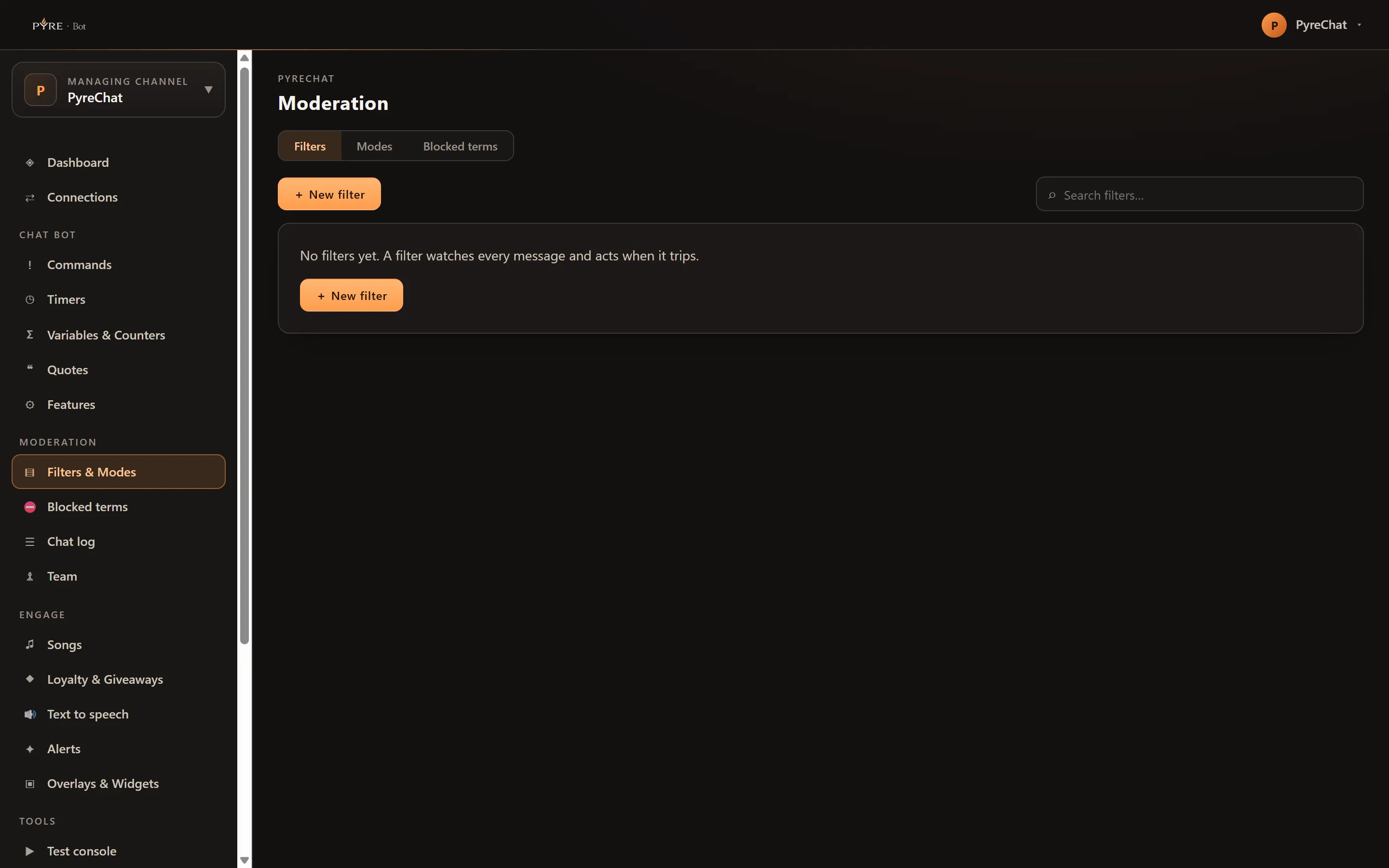
All three live on one page, Filters & Modes, as three tabs: Filters, Modes and Blocked terms.
Blocked terms used to have its own sidebar row and no longer does. It was a second
row opening the same page, which is a duplicated destination rather than a second place
to go, and the list belongs beside the filter that enforces it. An older /blocklist
link still resolves and still opens straight onto that tab.
How a message is judged
Section titled “How a message is judged”Modes are checked first. A message stopped by a mode never reaches the filters.
Then the filters run in the order you created them, and the first one that both applies to that viewer and trips decides the outcome. Nothing after it is considered, so a message is only ever acted on once, by one filter.
If nothing trips, the message stands.
The eight filters
Section titled “The eight filters”Each filter is a row you create, with its own settings, its own action and its own exemption. You can have more than one of the same type, which is how you build something like a strict rule for everyone and a looser one that only applies to a longer message.
| Filter | Catches | Its settings |
|---|---|---|
| Caps filter | Messages that are mostly capital letters | Max uppercase % (70 by default) and Minimum message length, which lets short shouts through |
| Link filter | Messages containing links | Allowed domains, comma separated. Anything listed is never blocked. Leave it blank and every link is caught |
| Spam filter | Repeated characters or repeated words | Max repeated characters (10) and Max repeated words (5). Either one set to 0 turns that half off |
| Emote filter | Messages with too many emotes | Max emotes per message (5) |
| Blocked words filter | Messages containing a term from your Blocked terms tab | None. The list is the setting |
| Symbols filter | Messages that are mostly symbols or punctuation | Max symbol count, Minimum message length (10) and Max symbol % (50) |
| Length filter | Very long messages that flood the chat | Max message length (300) |
| Custom pattern filter | Whatever a regular expression you write matches | Pattern, matched case insensitively |
The Catches column in the filters table is generated from the settings you
actually saved, so it tells you what a rule does right now. When a rule’s thresholds
add up to something that can never fire it says so plainly, for example No threshold set, this filter never trips.
What happens when one trips
Section titled “What happens when one trips”Every filter carries an Action: Delete, Timeout or Ban. Timeout uses the Timeout (seconds) field beside it, and that field is ignored for the other two.
Warning message is optional. Fill it in and the bot posts that line in chat when the filter trips. Leave it blank and the action is silent.
Repeat offenders is a toggle. Turn it on and a viewer who keeps tripping the same rule is walked up a ladder rather than getting the same slap every time: the first offence is a delete, the second is your timeout length, the third is ten times that, and the fourth and beyond is 24 hours. A viewer’s count resets after an hour without an offence.
The ladder never reaches a ban. That ceiling is deliberate: automation may escalate, but permanently removing someone stays a decision a person makes.
Who is exempt
Section titled “Who is exempt”Every filter has an Exempt from setting, and everyone at that level or above is
never actioned by it. The levels run everyone, subscriber, vip, moderator,
broadcaster.
New filters default to Subscriber, which means your subscribers, VIPs, mods and you are all exempt out of the box. That is a sensible default for a caps or symbols rule and a poor one for a blocked words rule, so it is worth checking on every filter you create rather than assuming.
Chat modes have their own exemption, separate from the filters, and it is Moderator.
The link filter has one extra escape hatch. A moderator typing !permit someone in
chat gives that viewer 60 seconds to post one link without the link filter touching
them. Add a number for a different window, up to 300 seconds. No other filter honours
a permit.
Set up a filter
Section titled “Set up a filter”Blocking links, with an allowance for the sites you actually want shared, is the most common first filter.
-
Pick the channel in the channel selector at the top of the portal if you are working on a channel you moderate rather than your own.
-
Open Filters & Modes and stay on the Filters tab.
-
Press New filter. The editor opens in a rail on the right.
-
Choose
Link filteras the Filter type. The hint under the picker changes to describe what the type catches, and the settings below it change with it. -
List your Allowed domains, comma separated, for example
twitch.tv, youtube.com, clips.twitch.tv. Links to anything else are caught. Leaving this blank blocks every link, including your own. -
Choose the Action. Delete is the usual answer for links. If you pick Timeout, set the seconds beside it.
-
Set Exempt from. Subscriber is the default. Moving it to VIP or Moderator makes the rule stricter, since fewer people are excused.
-
Write a Warning message if you want chat to know why a message vanished, or leave it blank for a silent delete.
-
Press Create filter.
You can toggle any filter on or off from the On switch in the table without
opening it, and a moderator can do the same from chat with !filter link off.
Chat modes
Section titled “Chat modes”The Modes tab carries one card per platform your channel is connected on, with four settings each:
- Followers only
- Subs only
- Emote only
- Slow mode (seconds)
These are not the platform’s own chat modes. Pyre evaluates them itself, on every message that arrives, and acts on the ones that fail. Anyone at Moderator level or above is exempt from all four.
Subs only and Slow mode work from information every message carries: the viewer’s level, and when they last spoke. Slow mode counts per viewer, so a second message inside the window from the same person is caught while everybody else is unaffected.
Blocked terms
Section titled “Blocked terms”The Blocked terms tab is a plain list of words and phrases. Add one in the Word or phrase field and press Add word. Up to 100 characters each, up to 1000 of them.
Matching is case insensitive and matches anywhere in a message, so spam also
catches SPAMMING and antispam. Entries are stored lowercased and trimmed, and
adding a word you already have is a no-op rather than a duplicate.
The list does nothing on its own. It is the source the Blocked words filter reads, so you also need that filter turned on in the Filters tab, with the action and the exemption you want. A list with no filter behind it blocks nothing.
Moderating from chat
Section titled “Moderating from chat”Three moderator commands work in chat, and all three are silent for anyone below Moderator rather than answering with a refusal:
| Command | What it does |
|---|---|
!filter <type> on|off | Turns a filter of that type on or off. If you have none of that type, turning it on creates one with working defaults |
!permit <name> [seconds] | Lets that viewer post a link past the link filter. 60 seconds by default, 300 at most |
!nuke <term> | Deletes up to 50 recent messages containing the term, never touching a moderator or above. Add -t=<seconds> to time their senders out as well |
What a moderator can change
Section titled “What a moderator can change”Filters, chat modes and blocked terms are all Manager level work on a channel you moderate. An Editor or Read-only moderator sees all three tabs and every setting in them, and can change none of it. On your own channel everything is available to you. The full picture is in Give a moderator access.
Every change to a filter, a mode or a blocked term is recorded against the person who made it, whether that was you or a delegate.