
Text to speech
Text to speech reads viewer messages out on your stream. Pyre sends the audio to a browser source you add once, and it is on by default: tips, cheers, Super Chats, resubs and channel point redemptions you have mapped all get read.
Every voice your channel can reach is available, and out of the box every one of them is free to your viewers. No voice is held back until you decide to hold it back. A fresh channel has a single base tier priced at zero, every voice sits in it, and any tip, cheer or resub reads in whichever voice the viewer asks for.
Tiers are the optional layer on top. If you want premium voices to cost something, you can put them behind a tip amount, a bits amount, a channel point reward or Pyre points. Most channels never need to.
What chat types
Section titled “What chat types”A viewer does not type a command to be read out by tipping or cheering. Their message is the message. What they can do is name a voice, by starting their message with the voice’s tag and a colon:
moist: chat I have made a terrible mistakeThe tag is always a single word, and matching is case insensitive on both
sides. ASMRGUY:, AsmrGuy: and asmrguy: are the same voice. A colon that
is not a voice tag, in a URL or in “note: whatever”, is left alone and the whole
message is read.
If the named voice is out of reach, the message is never dropped. It reads in your default voice instead.
The chat command
Section titled “The chat command”!tts <your message>, with !say as an alias, is the one route that spends
Pyre loyalty points. It works on every platform the bot reads, because it is
an ordinary chat command rather than a platform payment.
It is off until you price it. A tier whose Pyre points price is 0 is not
purchasable, so on a fresh channel !tts does nothing. That is deliberate:
every other trigger costs the viewer real money or a real redemption, and a free
chat command that makes your stream talk is a spam surface. Set a Pyre points
price on a tier and !tts starts working for the voices in it.
Two things bound it. Spoken text is cut at 300 characters, and each viewer waits out a cooldown between requests, 30 seconds by default.
Set it up
Section titled “Set it up”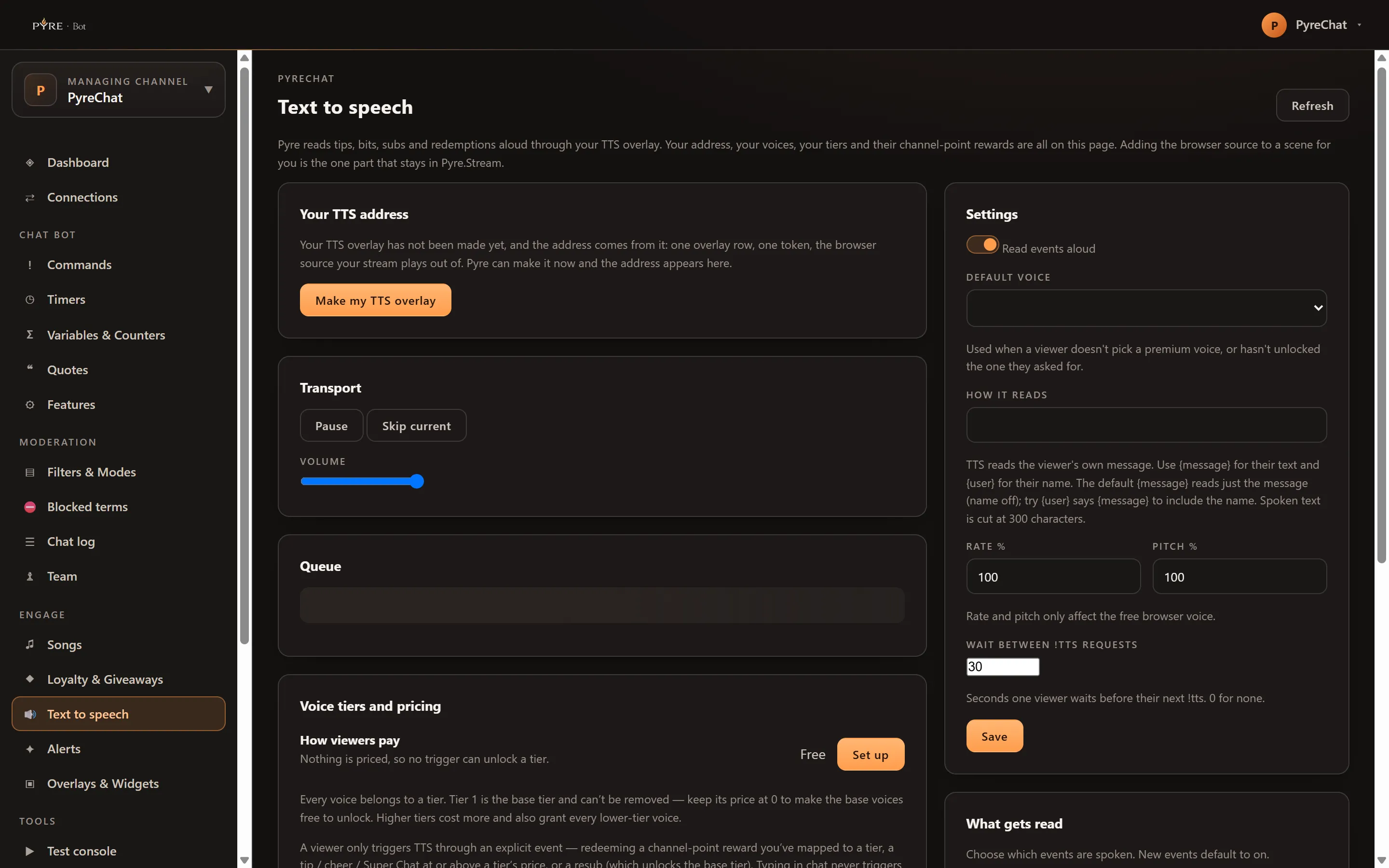
-
Open Text to speech in Pyre.Bot. Use the channel selector at the top of the portal to switch channels.
-
Make your TTS overlay if you have not already, then copy the Browser source address from Your TTS address and add it to your streaming software as a browser source. It plays audio and shows nothing, so it needs no size. Treat the address like a password: anyone holding it can play sound on your stream.
-
Check the Settings card. Read events aloud is the master switch and starts on. Pick a Default voice, the one used when a viewer does not name a voice or asks for one they have not unlocked.
-
Set How it reads. The default
{message}reads just the message. Use{user}for the viewer’s name, for example{user} says {message}. -
Set Rate % and Pitch % if you want. These affect the free browser voice only.
-
Set Wait between !tts requests, the per viewer cooldown in seconds. 0 turns it off.
-
Save, then use What gets read to switch individual event types on and off. New event types default to on.
The Transport card is your live control: Pause and Resume, Skip current, a Volume slider, and Send a test so you can prove the browser source works before anyone is watching.
Voices
Section titled “Voices”The Premium voices card lists every voice your channel can reach, with five columns: the Voice name, what Viewers type to pick it, a Preview button, its Tier, and whether it is On.
Voices arrive enabled. A voice you have never touched is on, and a config row only ever exists to record a decision you made. Enable all and Disable all flip the whole list at once, and New voices decides what happens when the provider adds one: Auto-enable new voices is on by default, and turning it off leaves a new voice explicitly disabled until you look at it.
The names in the list are the ones viewers already know. The provider’s API
answers with neutral codenames that its own site never adopted, so Pyre
translates at the display seam: you see and your viewers type the public name.
Where a provider publishes a shorter tag than the name, the tag wins, so “Moist
Cr1TiKaL” is moist: and a two word name collapses to one word rather than
growing a space.
Where the provider ships a sample clip, the row carries a ▶ Play button that becomes ■ Stop. No sample means no button, which is a voice without a clip, not a broken one.
Viewers can browse and preview your voices themselves at pyre.studio/s/your-handle/voices, grouped by tier so the question they are actually asking, what a given amount gets them, is answered in one place.
Charging for voices, if you want to
Section titled “Charging for voices, if you want to”The Voice tiers and pricing card is where the optional layer lives. How viewers pay sits at the top of it and reads back every method that is currently on, with Set up or Change to open the wizard.
Every voice belongs to a tier. Tier 1 is the base tier and cannot be removed. Keep its prices at 0 and the base voices stay free. Higher tiers cost more and also grant every lower tier voice, so a viewer who clears tier 3 can use tier 1 and 2 voices as well.
Each tier row carries four independent prices: a Tip price, a Bits price, a Channel points reward, and a Pyre points price. A tip, cheer or Super Chat unlocks the highest tier its amount clears; a resub unlocks the base tier; a channel point redemption unlocks whichever tier its reward is mapped to; Pyre points buy exactly the tier the named voice sits in.
Add tier, then Save tiers to keep your changes. Reward selections save with the button; creating or unlinking a tier’s own reward saves straight away.
Moderators
Section titled “Moderators”A moderator you have given access to can Pause, Resume and Skip current on your TTS. Your voices, your tiers, your settings, your address and the live queue stay with you, and those cards are absent on a delegated channel rather than greyed out.