
Clips
Clips is your channel’s clip library plus the !clip command that lets chat make
one. Clips your viewers made on Twitch and clips the bot made from chat land in the
same place, and each one can be copied as a link or downloaded as a file.
It is a page for your own channel only. Like Connections, Team and Tips, Clips does not appear when the channel selector is pointed at a channel you moderate.
Twitch only, and the page says so out loud
Section titled “Twitch only, and the page says so out loud”The heading carries a Twitch only chip, and directly under it the page states what that covers:
Clips here cover your Twitch channel. Clipping every platform, straight from your own stream, comes with Pyre.Stream.
That is the whole platform story on this page. Kick and YouTube offer no clip tools to apps, so there is nothing here to switch on for them, and Pyre does not pretend otherwise. What Pyre.Stream adds is a different mechanism rather than a different setting: it records your own stream, so a clip does not have to come from the platform at all.
Set it up
Section titled “Set it up”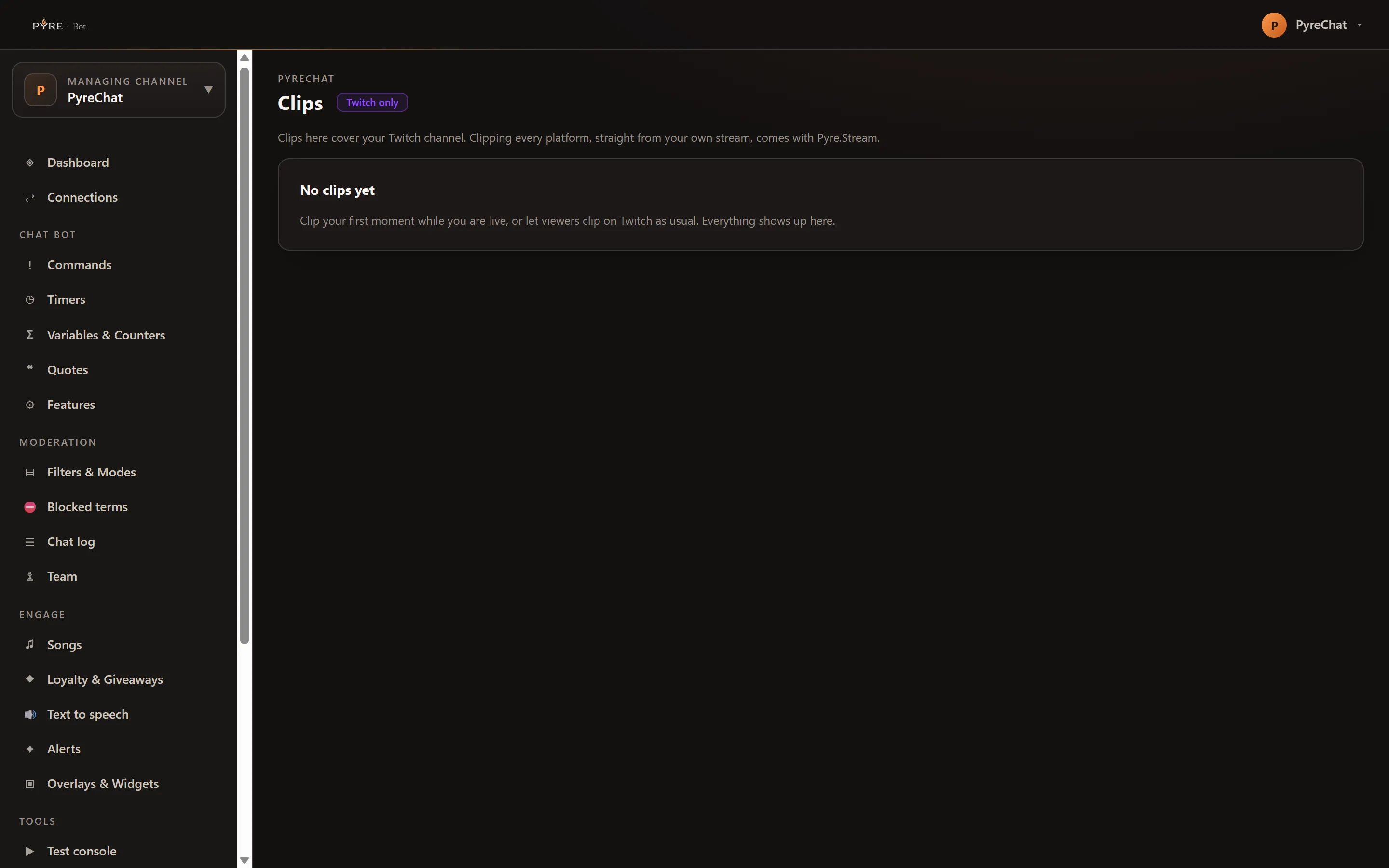
-
Point the channel selector at your own channel and open Clips under Content.
-
Connect Twitch if the page shows the card reading “Connect Twitch to use clips”. Clips are created and hosted by Twitch, so the page needs that connection before it can show or make anything.
-
Reconnect if you are asked to. If Twitch is already connected but the page shows “Twitch added new permissions Pyre needs for schedules and clips”, use Reconnect Twitch. Downloading is part of a permission set Twitch added after some accounts had already signed in, so an older connection reaches the library and can still create clips, but the Download menu asks you to reconnect first.
-
Check
!clipis on. Open Commands, switch to the built ins list, and find!clip [title]in the Stream group. The switch on that row is the only thing that turns the command on and off.
Clipping from chat
Section titled “Clipping from chat”!clip captures the last 30 seconds of the stream and posts the link back in chat.
!clipthat is an alias for it. Anything typed after the command becomes the clip
title, so !clip that landing names the clip.
!clip is available to moderators and above. On success the bot answers with
the watch page address:
Clip created: https://clips.twitch.tv/...When it cannot, it says why, and the reason is always one of a short list:
| What chat sees | What happened |
|---|---|
| clips work on Twitch chats for now | The command was typed in a Kick or YouTube chat |
| there is no live stream to clip right now | The channel is offline, and Twitch refuses to clip an offline channel |
| give it a few seconds before clipping again | The same viewer clipped moments ago |
| the channel needs to reconnect Twitch before clips work | The connection predates the clip permission, see step 3 above |
| this channel has not connected Twitch | No Twitch connection on the channel |
| Twitch is rate limiting clips right now | Twitch is throttling, it resolves on its own |
The library
Section titled “The library”The page lists your most recent clips, newest first, up to fifty of them. There is no filter or sort control in this portal.
Each card shows the thumbnail, the clip length, the title, the view count, how long ago it was made, and one chip saying where it came from: You clipped this for clips Pyre made, Clipped on Twitch for clips a viewer made themselves. Both kinds get the same actions. The chip is attribution, not a capability.
A clip made seconds ago shows a Processing chip instead of a thumbnail, with the line “Twitch is processing this clip. It shows up here in under a minute.” The link already works while that is showing.
Clicking a card opens it in a theater over the page, playing in Twitch’s own player. Close or the Escape key returns you to the grid, on the card you opened.
If the library is empty the page says “No clips yet”, and tells you the two ways it fills: clip a moment while you are live, or let viewers clip on Twitch as usual.
Copy link and Download
Section titled “Copy link and Download”Two actions sit on every card, and on the theater bar.
Copy link puts the clip’s public watch page address on the clipboard. If your browser will not give the page clipboard access, the address is shown instead so you can copy it by hand.
Download resolves two files:
- Landscape, the clip as streamed, 16:9.
- Portrait 9:16, made by Twitch for phones. No rendering, no waiting.
Both come straight from Twitch, and Pyre stores neither. The links are temporary and are handed to you rather than kept, which is why Download resolves them fresh each time you press it rather than showing them on the card by default.
Those two are the whole action list here. Posting a clip onward is not part of this portal, because the settings that decide where a post goes live on Pyre.Stream, and a button whose configuration lives in another product is a button that mostly fails.
Where clips appear for viewers
Section titled “Where clips appear for viewers”Your public profile carries a Clips tab at pyre.studio/s/your-handle/clips,
alongside the commands, songs and voices tabs. It needs no account to view.
View only access
Section titled “View only access”If the heading shows a View only chip and a line reading “Operator access can view this, but only the channel owner can change it”, the channel is being viewed through Pyre operator access rather than by its owner. Everything is readable, the grid and the theater work normally, and Download is disabled, because resolving a download link is a write on the wire even though it changes nothing. Copy link and playback still work.
Troubleshooting
Section titled “Troubleshooting”Chat gets “clips work on Twitch chats for now”. The command was typed in a Kick
or YouTube chat. There is nothing to configure. !clip answers this once, honestly,
rather than checking liveness and permission for a platform that could never work.
A clip is missing from the library. The library refreshes from Twitch when the page loads. Reload the page. A brand new clip appears as a Processing card first.
Download is greyed out. Either the page is in view only access, or the Twitch connection is missing the clip permission. Use Reconnect Twitch on the card the page shows.
The theater is a black box. That is a browser blocking the Twitch player rather than a Pyre fault. Use Copy link and open the clip on Twitch.