
A tour of the portal
Most of the portal has a guide of its own. This is the tour of the rest: Dashboard, Activity log, Chat log, Team, Public profile and Features.
Everything below is scoped by the channel selector. Four of these six pages exist only on your own channel, and each section says so.
Dashboard
Section titled “Dashboard”The Dashboard is the landing page. It answers one question, “is my bot working right now”, and gives you the two controls you reach for mid stream.
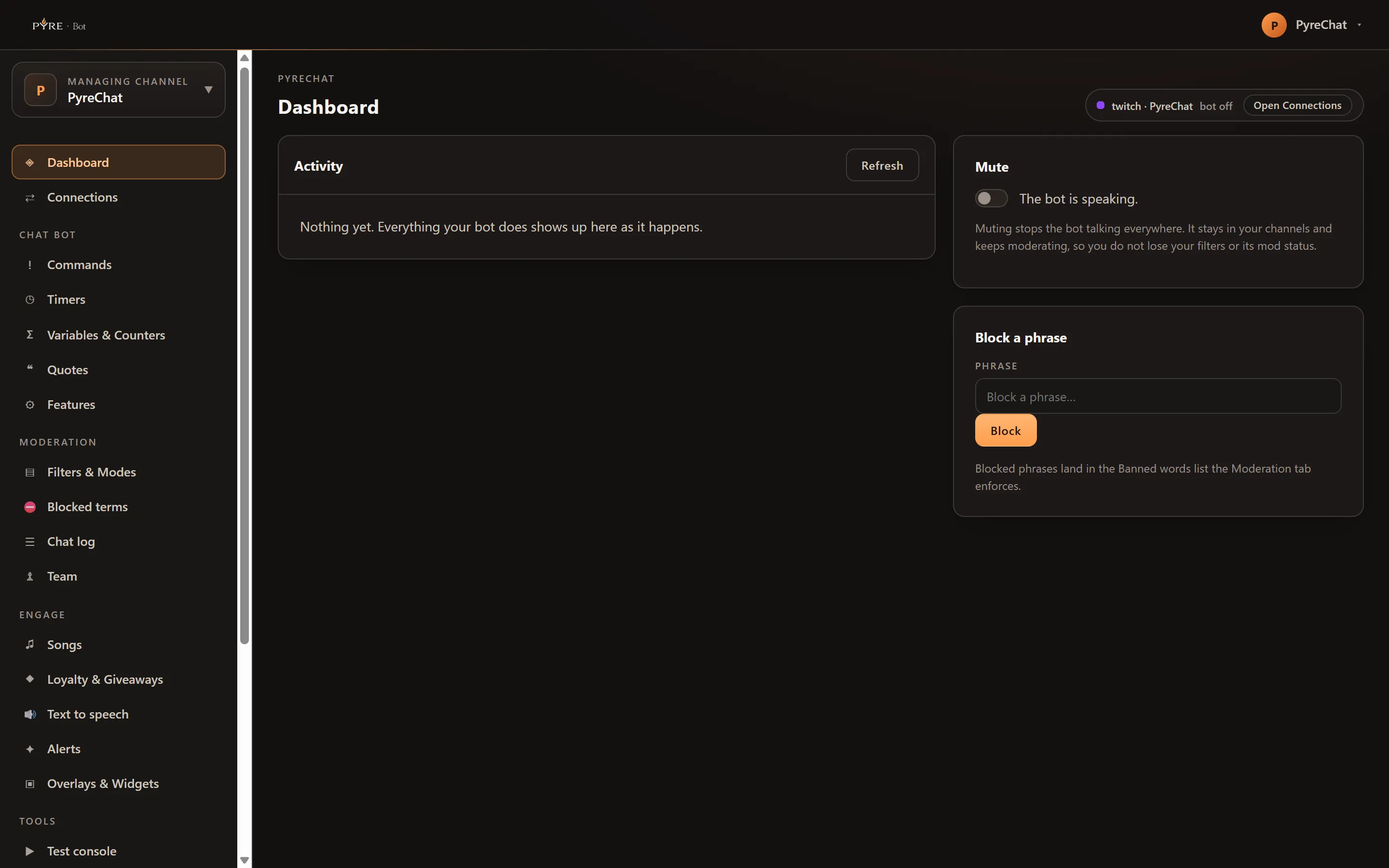
The status strip sits beside the page title, one chip per channel, reading platform,
channel name and state. The states are bot off, no bot account connected,
waiting for a live broadcast (YouTube, and not a fault), joined, joined · modded
and joined · not modded. When a chip needs something done it carries an Open
Connections link.
The Dashboard reports status and Connections performs the fix. That split is deliberate: the enable and mod buttons live in exactly one place. The full state table, and what to do about each one, is in Connections.
The Activity card lists the newest 15 things your bot did, each with a time, a kind chip and a one line summary, plus a Refresh button. It does not update by itself. The whole history is the Activity log, below.
Mute is a switch, and it is on your own channel only. Muted, the copy reads “The bot is muted. It stays in your channels and keeps moderating, but says nothing.” That is the important part: muting silences the bot everywhere at once without taking it out of your channels, so you keep your filters and the bot keeps its moderator status.
Block a phrase takes a phrase up to 100 characters and adds it to the Banned words list that Moderation enforces. It is the fast path for the thing somebody just said.
On a channel you moderate the page is narrower: no Mute card, the chip reads Managed channel rather than a real connection state, and the Activity card carries a note that live activity is not available for delegated channels. Block a phrase appears for a Manager, because blocked terms is a Manager level write.
Activity log
Section titled “Activity log”Under Tools, and on your own channel only. It is the Dashboard’s Activity card as a full browser.
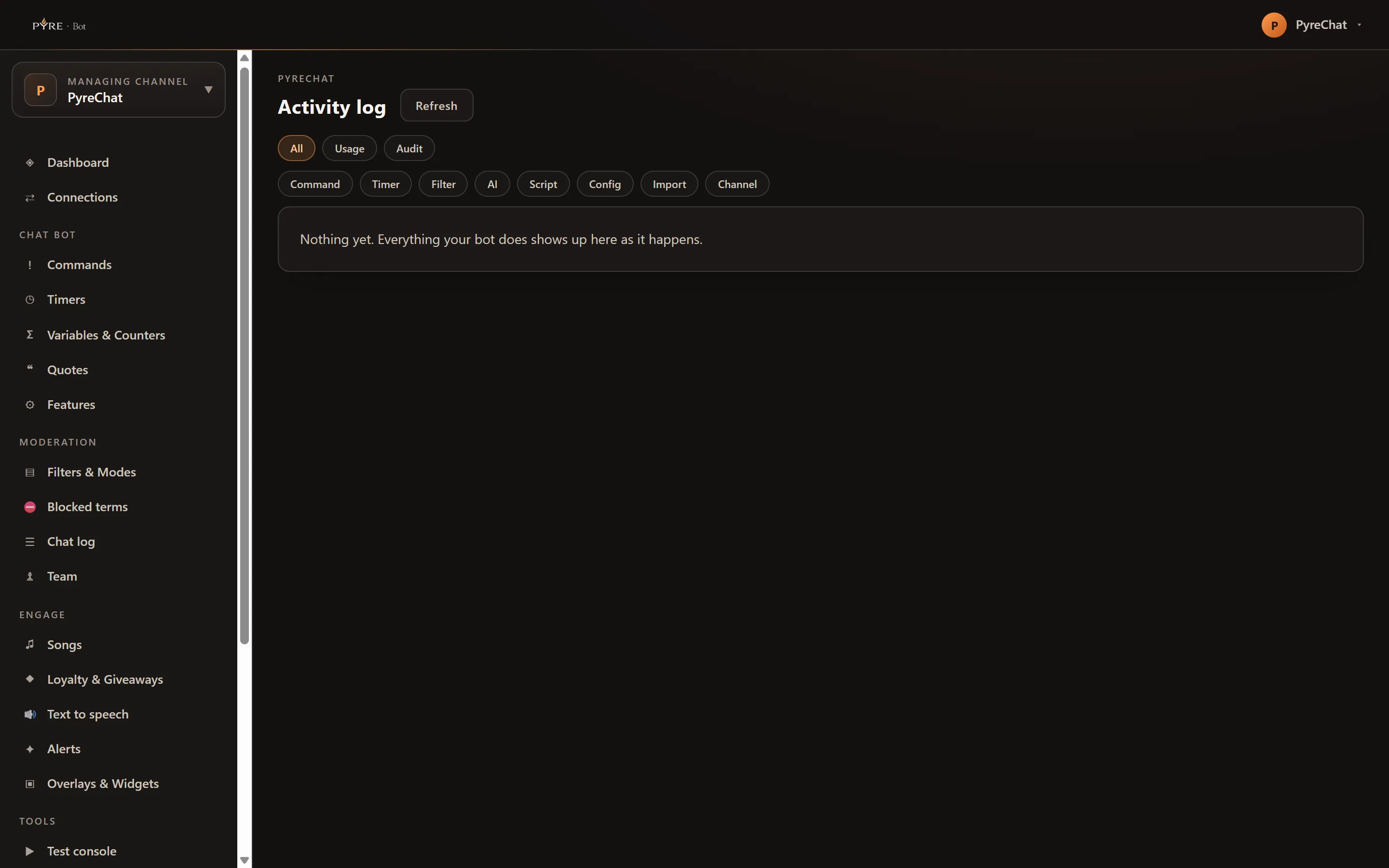
Eight kinds of entry land there, in two classes:
| Class | Kinds | What produces them |
|---|---|---|
| Usage | Command, Timer, Filter, AI, Script | Your bot doing its job: a command fired, a timer posted, a filter caught something, an AI reply, a script run |
| Audit | Config, Import, Channel | Somebody changing your setup: a command edited, an import applied, a channel switched on or off |
Audit rows render with an Audit chip and a kept marker beside them.
Two rows of filter chips sit above the list. The first is the class: All, Usage, Audit. The second is the kind, and it is multi select. The two rows are mutually exclusive: choosing a class clears any kind you had picked, and choosing a kind clears the class. Only one dimension filters at a time.
Entries arrive 50 at a time with Load more at the bottom, and Refresh at the top. Times are relative, and hovering one shows the exact timestamp.
Chat log
Section titled “Chat log”Under Moderation. Your channels’ chat history, searchable, and the settings that decide how much of it exists.
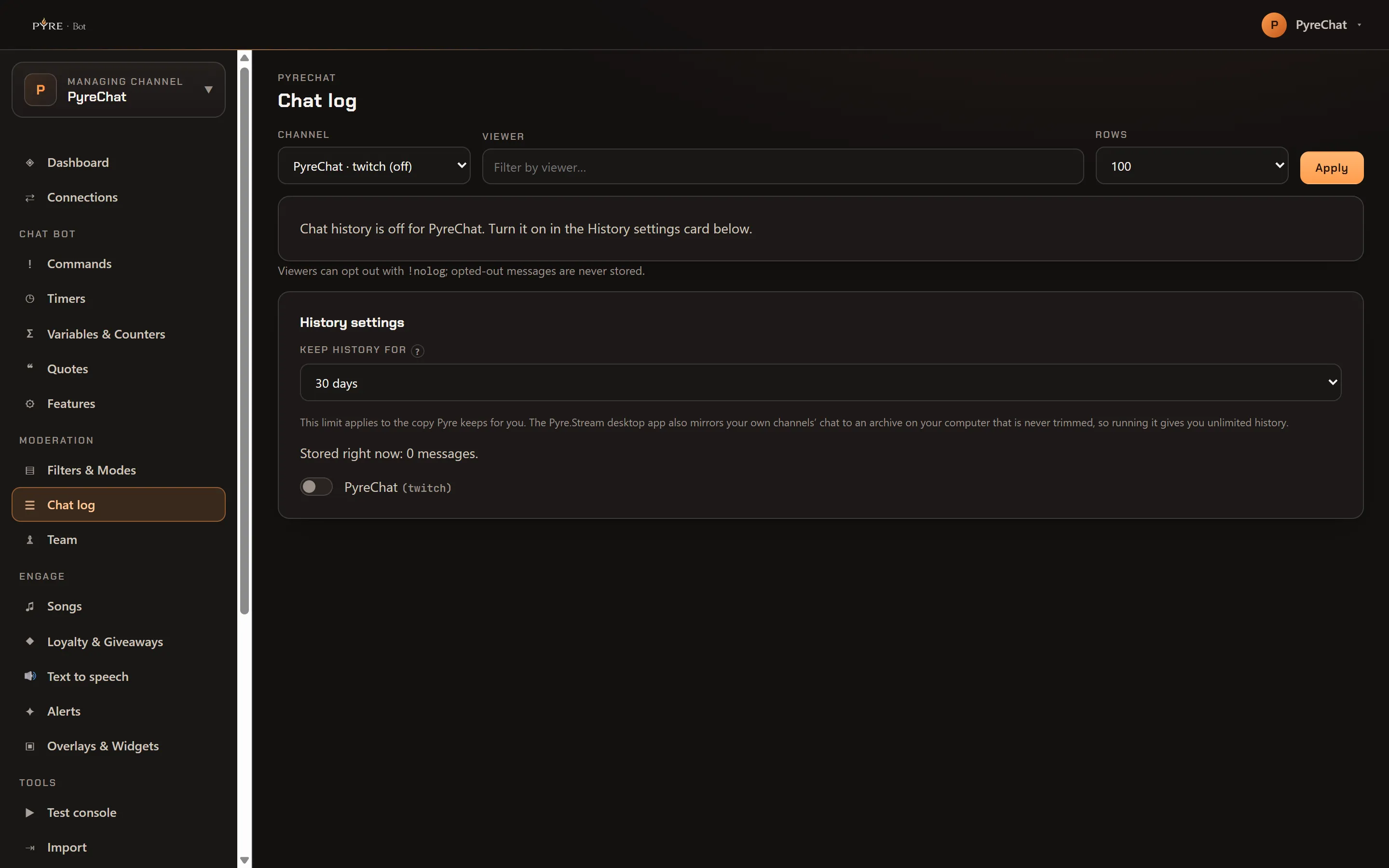
It is off until you turn it on, per channel. The History settings card at the bottom of the page has a switch for each of your channels, and nothing is stored for a channel whose switch is off. That card is your own channel only.
The same card holds Keep history for, offering 7, 30 or 90 days and starting at 30. It is one setting for your whole account rather than per channel, and a daily sweep removes rows older than the window. Above the switches, Stored right now tells you how many messages you currently hold.
Finding something
Section titled “Finding something”-
Pick the Channel. The list marks a channel
(off)when its history switch is off. Choosing one applies immediately. -
Type into Viewer. It matches part of a viewer name, or a viewer ID exactly. Unlike the two dropdowns, this box waits for Apply or Enter, so it never fires a request per keystroke.
-
Set Rows, 50, 100 or 200. It starts at 100 and applies immediately.
-
Read down the table: Time, Viewer, Message. Load more appends the next page.
Moderation actions are in the table alongside the messages, chipped Banned, Timed out, Unbanned or Message deleted, with the moderator, the duration and the reason where the platform gave one. A message that was deleted afterwards keeps its row and gains a deleted chip.
Two things worth knowing
Section titled “Two things worth knowing”Viewers can opt out by typing !nolog, and their messages are then never stored. That
covers messages only. A ban, timeout, unban or deletion is your own record of an action
you took, and a viewer’s opt out does not suppress it.
On Twitch, switching history on for a channel also seeds the first screen from a public recent messages service, so the log is useful on day one rather than day three. It is one best effort attempt and nothing depends on it. On YouTube and Kick the log starts from the moment you switch it on.
On a channel you moderate the Chat log is readable at every access level and writable at none: you see the history, you do not see the settings card. Deleting somebody’s chat history is not a delegated act.
Own channel only. It is where you hand your bot to somebody else and where you see what they did with it.
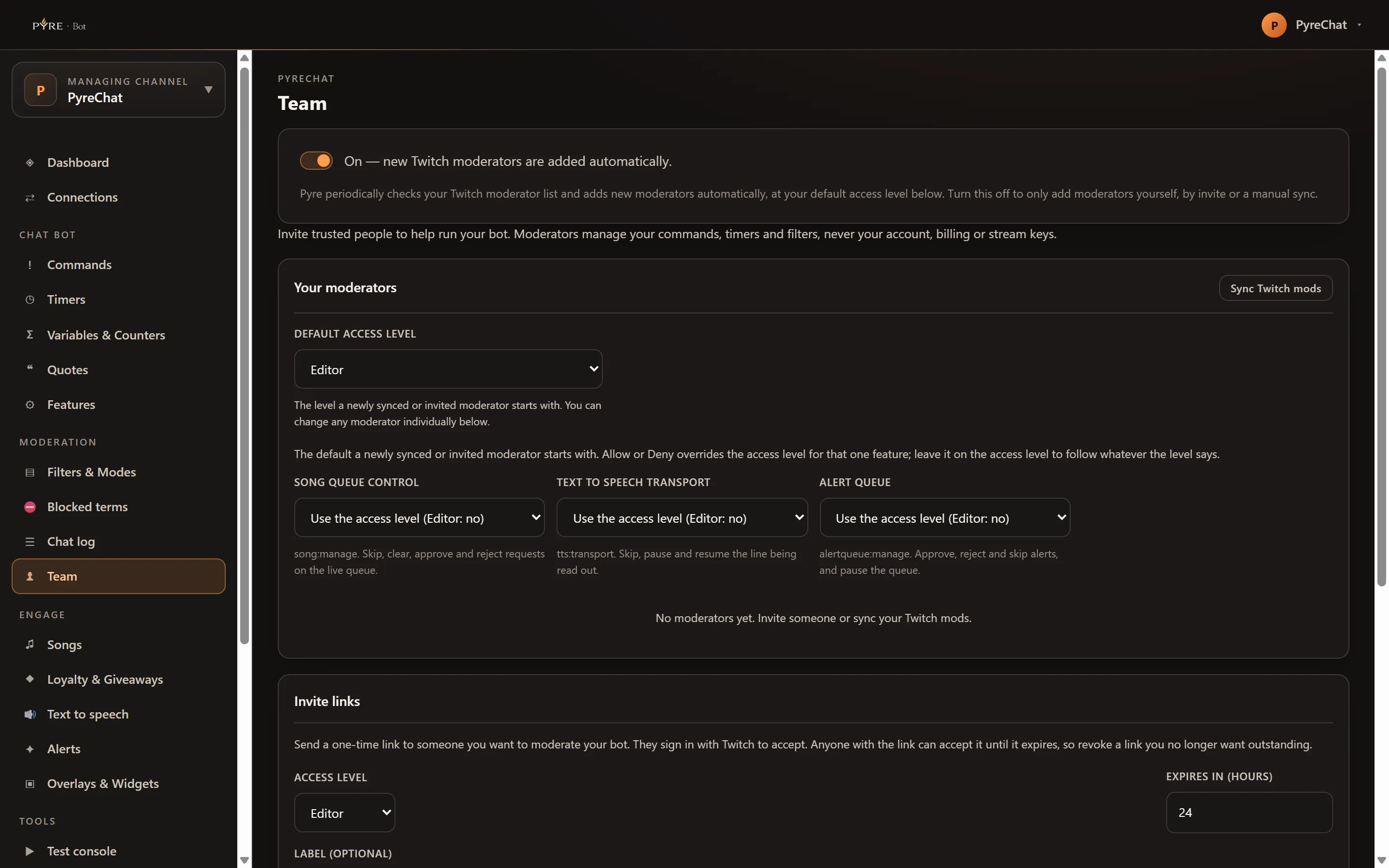
At the top is one switch of this portal’s own: automatically add Twitch moderators. On, it reads “new Twitch moderators are added automatically”. Off, “moderators are only added by invite or a manual sync”. Below it sits the panel that holds your default access level, your roster, your invite links and the change log.
The three levels, as the code enforces them:
| Level | May change |
|---|---|
| Read-only | Nothing |
| Editor | Commands, timers, quotes |
| Manager | All of the above, plus filters, chat modes, variables and blocked terms, plus the live queue controls for songs, text to speech and alerts |
Reading is the same at every level. Invites, the per person fine tuning, and the list of things no level ever reaches are covered in Give a moderator access.
Public profile
Section titled “Public profile”Own channel only, under Monetize. It edits the page your viewers actually visit, and it opens with a link to that page so you can check it.
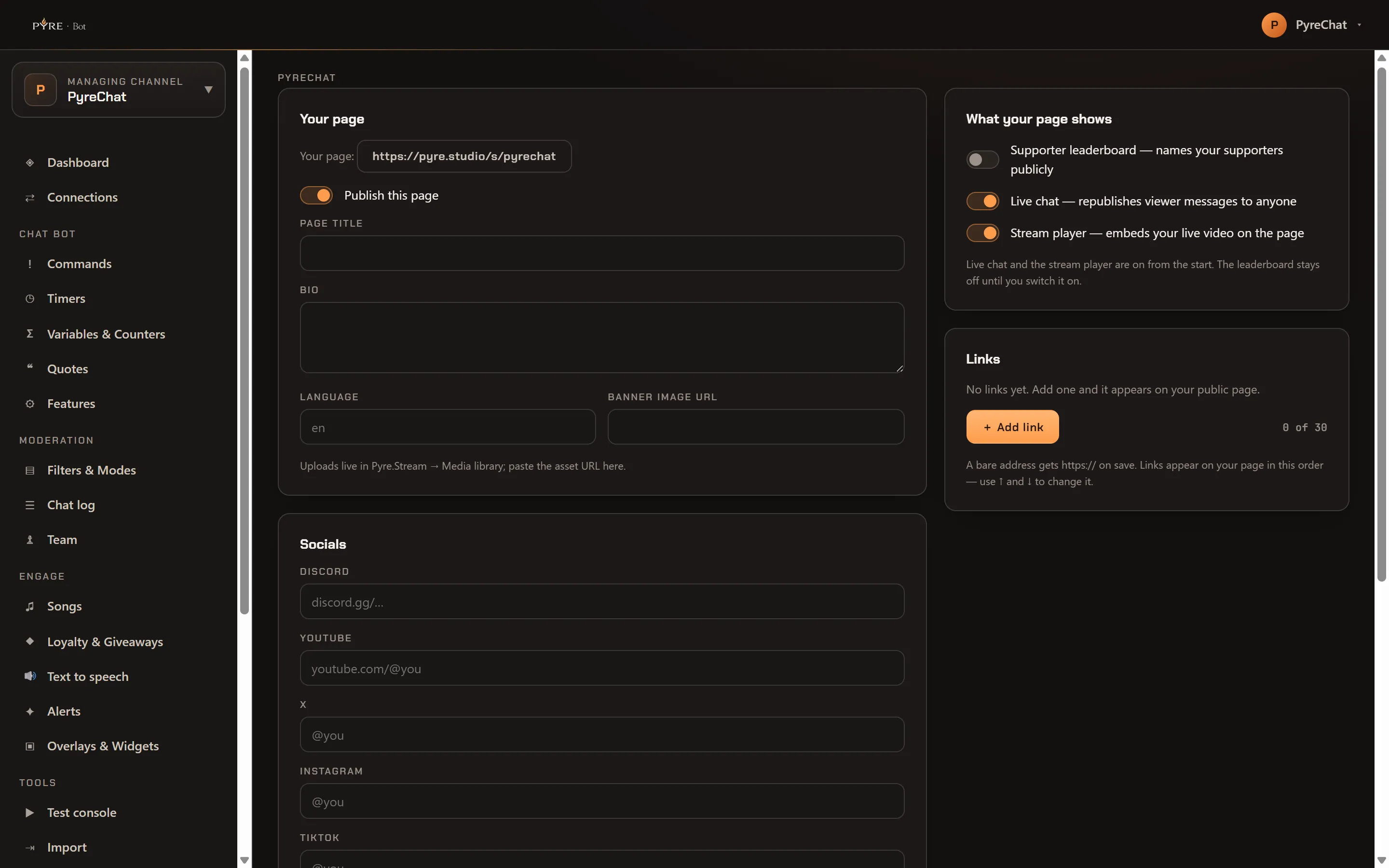
Four cards:
- Your page: a Publish this page switch, Page title, Bio up to 500
characters, Language as a tag like
enorpt-BR, and Banner image URL. - Socials: a box each for Discord, YouTube, X, Instagram, TikTok, Kick, Facebook and
Website. Paste a full URL, a bare host or an
@handle, whichever you have. Clearing a box removes that entry rather than storing a blank. Chips underneath show the socials Pyre derived from your connected platforms for free. - What your page shows: live chat and the stream player are on from the start; the supporter leaderboard stays off until you switch it on, because it names your supporters publicly. Supporter leaderboard names your supporters publicly, Live chat republishes viewer messages to anyone, and Stream player embeds your live video. Two of the three publish other people’s words, which is why none of them is on by default.
- Links: your link list, fully editable here, with a count out of the 30 you may have.
Each row carries a Label, a URL and a Kind of
link,socialorproduct, and its own ↑, ↓ and Delete buttons. + Add link appends an empty row, and the button greys out at 30 with the reason written under it. A bare address getshttps://added on save, and your links appear on the page in the order shown here, which is what the arrows change. A row you add and then leave completely empty is dropped rather than saved as a blank.
Then Save profile, which sends only what you changed.
Two things this page deliberately does not do. It takes a banner URL and does not upload one, so put the image in the Pyre.Stream media library and paste its address. And the thank you message a tipper sees belongs to Tips, which is the other half of the same public page. Custom social rows are also still added in Pyre.Stream, which is a different list from the Links card above.
One link row, after pressing + Add link:
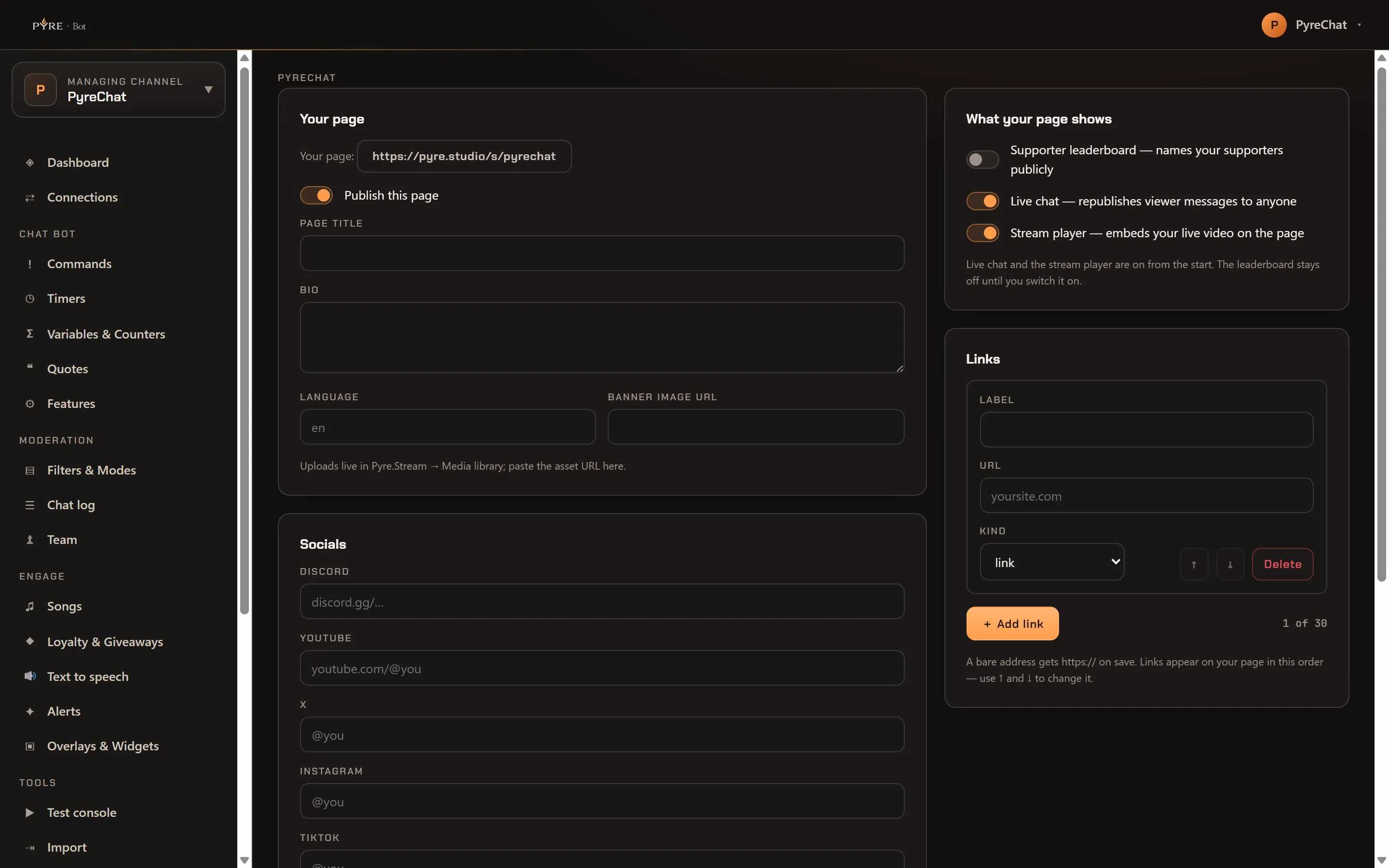
The card sits in the narrow right-hand column, so the Label and URL fields stack rather than sitting side by side, and a long list gets tall. The arrows are what to reach for rather than scrolling and re-typing. Both are greyed out on a single row, and each end of a longer list greys out the one that has nowhere to go.
If your page has no address yet, the card says so: pick a public handle in Pyre.Stream first, because that handle is the page’s URL.
Features
Section titled “Features”Under Chat bot. The master switch list for every command Pyre ships, grouped into eight cards: Personal, Songs & Media, Games, Lookups, Social, AI, Compose and Stream.
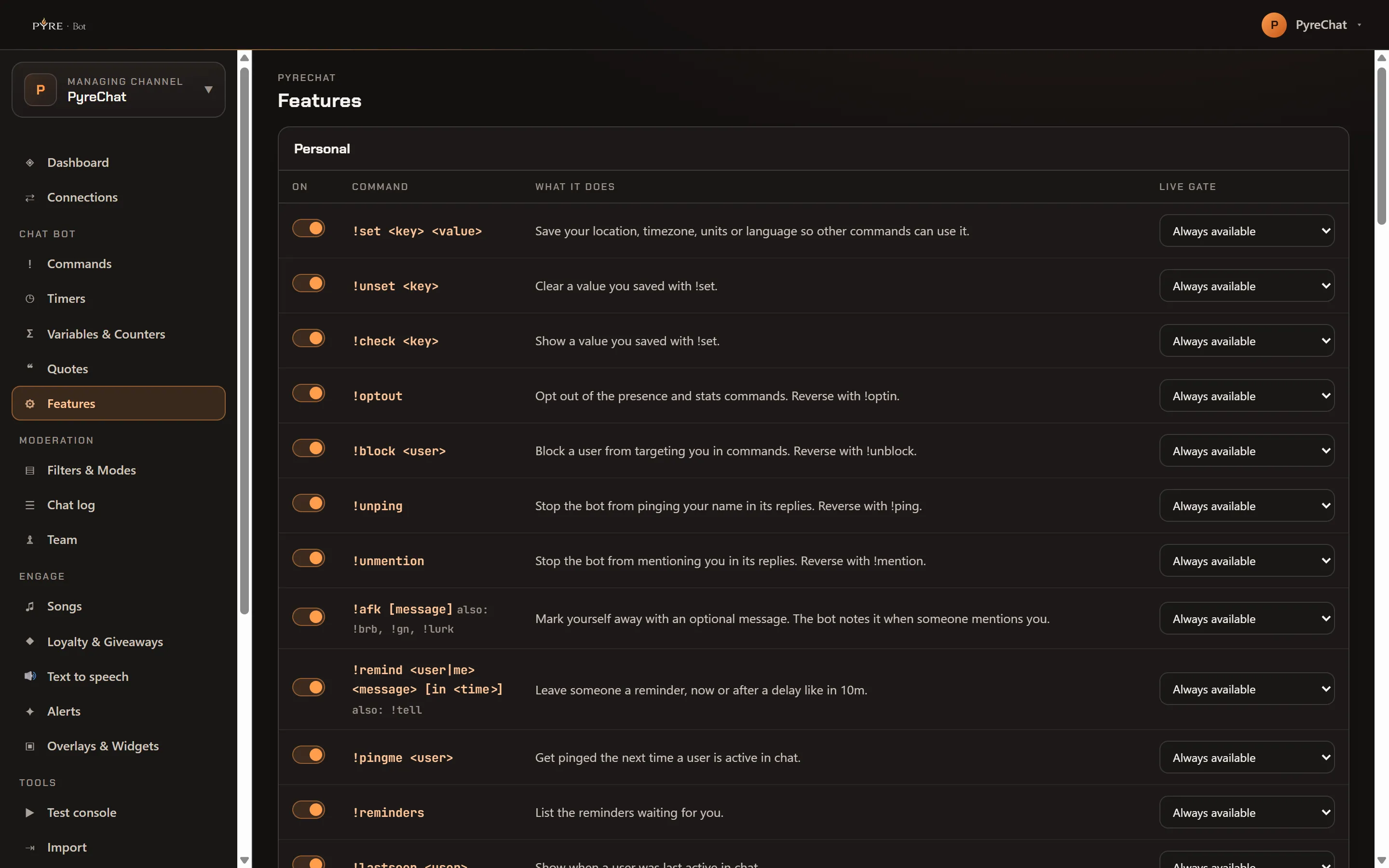
The cards are ordered biggest first, not alphabetically or by theme. They pack into however many columns your window fits, and feeding the tall cards in first is what keeps the columns level: in theme order the 18 row Personal card landed two thirds of the way down and left one column visibly longer than the other. So scan for a heading rather than counting positions, and expect the order to shift as commands are added.
Every row has four columns. On enables or disables that command. Command and
What it does name it. Live gate decides when it may run, Always available or
Off while live. !fish is the exception, offering All fishing commands, Traps only
and Nothing, because its traps can keep running when the rest of the family is not.
A row can carry an environment off chip. That means the command’s family is turned off on the server right now, not that you did something wrong: your setting is saved and takes effect if it comes back on.
The AI card is one of the eight and works like the rest: !ask and !summarize are
ordinary rows with their own switch and their own live gate, so a pair set differently
reads as such. What that card adds is a footer, on your own channel only, saying whether
AI is available on this server at all and which model is answering with its budget.
If the server has no AI key configured the footer says so plainly, and your settings are
still saved for when an operator turns it on.
Everything on this page is a built in command. Writing your own, and what the built ins do, is Commands.