
Audio, VOD safety and sounds
The Audio page answers one question: which sound reaches which place. Its subtitle
says it in a line, Choose which audio reaches your recording, and which reaches viewers.
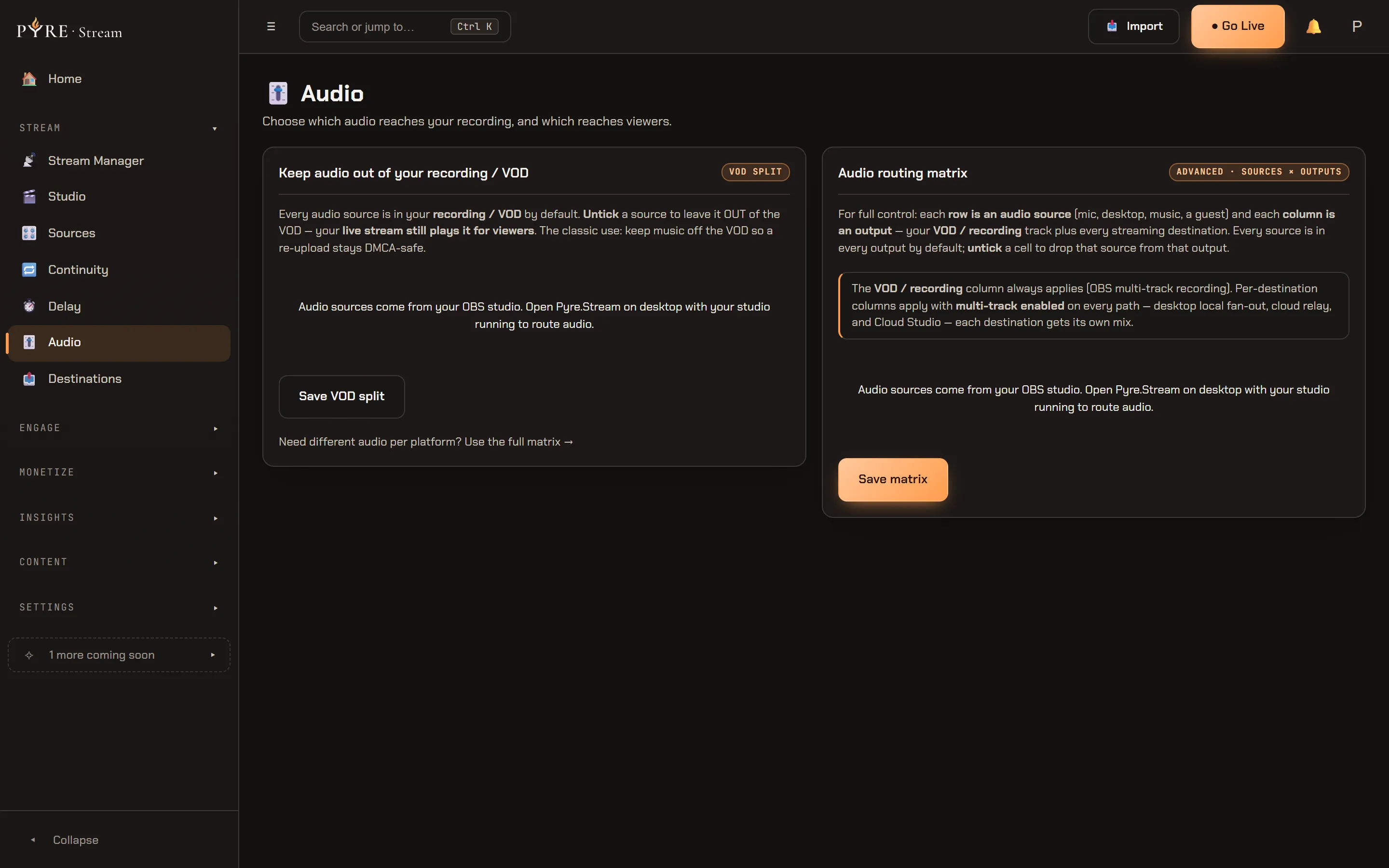
Four blocks sit on it, top to bottom. Keep audio out of your recording / VOD and the Audio routing matrix are two views of one model, so a change in either shows up in the other instantly. Under them, Music & effects holds three small libraries. At the bottom, DMCA / copyright detection is a read only log, and the section on it below is worth reading before you rely on it for anything.
Every source is in everything, until you untick it
Section titled “Every source is in everything, until you untick it”The model is opt out, and it is the whole page. Pyre never asks you to add an audio source or to tick it into an output. Your audio sources are your studio’s own audio inputs, listed for you, and every one of them reaches every output already: your recording, and each streaming destination. You only ever untick.
That means an untouched page is a working page, and a source you add in your studio tomorrow arrives in the mix rather than silent.
Keep audio out of your recording / VOD
Section titled “Keep audio out of your recording / VOD”The first card is the common case on its own: one checkbox per audio source against your recording. The card says what unticking does:
Every audio source is in your recording / VOD by default. Untick a source to leave it OUT of the VOD — your live stream still plays it for viewers. The classic use: keep music off the VOD so a re-upload stays DMCA-safe.
-
Find the source you want out. Rows carry the friendly name of each input. Hover one and the tooltip shows the raw name your studio knows it by, which is what routing actually uses.
-
Untick it. The matrix below updates in the same moment, because the VOD column there and this checklist are the same cell drawn twice.
-
Press Save VOD split. Nothing on this page saves on its own. Both Save buttons write the whole set of exclusions, so it makes no difference which one you press.
Live viewers still hear the source. What changes is the recording, and any re upload made from it.
Which paths can do it
Section titled “Which paths can do it”The recording column always applies, because it is OBS multi track recording doing the work. Per destination columns need multi track, and the page names the paths that carry it:
The VOD / recording column always applies (OBS multi-track recording). Per-destinationcolumns apply with multi-track enabled on every path — desktop local fan-out, cloudrelay, and Cloud Studio — each destination gets its own mix.That note is server driven rather than hardcoded: when your ingest reports more than one audio track, it disappears rather than sitting there contradicting a feature that now works.
One consequence worth knowing before you build a per destination mix: a multi track broadcast is a named exclusion for stream delay. Different audio per destination and a delay are not available on the same stream today.
The audio routing matrix
Section titled “The audio routing matrix”The second card is the same model with every column shown. Each row is an audio
source (a mic, desktop audio, music, a guest) and each column is an output: the
VOD / recording track first, then one column per destination you have set up on
Destinations. A destination with no label shows its platform
name.
Untick a cell to drop that source from that output. A wide grid scrolls inside the card rather than widening the page.
Under the grid, one line reports what your ticks cost:
This matrix compiles to 3 OBS audio tracks.
That number is not decoration. Each distinct mix becomes one OBS audio track, and OBS carries six. Two outputs that want the same set of sources share a track, which is why the count grows with distinct mixes rather than with destinations. The assignment is deterministic: track 1 is always the full live mix, and the music free VOD mix lands on track 2 whenever it differs from it.
Rows for sources that are gone
Section titled “Rows for sources that are gone”Rows persist. When your studio reports its inputs and a saved row matches none of them, Pyre has to decide whether you deleted that source or simply have another scene collection loaded, and it decides by what the row carries.
- A row with no exclusions holds no decision of yours, so it is removed quietly and comes back on its own if the source returns.
- A row with exclusions holds your mute decisions, so it is never removed for you.
It is flagged Missing in OBS in both cards, and gets its own
✕ Removein the matrix. The hover text spells out the trade:
Not in your current OBS — it may live in another scene collection, or you deleted it.Its VOD/mute settings are kept until you remove it; removing forgets them. It comesback on its own if the source returns.When at least one row is flagged, a Remove all missing (N) button appears beside Save matrix, with the count in its label. There is no confirmation, because the only thing lost is those rows’ own VOD and mute settings, and the rows return the moment their sources do.
Nothing is ever flagged from an empty answer. If your studio is not running, or you are on the web, Pyre knows nothing about your inputs and says nothing about them rather than declaring every row missing.
Music & effects
Section titled “Music & effects”Three tabs, and none of them is where viewer song requests live. If you are looking
for !sr, the queue, or how music reaches your stream as an audio input, that is
Songs and media.
Two cards. Library carries a DMCA-safe catalog badge and one line of guidance,
Tracks here are cleared for stream. Pair with the audio split above so music stays off your VOD. Each track lists its artist and a pill reading either DMCA-safe or not cleared.
Be aware of what fills it. The catalog is a mirror of a partner catalog, and no partner
is chosen, so the mirror is empty and the tab says so: No tracks yet. The DMCA-safe catalog lists here once connected. The sync endpoint behind it answers
music_catalog_not_configured until one is wired. Nothing licensed ships with Pyre
today.
Playlists takes a name and a Create button, and lists what you have made with a
track count each. With an empty catalog there is nothing to put in one yet, and the card
says No playlists yet. Create one to queue music for your stream.
Soundboard
Section titled “Soundboard”New sound takes three fields: Label (for example Air horn), Audio file,
which is an http(s) URL to the sound and is validated as one, and an optional
Hotkey such as ctrl+1. The help under it reads Plays from the desktop app or your deck. The Soundboard card beside it lists what you have added, each with its
hotkey pill and a Remove.
Two honest limits. There is no upload field here, so the audio file has to be a URL you already have. Uploads happen in exactly one place product wide, the media library covered in Overlays, widgets and media. And this page holds configuration only: it has no play button, and no shipped trigger of its own. Treat the Soundboard tab as the list your sounds live in, not as a pad you perform on.
Stingers
Section titled “Stingers”New stinger takes a Label and an Asset URL, with the same http(s) rule, and
the note Stingers fire as scene transitions on your overlay. The Stinger library
beside it lists them with a Remove each.
The same limit applies as for the soundboard: this tab is the library. Nothing on the Audio page fires one.
DMCA / copyright detection
Section titled “DMCA / copyright detection”The last block is a read only log, and Pyre is deliberate about what it claims. Its heading carries a detection only badge, and the first line under it is:
We fingerprint your program audio and flag recognised copyrighted tracks so you can react. We flag, we never take anything down. Pair this with the audio split above so music stays off your VOD.
Read the whole of that sentence. Even at its most capable, this is a signal to you. It does not mute anything, it does not adjudicate anything, and it takes nothing down. The audio split above is the part that actually keeps music off a VOD, and it is a decision you make, not something this log makes for you.
It is not listening today
Section titled “It is not listening today”The second line is the one that matters right now, and it is on the page for a reason:
No fingerprinting provider is connected yet, so nothing is being matched. An empty list below means we are not listening, not that you are clear.
That is accurate to the code. The fingerprint provider is pluggable and the shipped
default recognises nothing, in every deployment, so no audio is ever matched and no flag
is ever written. The empty list reads No copyright matches detected. Recognised tracks in your audio will be flagged here. and is deliberately worded so it cannot be mistaken
for a clean bill of health.
So: do not treat an empty log as evidence that your stream carries no copyrighted music. Nothing about this feature protects you from a claim today, and nothing about it will mute a track for you even when a provider is wired. Your protection is the music you choose and the VOD split you set at the top of this page.
When a provider is connected, matches will arrive from the cloud studio pod, where your
program audio already is, and each row will show the track title, the artist and a
confidence such as 87% match, with a flagged badge. No audio is stored at any point
in that path, only the match details.
Troubleshooting
Section titled “Troubleshooting”Both cards say audio sources come from my OBS studio. No studio has reported its inputs to Pyre yet. Open the desktop app with your studio running, then press ↻ Refresh sources in the page header. See the caution above for why a cloud only setup hits this.
I unticked a source and nothing changed. Press Save VOD split or Save matrix. The checkboxes edit a model in the page, and neither card writes until you save.
I added a source in OBS and it is not in the list. Press ↻ Refresh sources. The page reads your inputs when it loads and when you navigate back to it, not continuously.
A source I deleted months ago is still listed. It carries exclusions, so Pyre kept it
rather than throwing your mute decisions away. Use its ✕ Remove, or Remove all
missing (N) to clear every flagged row at once.
The same source appears twice. Older versions of the page could fork a row when your studio rebuilt its scenes under new internal names. Pyre now matches on the stable part of the name and heals duplicates on its own, merging the exclusions onto the surviving row so a merge can never quietly unmute something you had muted. Reload the page with your studio running.
The music library is empty. That is its shipped state. See the Music tab above.