
The Stream Manager
Stream Manager is the one page to keep open while you are on air. Everything on it is something you might need to do or see during a stream. Setup lives on the other pages, deliberately, so that the page you are looking at while live stays small enough to read at a glance.
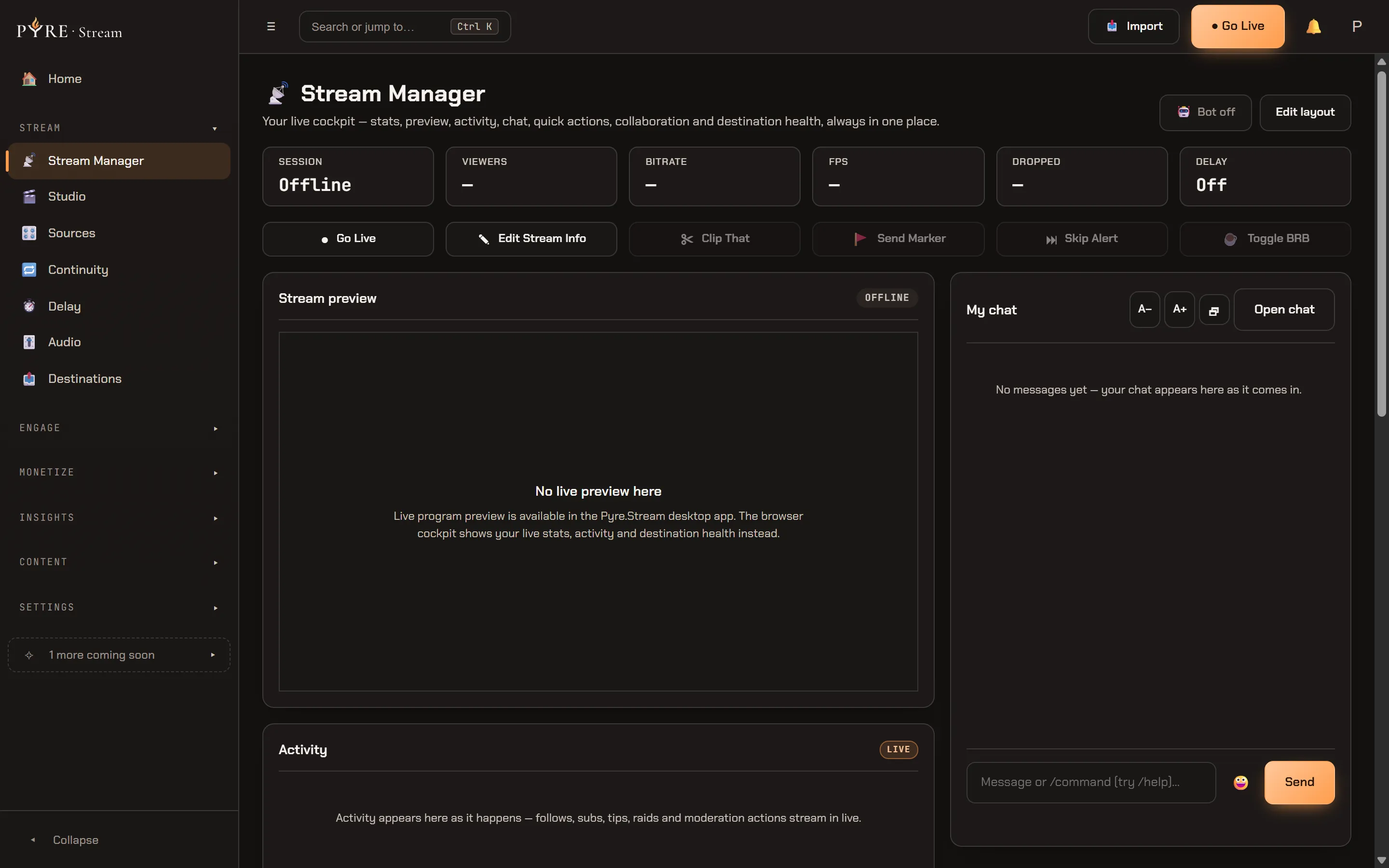
What is on it
Section titled “What is on it”The stat bar. Six chips across the top: Session, Viewers, Bitrate, FPS, Dropped and your delay.
Quick actions. A row of tiles for the things you do mid stream: Go Live, Edit Stream Info, Add delay, Clip That, Send Marker, Skip Alert and Toggle BRB. The Go Live tile reads Stop once you are live, and Add delay becomes Adjust delay when one is running.
My chat. Your merged chat across the platforms you are connected to, with moderation in reach and a send box.
The cards. Stream preview, Activity, Music, Text to speech, Destination health, Live settings, and, in the desktop app, your OBS video settings and bonding link health. Use Edit layout to rearrange and resize them; your arrangement is yours and it persists.
Live settings is where your stream mode lives
Section titled “Live settings is where your stream mode lives”One of those cards is not like the others. Live settings is the one place your stream mode is chosen, and it says so itself:
Choose how you broadcast. This is the single source of truth for your stream mode — Studio, the topbar Go Live, and Quick actions all follow it. Switch while you’re offline; it locks while live.
It is two dropdowns, Fan-out and Mobile / compositing, with a Resolved mode line under them naming what the pair adds up to. What each mode does, and what happens when you ask for a pair that cannot exist, is in Stream modes.
Two things are worth knowing before you need them. The card locks while you are on
air: Mode is locked while you’re live. End the stream to change it. And the
Studio page’s two tabs are editors rather than this choice, however similar
their names look, which is covered in
The Studio and your scenes.
Reading the numbers honestly
Section titled “Reading the numbers honestly”Bitrate is your source, not your total. The chip shows the bitrate of the encode you are producing, not the sum of what goes out to every platform. Sending 6 Mbps to three destinations is 6 Mbps on this chip, not 18. Per destination bitrate lives in the Destination health card, which is where you want it when one platform is having a bad night.
Viewers can honestly say it does not know. The chip sums live viewers across your destinations, and shows a dash when there is nothing real to show: when you are offline, when you have gone live locally with no cloud relay session, or for a platform with no viewer API. Pyre would rather admit it has no number than invent one.
During a stream
Section titled “During a stream”- A destination drops. Pyre reconnects it without ending the others. The Continuity page is where you decide the order Pyre falls back through your inputs, and what viewers see when it runs out of them: the reconnect card is the last resort in that list.
- You need a moment. Add a delay rather than ending the broadcast. The tile is hidden entirely when no Pyre studio is in the path, because an offer you cannot accept is worse than no offer.
- You want the clip. Clip That captures from the live stream, and the clip appears on the Clips page.
After a stream
Section titled “After a stream”Press the Go Live tile again, which now reads Stop. If a delay is running, Pyre plays out the remaining buffer so your viewers see your ending, and only then closes the broadcast. That is covered in Add a delay mid stream.