
Clips
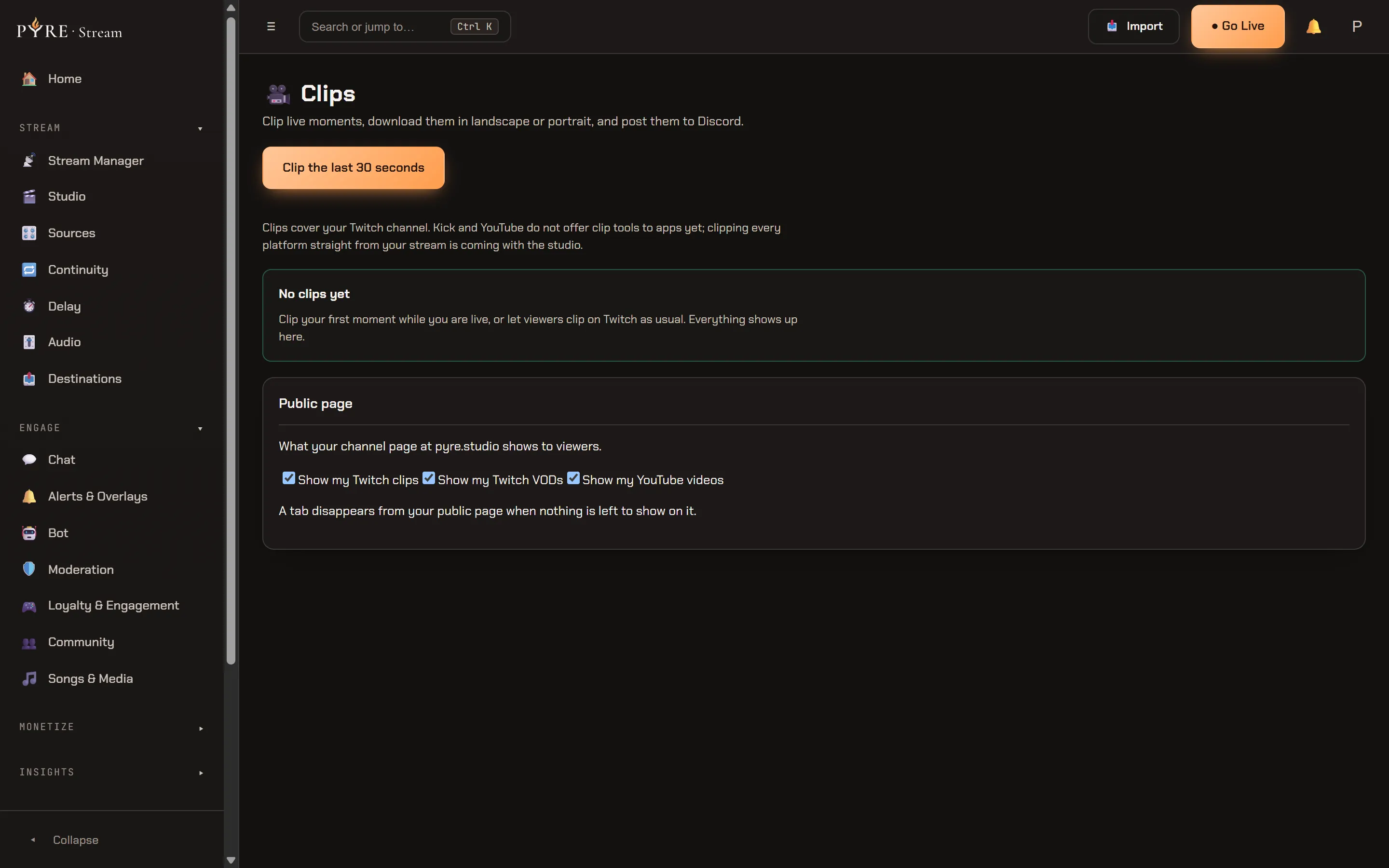
Clips is one page with no sub tabs, and it is the front door to your whole clip
library: the ones you make, the ones your viewers make on Twitch, and the ones chat
makes with !clip. The header says what the page is for, Clip live moments, download them in landscape or portrait, and post them to Discord.
Everything here is your Twitch channel. If you also have Kick or YouTube connected, the page says so once rather than leaving you wondering:
Clips cover your Twitch channel. Kick and YouTube do not offer clip tools to apps yet; clipping every platform straight from your stream is coming with the studio.
That is not a setting waiting to be switched on. Neither platform offers clip tools to applications in either direction, so there is nothing for Pyre to connect to.
What the page needs from Twitch
Section titled “What the page needs from Twitch”The page asks Twitch what you can do right now and renders that answer, rather than guessing. Two states get a card of their own.
Not connected. The page shows Connect Twitch to use clips, with the line
Clips are created and hosted by Twitch, so this page needs your Twitch connection.
and a Connect Twitch button.
Connected but missing a newer permission. A banner reads:
Twitch added new permissions Pyre needs for schedules and clips. Reconnect Twitch to keep everything working.
with a Reconnect Twitch button. It is the same sentence the dashboard’s own reconnect nudge uses, deliberately, so you never have to work out whether they are two different problems.
That second state is worth understanding, because it does not disable the page. Creating a clip needs only the older permission every Pyre account has always had, so Clip the last 30 seconds keeps working on an old connection. Downloading is what needs the newer one. If your Download menu turns into that reconnect message while the create button is happily making clips, this is why.
The library
Section titled “The library”The grid holds your clips from the last 30 days, up to fifty of them, newest first. There is no filter and no sort control on this page.
Each card carries the thumbnail with the clip length over it, the title, the view count, how long ago it was made, and one chip saying where it came from:
| Chip | What it means |
|---|---|
You clipped this | Pyre made this clip, from this page or from chat |
Clipped on Twitch | Twitch reported it, so a viewer made it or Pyre did not stamp it |
Both kinds get exactly the same actions. The chip is attribution, not a capability.
A clip Twitch has not finished settling shows a Processing chip in place of a
thumbnail, with the line Twitch is processing this clip. It shows up here in under a minute. Its link already works while that is showing.
An empty library says No clips yet, and names the two ways it fills: Clip your first moment while you are live, or let viewers clip on Twitch as usual. Everything shows up here.
Making a clip
Section titled “Making a clip”From this page
Section titled “From this page”One button, labelled Clip the last 30 seconds, sits at the top. Beside it, a live
chip reads Live for 2h 14m when you are on air, taken from the same broadcast state
the top bar polls, so the two can never disagree.
-
Go live. Twitch refuses to clip an offline channel, so this is not optional.
-
Press Clip the last 30 seconds. Anything Twitch already has buffered becomes the clip. There is no start or end picker: choosing an end point without seeing the video is guesswork, so Pyre ships one action instead.
-
Watch it arrive. The library refreshes itself. A brand new clip lands as a Processing card and fills in within about a minute.
If Twitch says you are not live, the note Available while you are live. appears
beside the button and the button waits until the live poll says otherwise. Pyre never
disables the button on its own guess: Twitch’s answer is the authority.
Six creates a minute is the ceiling. Past that the page answers Twitch is rate limiting us. Try again in a minute. and the limit clears itself.
From the Stream Manager cockpit
Section titled “From the Stream Manager cockpit”The cockpit carries a Clip That quick action, so you never have to leave the live
view. It is greyed out until you are live, with the tooltip Available while live,
and on success it raises a toast naming the platform and carrying the clip link.
The theater
Section titled “The theater”Clicking a card opens it in a lightbox over the page, and that is the only place a player is ever built. The grid holds thumbnails: a library of twenty live players would be both the wrong experience and twenty third party players painting at once. Closing the theater destroys the player again, so at most one exists at a time.
Playback is Twitch’s own embedded player, always. This is not a preference. Twitch’s developer agreement requires their embeddable player for all Twitch video content, so Pyre never renders clip video in a player of its own, on any surface, including your public page. The test suite asserts it.
Close, the Escape key and a click on the backdrop all close the theater, and focus returns to the card you opened. The theater’s own action bar carries the same three actions as the card.
Copy link
Section titled “Copy link”Copy link puts the clip’s public watch page address on your clipboard, and the
button says Copied for a moment so you know it took. If your browser refuses the
page clipboard access, nothing is lost silently: use the theater and the address bar,
or the clip’s page on Twitch.
Download
Section titled “Download”Download opens a small menu with two items and a footnote:
- Landscape,
The clip as streamed, 16:9. - Portrait 9:16,
Made by Twitch for phones. No rendering, no waiting. Both files come straight from Twitch; Pyre stores nothing.
The portrait cut is the point of this menu. Twitch renders a native 9:16 version of every clip and hands it over, so the vertical file you would post to a phone feed costs no render, no queue and no wait. Pyre does not re encode anything.
Both links are temporary, which is why the menu resolves them the moment you pick one instead of showing them on the card. If the newer Twitch permission is missing, the menu is replaced in place by the reconnect message and its button, and nothing opens. A message that stays put beats a toast that vanishes before you have read it.
Only clips in your own library resolve. Any other id looks the same from here as a clip that does not exist.
Post to Discord
Section titled “Post to Discord”Post to Discord opens a composer under the clip. It is a social post whose body
carries the clip link, which is exactly what it should be: Discord unfurls a
clips.twitch.tv link into a player by itself, so nothing has to be uploaded
anywhere.
-
Press Post to Discord on the card or in the theater. The Message box comes prefilled with the clip title on one line and the link under it.
-
Choose where it goes. Under Where to post, every channel you have set up is ticked by default. Untick the ones you do not want.
-
Press Post now. The composer is replaced by
Posted. It lands in Discord in a moment.
If you have no channel set up yet, the composer is not a disabled button. It shows
No Discord channel is set up yet. and a link reading Set one up in Schedule and Social, because channel setup has one front door and a dead control here would be a
second one.
What is configurable, and where
Section titled “What is configurable, and where”Nothing about a Discord destination is configured on this page. Channels, their webhook URLs, their triggers and your go live announcement all live on the Schedule & Social page, under Where announcements go, and that page is documented in full in the bot guide’s Schedule and social. A channel you add there becomes a tick box here immediately.
The clip composer sends as soon as the dispatcher sees it rather than on a schedule. Its refusals come from the social route’s own vocabulary, so they read the same way they do on the Schedule & Social page:
| What you see | What happened |
|---|---|
Write something to post. | The message was empty |
That message is too long for Discord. Shorten it and try again. | Over Discord’s limit |
Pick at least one place to post. | Every channel was unticked |
That post is already on its way, so it cannot be changed. | The dispatcher already picked it up |
Could not schedule the post. Try again. | Anything else |
Posting is a Pyre.Stream action only. The Pyre.Bot portal’s clips page offers Copy link and Download but no Post button, precisely because the posting configuration lives here and one setting gets one front door.
The Public page card
Section titled “The Public page card”Under the library sits a Public page card, the one place you decide what your
public channel page shows. Its subtitle is What your channel page at pyre.studio shows to viewers. and it holds three switches:
| Switch | Feeds |
|---|---|
| Show my Twitch clips | the Clips tab on your public page |
| Show my Twitch VODs | the Twitch half of the Videos tab |
| Show my YouTube videos | the YouTube half of the Videos tab |
All three are on by default, and each one saves on its own the moment you flick it. If a save fails the switch goes back to what it was rather than lying about what your page is doing. A platform you have not connected gets no row at all, because a switch over a channel that does not exist teaches the wrong thing.
Under the switches, one line explains the effect: A tab disappears from your public page when nothing is left to show on it. Tabs on the public page are hidden, never
greyed out, so turning a switch off removes the tab rather than leaving an empty one.
What viewers actually see at pyre.studio/s/your-handle: the Clips tab carries up
to twelve Twitch clips, most viewed first, and the Videos tab up to twelve items,
newest first, made of your Twitch archives and highlights plus your YouTube uploads.
The two halves of Videos are independent, so one platform having a bad day still
leaves the other rendering. An off switch costs nothing at all, because Pyre reads the
setting before it calls the platform rather than filtering afterwards.
What Pyre keeps
Section titled “What Pyre keeps”Metadata, and only metadata. The clip library stores the title, the link, the thumbnail address, the length, the view count and when it was made. There is no media column and no download URL column, and there is not going to be one: download links expire by design, and Twitch’s agreement gives one narrow storage allowance that Pyre does not need.
A resolved download link is handed to your browser and goes nowhere else. Not the database, not a log line, not an event. Your library is a cache of Twitch’s truth, not an archive.
Clipping from chat
Section titled “Clipping from chat”!clip is the same library’s other front door. Chat makes a clip, the bot posts the
link back, and the clip appears in the grid here like any other.
It is documented in full in the bot guide’s Clips page, including every refusal chat can read. The claims that matter here:
!clipis Twitch only. Typed in a Kick or YouTube chat it answers once, plainly, and checks nothing else.- The default level is moderator. It is a bot command like any other, so you can change the required level on its row under Commands, and the same row’s switch turns it off.
- A level refusal is silent. A viewer below the level gets no reply at all, which is how every level refusal in the Pyre bot behaves.
Troubleshooting
Section titled “Troubleshooting”Download is greyed out or shows a reconnect message. Your Twitch connection predates the permission downloads need. Press Reconnect Twitch on the banner. Creating clips keeps working in the meantime.
The theater is a black box. The player is Twitch’s, and something in the browser is blocking it. Use Copy link and open the clip on Twitch.
A new clip is missing. It arrives as a Processing card first, and the library refreshes when the page loads. Reload the page.
The create button will not press. Twitch has said the channel is not live. The note beside the button says so, and it clears itself when the live poll catches up.
Post to Discord offers no channels. None are set up. Follow the link on the composer to Schedule & Social, add a channel there, and it appears here.
A clip I made from the cockpit says Clipped on Twitch. Expected. See the caution above.