
Getting started with Pyre.Chat
Pyre.Chat merges chat from many channels into one readable view, with the moderation actions you already have on each platform available in place.
Who it is for
Section titled “Who it is for”You moderate for other people, you run a mod team, or you follow several streamers and are tired of five browser tabs. If you are the one going live and you only want your own channels merged, that is built into Pyre.Stream and you do not need Pyre.Chat for it.
Set it up
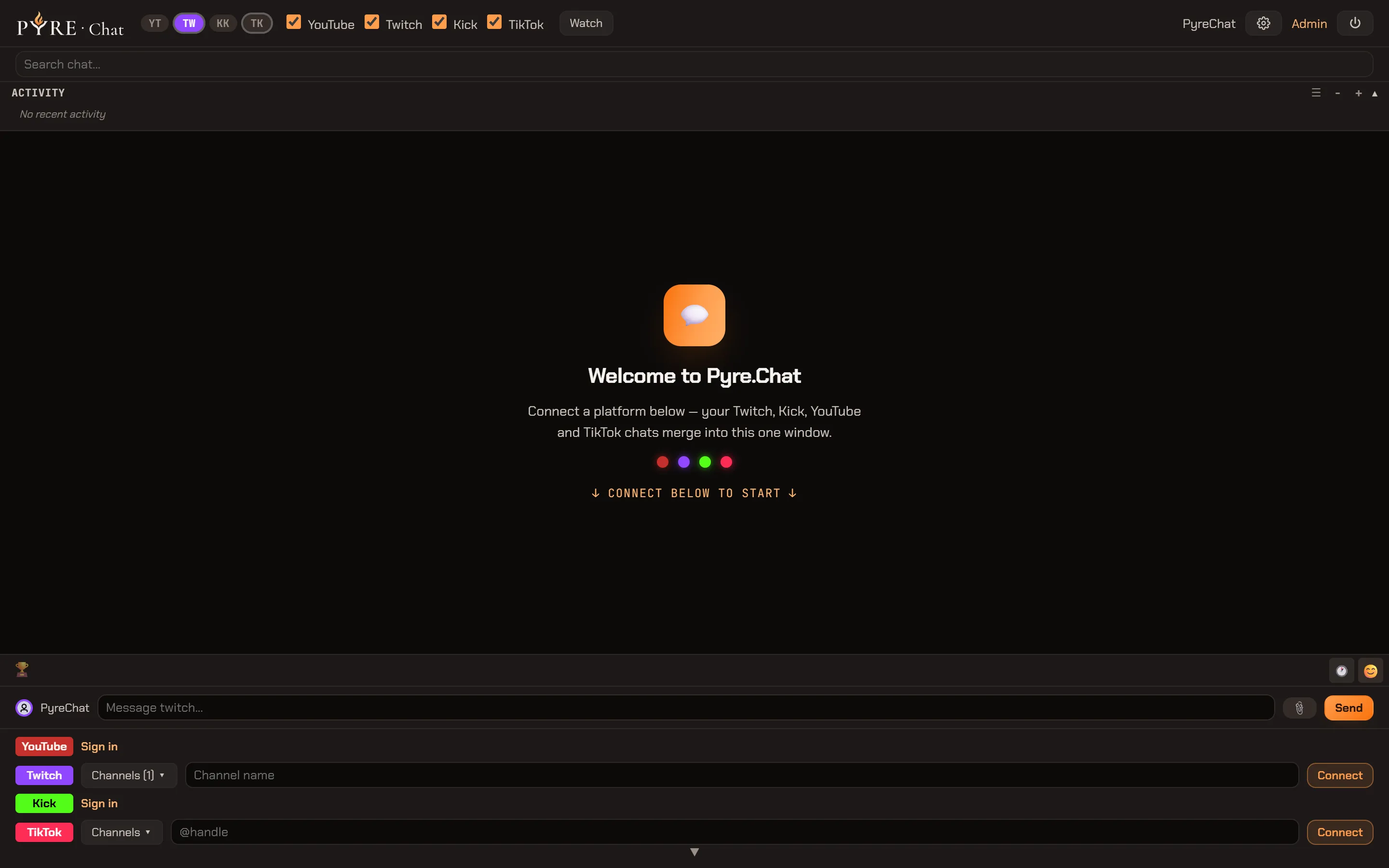
Section titled “Set it up”Everything in this section happens in the connect panel at the bottom of the page: one row per platform, YouTube, Twitch, Kick and TikTok. An empty Pyre.Chat says so in as many words, with an arrow pointing down at it: Connect below to start. A chevron button collapses the panel once you are set up.
-
Go to pyre.chat and sign in.
The same Pyre account works here, at pyre.stream and at pyre.bot. Signing in on one of them signs you in on the others without a second prompt.
-
Connect a platform.
Every platform row has its own Sign in link, so you can authorise a platform without leaving the panel. The same connections also live under Settings, in Platform Accounts, which is where you go to check a platform’s state or re-authorise a stale one.
Do this first either way: Pyre.Chat reads chat using your platform account, so a platform you have not connected has no channels you can add. See Connect your channels.
TikTok is the exception. Its row has no Sign in link because it needs no account at all.
-
Add your first channel.
Each row has a Channels menu. Open the one you want, type the channel in the add row at the bottom of the list, and choose Add. Twitch wants a channel name, Kick wants a channel slug, YouTube wants a handle or a channel URL, TikTok wants a handle.
On Twitch, channels you already moderate are listed for you, so most of the time there is nothing to type.
Each row also has a plain text box beside its Channels menu, for connecting one channel right now without saving it to the menu. Its placeholder tells you what that box wants, and it is not always the same thing as the menu’s add row: on YouTube the menu takes a handle or a channel URL, while the box takes a video id or a chat id.
-
Add the rest. Everything you add lands in the same merged feed and the same search.
Then read it
Section titled “Then read it”The header carries a checkbox per platform, so you can mute one source without disconnecting it, and a running message counter. Search, badges, keyword highlights, the Activity panel and emotes are all covered in Read the merged feed.
Moderation is on the message itself: right-click it, or select it and press a key. Moderate from the feed has the full menu, the shortcuts, and which actions reach which platform.
What TikTok can and cannot do
Section titled “What TikTok can and cannot do”TikTok is read-only in Pyre.Chat. Its chat merges into the feed like any other, and its gifts and follows show up in the Activity panel, but there is no send box for TikTok and no moderation reaches it. TikTok exposes neither to an app. Moderate from the feed spells out the trap this creates.
One feed, not a wall of columns
Section titled “One feed, not a wall of columns”Every channel you add writes into a single chronological feed, tagged by platform and channel. That is the point of the product: you read one conversation instead of watching five. The layout controls in the app arrange the video beside or above the chat, and mosaic mode tiles multiple streams, but the chat itself is always one merged column.
Where it runs
Section titled “Where it runs”- In a browser at pyre.chat.
- As a browser extension, which replaces the chat panel on Twitch, Kick and YouTube with your merged Pyre feed, styled to match the site it sits in. It is on the Chrome Web Store today, and the in-app Extension page links the listing. Firefox is coming.
- As a desktop app, a chat-only shell with no streaming engine in it. It is Windows only for now, and it adds a tray icon, native notifications, launch at startup and an always on top compact dock.
The desktop installer is at pyre.chat/download, and the Desktop app card in Settings links straight to it.