
Settings reference
Settings is one long panel rather than a page with tabs, so this reference runs in the same order the panel does. The cards above the divider are the app: your platform connections, how chat looks, what makes a sound. The cards below it are your Pyre account.
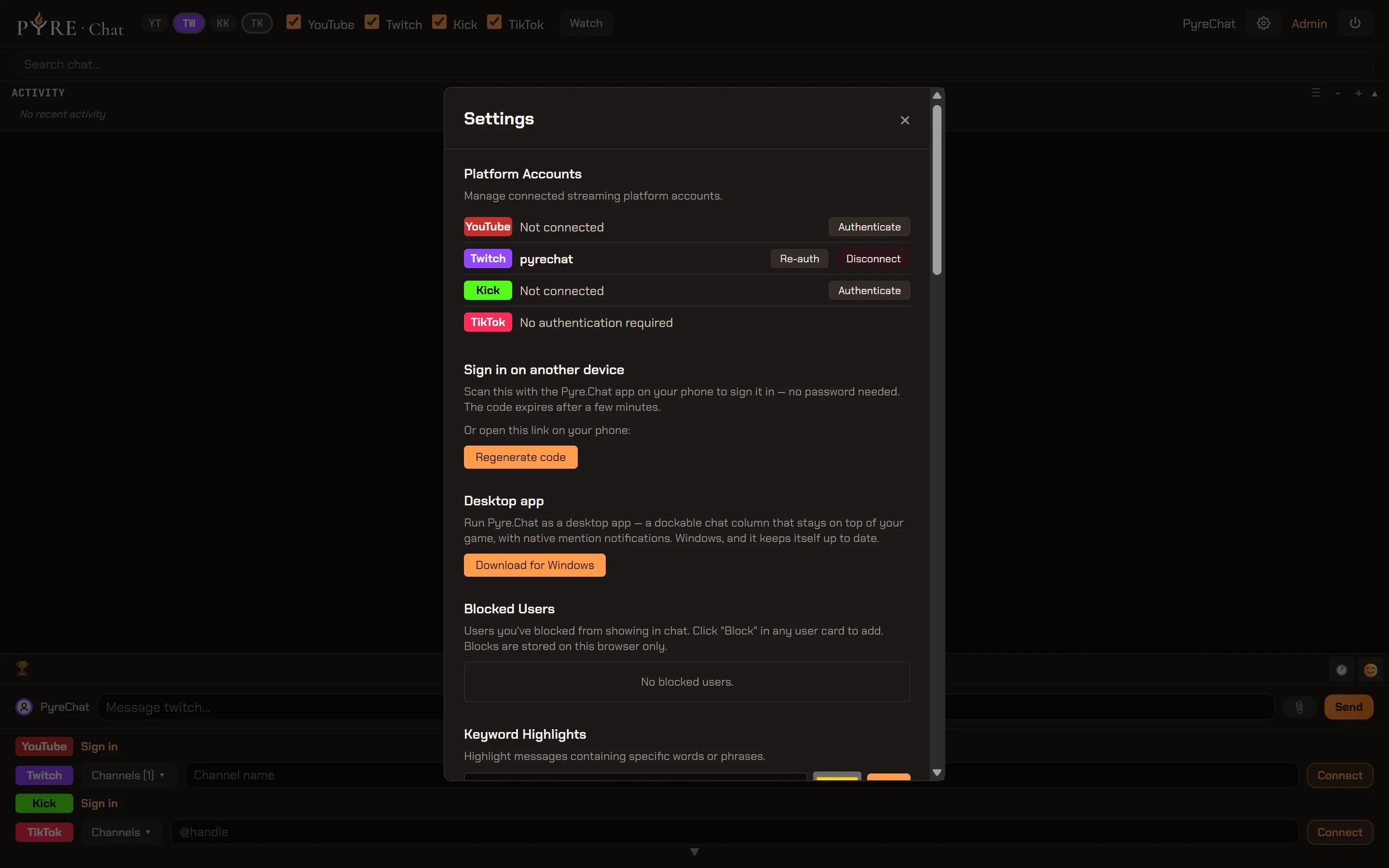
The app
Section titled “The app”Platform Accounts
Section titled “Platform Accounts”Every platform Pyre.Chat can read, with the state of your connection to it.
- Not connected with an Authenticate button. Choosing it opens that platform’s own login in a popup, and the list refreshes itself when the popup closes.
- Connected, showing the account name, with Re-auth and Disconnect. Re-auth sends you back through the platform’s login, which is the fix for an expired or revoked authorization. Disconnect asks you to confirm, then drops Pyre’s access to that account.
- TikTok reads No authentication required and has no buttons, because TikTok chat needs no account of yours at all.
What connecting a platform actually grants, and why reading is never anonymous, is in Connect your channels.
Sign in on another device
Section titled “Sign in on another device”A QR code, a countdown, and the same address written out as a link you can copy. Open that link in a browser on the other device and it signs in there, with no password typed on that device. The code expires after a few minutes; Regenerate code issues a fresh one.
Desktop app
Section titled “Desktop app”The download for the Windows desktop app: a dockable chat column that stays on top of your game, with native mention notifications, kept up to date automatically. Download for Windows always resolves to the current version. See The desktop app.
Blocked Users
Section titled “Blocked Users”Everyone you have blocked from appearing in your chat, with the block added from the Block button on any viewer card.
These blocks are stored on this browser only. They are not part of your Pyre account, so a different browser, a different machine or the desktop app each keep their own list, and clearing site data clears them. This is a personal reading filter, not a moderation action: nobody is blocked on the platform, and nobody else sees the effect.
Keyword Highlights
Section titled “Keyword Highlights”Words or phrases that should stand out in the feed, each with a colour you pick. Add a keyword, choose the colour, and messages containing it are highlighted wherever they land in the merged feed. A keyword hit can also make a sound or raise a notification, which the next two cards control.
Chat Appearance
Section titled “Chat Appearance”Three sliders, all of which take effect immediately:
| Control | Range | Default |
|---|---|---|
| Text Size | 10 to 22 pixels | 13 |
| Input Field Size | 12 to 26 pixels | 14 |
| Activity Panel Events | 1 to 20 events | 5 |
Text Size has a live preview underneath it, a single sample message rendered at the size you are dragging to, so you can pick a size without closing Settings to check. Input Field Size is separate on purpose: the box you type in can stay comfortable while the feed itself goes small. Activity Panel Events is how many recent events the activity panel keeps on screen.
Audio Alerts
Section titled “Audio Alerts”Two independent switches, both off by default:
- Play sound on @mention
- Play sound on keyword highlight
If mentions are arriving but silently, this card is almost always the answer. The sound is generated by the browser, so nothing needs downloading, but browsers will not play audio until you have interacted with the page at least once.
Desktop notifications
Section titled “Desktop notifications”One switch, off by default, covering both mentions and keyword hits. Notifications fire only while the window is hidden or in the background, which is the case they exist for.
In a browser, turning this on asks the browser for permission. Refuse it, or have refused it before, and the switch turns itself back off and tells you to allow notifications for the site. The desktop app needs no prompt: it grants itself that one capability, so the switch simply works.
Export Chat
Section titled “Export Chat”Export Chat Log (JSON) downloads what is currently in your session as a JSON file. It is the whole export surface: one button, one format.
Keyboard Shortcuts
Section titled “Keyboard Shortcuts”Not settings, a reminder. Click a message to select it, then:
| Key | Action |
|---|---|
| D | Delete message |
| T | Timeout 10m |
| B | Ban user |
| Esc | Deselect |
These run as you, on the platform, with the powers you already hold there. See Moderate from the feed.
Your account
Section titled “Your account”Account
Section titled “Account”Your account details, plus two changes that each need your current password:
- Change Email, which takes the new address and your current password.
- Change Password, which takes the current one and a new one of at least 8 characters.
Billing
Section titled “Billing”Billing opens your account’s billing page.
Two-Factor Authentication
Section titled “Two-Factor Authentication”Whether a second factor is on for your Pyre account, and the setup flow to turn it on. It protects the Pyre login itself, not your platform accounts, which keep whatever protection you have set on each platform.
Sessions
Section titled “Sessions”Every session currently signed in to your account. Revoke All Other Sessions ends all of them except the one you are using, which is what to reach for after signing in somewhere you no longer trust. The desktop app holds a session of its own, so revoking everything else signs the app out too.
Login History
Section titled “Login History”A record of sign-ins to your account. Read it when something looks wrong; there is nothing to change here.
Delete Account
Section titled “Delete Account”Permanent, and confirmed with your password. Your account and its data are deleted. There is no undo and no grace period, so treat this card as the last thing on the page rather than a way to take a break.
When Pyre needs new permissions
Section titled “When Pyre needs new permissions”Separately from Settings, a Platform Update Required window can appear when you open the app. It means Pyre now asks a platform for something it did not ask for when you connected, usually because a feature shipped that needs a permission your existing authorization does not carry.
It lists only the platforms that are actually behind, each with a one line reason saying what the new permission is required to do, and a Re-authenticate button that sends you through that platform’s login again. Nothing else about your connection changes.