
Sending messages and using emotes
Reading many chats at once is only half of Pyre.Chat. Talking back is the other half, and because a merged view has no single “current chat”, the send side is built around one deliberate rule: you always send to a named channel, never to whatever happened to scroll past.
The input rows
Section titled “The input rows”Under the chat you get one input row per connected platform, and each row is labelled with the channel it will send to. Rows exist for YouTube, Twitch and Kick only. TikTok has no row: Pyre.Chat reads TikTok, it does not talk there.
If a platform has more than one connected channel, the row carries a dropdown and you pick the channel. Your choice is remembered by channel identity rather than by position, which matters more than it sounds: the input panel gets rebuilt whenever the connected channel set or a display name changes, and remembering by identity is what stops a rebuild from quietly dragging your send target back to the top of the list.
Press Enter to send, or use the Send button. A half typed message survives a rebuild too, so a background refresh cannot eat a draft.
Pin a channel to its own row
Section titled “Pin a channel to its own row”Rotating a dropdown gets old if you talk in two channels on the same platform. Where a platform has more than one connected channel, the row shows a pin button titled Pin channels as dedicated inputs. Tick a channel there and it leaves the dropdown and gets a permanent row of its own, avatar, label and all.
Pins are saved to your account, so they come back next time, and a pin for a channel you later disconnect is cleaned up rather than left behind as a dead row.
Autocomplete
Section titled “Autocomplete”Both kinds of autocomplete live in the input itself:
- Type a colon and at least one letter, like
:Kappa, to complete an emote. - Type
@to complete a name from the people who have recently talked.
Either list shows up to eight matches. Arrow up and arrow down move through them, Tab or Enter accepts the highlighted one, and Escape dismisses the list without sending. While the list is open, Enter accepts rather than sends, so you cannot fire off a half finished emote name by reflex.
Emote autocomplete is scoped to the row you are typing in: it offers the emotes that actually exist in that channel, not every emote Pyre has ever loaded.
The emote bar
Section titled “The emote bar”Above the input rows sits the emote bar. It appears once you have both a connected input and some emotes loaded, and it holds:
- Twelve emotes, either your most recently used or your most used. Click one to drop it into the active input.
- The swap button, which flips between those two lists. The icon shows the list you are currently looking at (a clock for Recent, a flame for Most Used).
- The emote picker button.
- A channel points button, on Twitch, showing your current balance for the active channel.
The channel points button needs the Pyre browser extension, because reading and spending channel points is not something the public Twitch API offers. Without the extension the button is still there and takes you to the install prompt rather than opening a popover that could only ever fail.
Your bar choice, recent against most used, is saved to your account rather than to one browser.
The emote picker
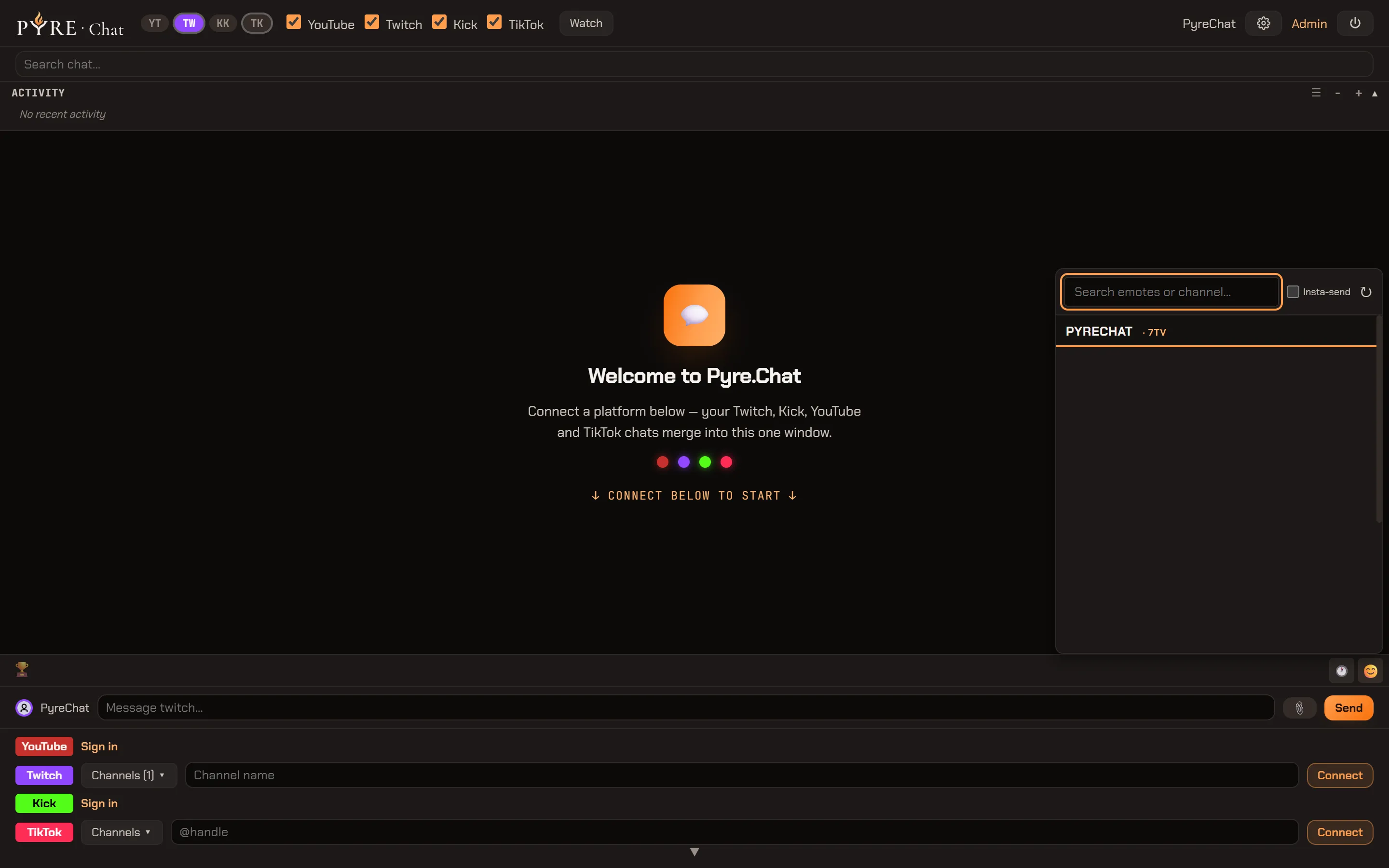
Section titled “The emote picker”The picker opens from the smiley button and gives you everything, searchable.
-
Search at the top matches emote names and channel names. Matching a channel name shows that whole channel’s set rather than filtering inside it.
-
The first group is whichever of Most Used or Recently Used the bar is not currently showing, twenty deep. The bar and the picker deliberately show opposite lists so the two together cover both.
-
Then one group per channel, with the channel you last typed in first and the rest alphabetical. Inside a channel group, emotes are split into sections by where they came from: 7TV, and the platform’s own set under Twitch, Kick or YouTube.
-
Insta-send, a toggle in the picker header, changes what a click does. Off, clicking inserts the emote into your input. On, clicking sends it immediately.
-
The refresh button force reloads every emote set.
Force reload does a real refetch, not a re-render: it drops Pyre’s cached sets, asks the server to fetch every connected channel again, and confirms with a toast naming how many channels came back. Your own recent and most used history is not touched by it, because which emotes you use is not a cache.
Emotes from BTTV are worth one note of their own: Pyre merges the BTTV set into the 7TV set on the server before either reaches your browser, so BTTV emotes appear under the 7TV heading in the picker rather than one of their own. BTTV is Twitch only, because its lookup is keyed on a Twitch account id and has no Kick or YouTube equivalent.
Replies
Section titled “Replies”Twitch messages get a reply button. Press it and a banner appears above your input showing who you are replying to, then send as normal and the message threads under theirs on Twitch.
Replies are Twitch only, so the button appears on Twitch messages and nowhere else. YouTube’s live chat has no native reply to thread against, and Kick is not wired for it either. There is nothing to configure here: the button is present exactly where the feature works.
One thing to watch: the reply attaches only when you send from the Twitch row. If you set up a reply and then type into your Kick or YouTube row, that message goes out as an ordinary message and the reply is cleared.
Clipping from the input row
Section titled “Clipping from the input row”Every Twitch row carries a clip button that clips the last thirty seconds of the stream on the channel that row is currently pointed at. It reports back either the failure the platform gave, or success with the clip editor opening in a new tab so you can trim it while you remember what you were clipping.
When the connection drops
Section titled “When the connection drops”Sending does not fail silently if your connection goes, or if Pyre is mid update. Messages you send are queued instead, and a toast tells you how many are waiting. When the connection comes back, the queue drains automatically and you get a Queued messages sent confirmation.
The delay is short but it is real, so a queued message can land a moment after the conversation moved on. If a message was time sensitive, check it landed where you meant it to.
Troubleshooting
Section titled “Troubleshooting”- No input row for a platform. Pyre only builds a row for a platform with at least one connected channel. See Connect your channels.
- No row for TikTok. Expected. TikTok is read only in Pyre.Chat.
- No pin button. It only appears where a platform has more than one connected channel, since pinning the only channel would change nothing.
- The emote bar is missing. It hides itself when there is no input row, or when no emotes have loaded yet. Try the picker’s refresh button.
- The channel points button does nothing useful. It needs the browser extension. Without it, the button leads to the install prompt.
- Your emote sent as plain text. If it went to Kick, see the caution above. If it went elsewhere, the emote probably does not exist in the channel you sent it to: emotes are per channel, and the picker lists every channel’s set.
- Your reply arrived as a normal message. You sent it from a row that was not the Twitch row.